4.1 Basic Operation
126
4.1.2 Operation Buttons
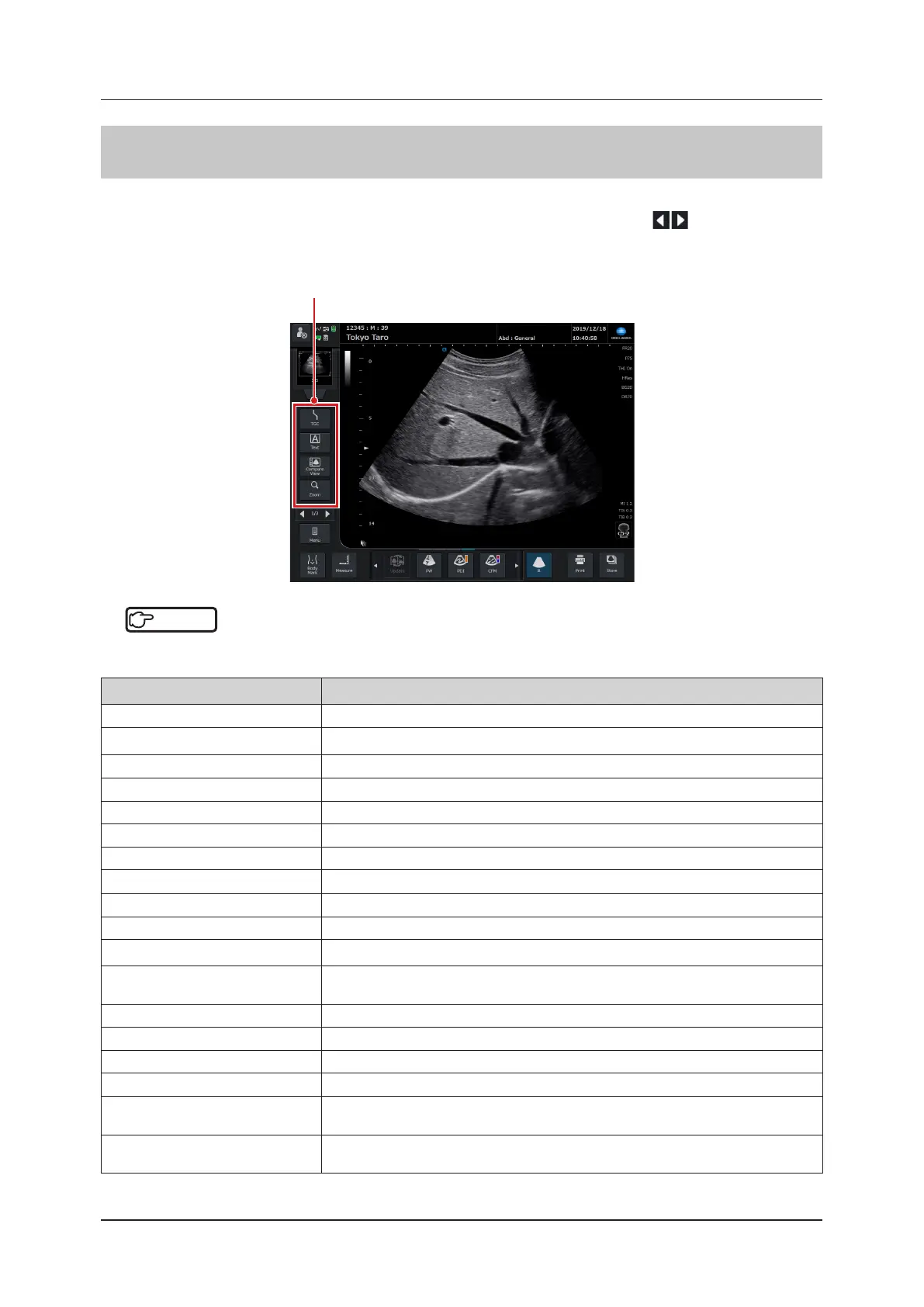
In the operation button area, various function buttons are located and each button serves as a key to switch ON/OFF.
Up to four buttons can be located. If all buttons cannot be displayed in one page, press
to switch the display.
The display and order are customizable.
The following buttons can be assigned.
Operation button area
Reference
•••••••••••••••••••••••••••••••••••••••••••••••••••••••••••••••••••••••••••••••••••••••••••••••••••••
• The button layout is customizable. Refer to "Key Assignment Function" of the "Operation Manual: Applications".
•••••••••••••••••••••••••••••••••••••••••••••••••••••••••••••••••••••••••••••••••••••••••••••••••••••••••••••••••••••
Button Functions
[Brightness / Contrast] Displays the monitor brightness / contrast adjustment window.
[Setup] Changes to the [Setup] screen.
[User Preset] Changes to the [User Preset Registration] screen.
[Exam / Transducer] Changes to the [Exam / Transducer] screen.
[Patient] Changes to the [Patient] screen.
[Review] Changes to the [Review] screen.
[Text] Starts up the Text function.
[Body Mark] Starts up the Body Mark function.
[Measure] Starts up the measurement function.
[Compare View] Changes to the [Compare View] screen.
[Biopsy] Starts up the biopsy guide function.
[SNV]
Starts up the SNV function.
• To use this function, "Simple Needle Visualization License" is required.
[Cine] Displays the Cine pop-up menu.
[Pointer] Displays the free cursor.
[Logout] Logs out.
[Screen Lock] Starts up the screen lock function.
[Console Guide]
Displays the console guide to check assignment of the mini console keys.
• You can also change the panel type in the Console Guide.
[Print]
Executes the print or store still image function. You can assign functions according to
the settings.


 To Next Page