226
6.2 Thumbnail Function
6.2.3 Deleting or Transferring Images during Examination
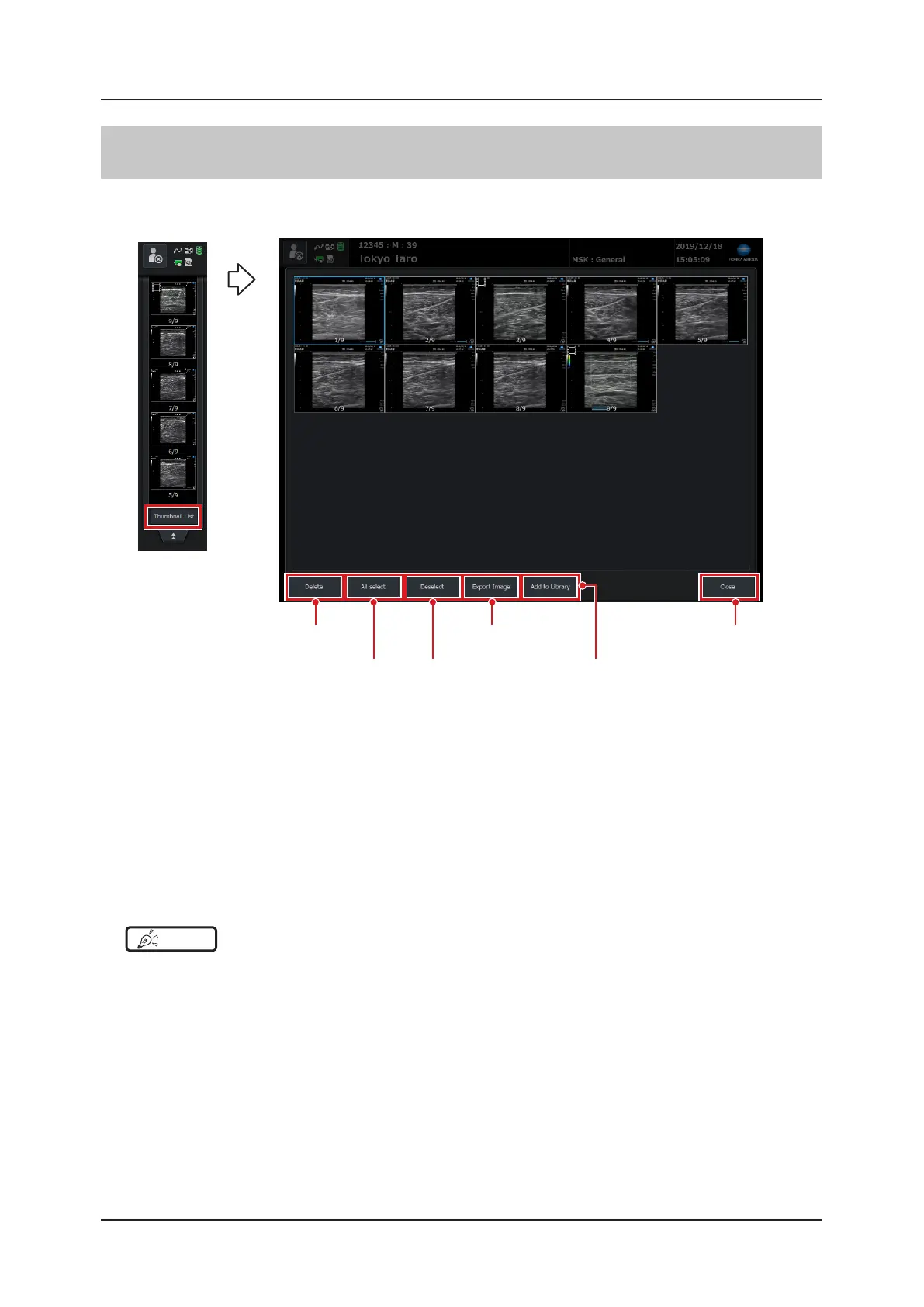
When browsing acquired images or deleting an unnecessary image, enlarge the area of a thumbnail image and
press the [Thumbnail List] button below to display the [Thumbnail List].
[Deselect] button
[Delete] button
[All select] button
[Export Image] button [Close] button
[Add to Library] button
• Select an unnecessary image and press the [Delete] button to delete.
An image that has been deleted is also deleted from the data, and, therefore, it cannot be restored.
• Select an image by touching on it. To clear selection, touch the selected image again or press the [Deselect] but-
ton.
• Press the [All select] button to select all images.
• Press the [Export Image] button to display the [Export Image] screen where you can output an image.
For details, refer to "6.4 Transferring Image Data".
• Pressing the [Add to Library] button adds the selected images to SD cards or USB memories. Refer to "5.6.7 Li-
brary Function".
• Press the [Close] button to return to the study screen.
• Double-touch an image to switch the selected image back to a single screen display.
HINT
•••••••••••••••••••••••••••••••••••••••••••••••••••••••••••••••••••••••••••••••••••••••••••••••••••••
• More than one image can be selected.
•••••••••••••••••••••••••••••••••••••••••••••••••••••••••••••••••••••••••••••••••••••••••••••••••••••••••••••••••••••


 To Next Page