225
6.2 Thumbnail Function
Chapter 6
6.2.2 Browsing and Editing Images
When you click a thumbnail, the screen changes to the [Past Image Display] screen which allows various editing of
an image.
When you drug and drop a thumbnail into the image display area, the screen changes to the [Compare View] screen.
For details on the Compare View function, refer to "Compare View Function" of the "Operation Manual: Applications".
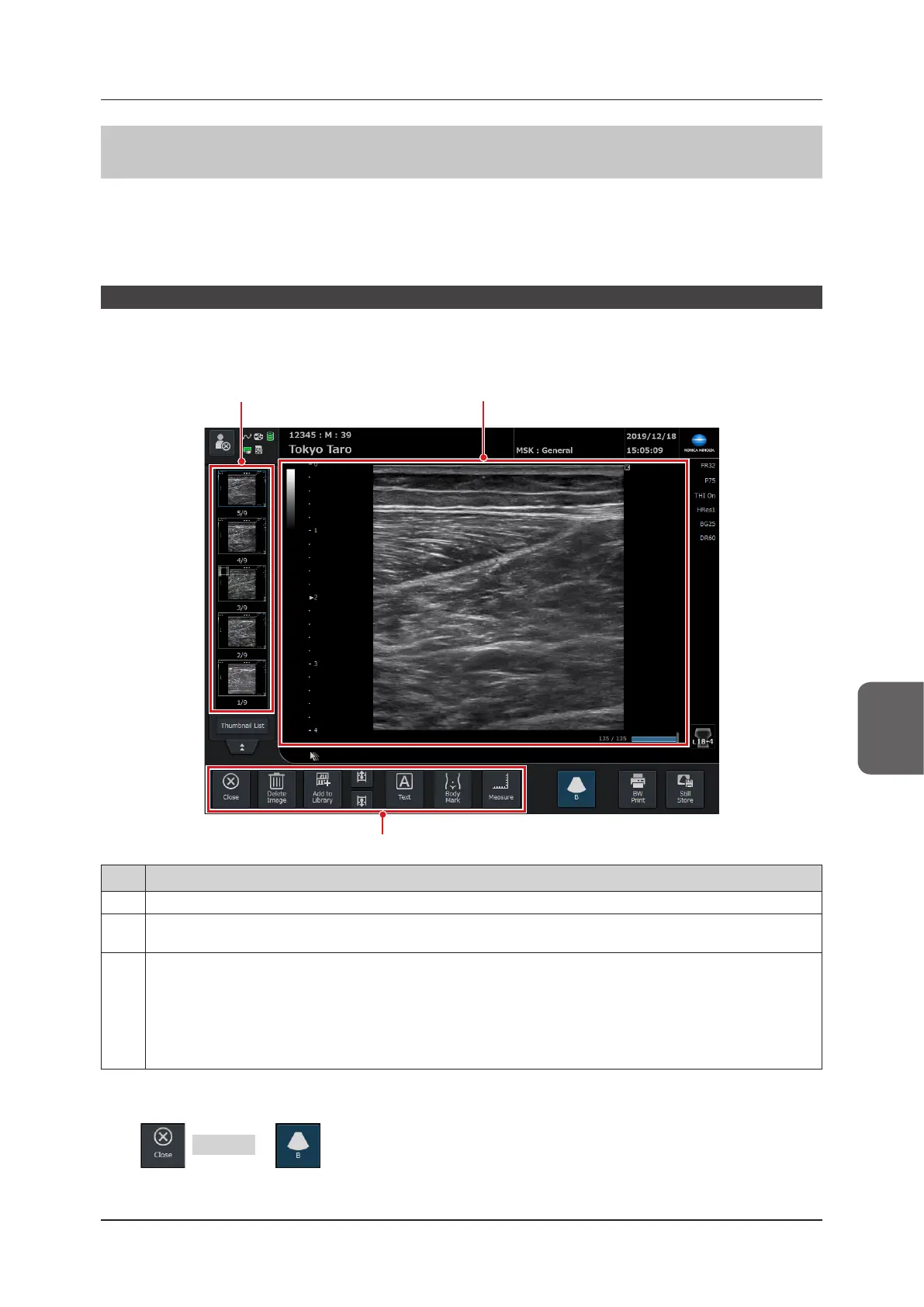
[Past Image Display] screen
When you touch a thumbnail, the screen changes to the [Past Image Display] screen.
On the [Past Image Display] screen where past-stored images are displayed, you cannot only browse those images,
but also perform such operations as Text (Annotation), Body Mark editing and measurement.
(1)
(3)
(2)
No. Functions
(1) Displays thumbnails.
(2) Displays past-stored images.
• The images in this area are objects to be edited and stored.
(3) Displays the Past Image Display pop-up menu.
• [End] button: Ends the past image display.
• [Delete Image] button: Deletes the images being displayed in No.2.
• [Add to Library] button: Add images to SD cards or USB memories. Refer to "5.6.7 Library Function".
• For still images, each of the [Text] / [Body Mark] / [Measure] buttons can be used to modify already-stored past im-
ages.
• For clips, the play button and other related buttons are displayed.
z
To end
Press , FREEZE or button.


 To Next Page