3.1 Study Screen
92
No. Data name Functions
(1) Frame Rate Displays the frame rate.
(2) Tx Level
Always displays the Tx level.
• The value is in "%".
(3) THI On/O Displays On / O of THI.
(4) Frequency Type (B/M)
Displays the type of transducer frequency in B-mode or M-mode.
• This can also be displayed as a numeric value. Refer to "[Display Frequency Nu-
merically]" under "Image Screen" in the "Operation Manual: Applications".
(5) Gain (B) Displays the gain value for B-mode.
(6) DR (B) Displays the dynamic range value for B-mode.
(7)
Frequency (C) /
Frequency Type (E)
Displays frequency for Color Flow- / Power Doppler- / 2D-TDI- / SCF-mode.
• The value is in "MHz".
Displays the frequency type for Elastography-mode.
(8) Gain (C) / Blending Rate (E)
Displays the gain value for Color Flow- / Power Doppler- / 2D-TDI- / SCF-mode.
Displays the image blending rate value for Elastography-mode.
(9) Frequency (D)
Displays frequency for PW Doppler- / CW Doppler- / PW-TDI-mode.
• The value is in "MHz".
(10) Gain (D) Displays the gain value for PW Doppler- / CW Doppler- / PW-TDI-mode.
(11) D Gate Width
Displays the Doppler gate width (sample volume width) of PW Doppler- / PW-TDI-
mode.
(12) D Gate Depth
Displays the gate depth (sample volume depth) for PW Doppler- / CW Doppler- /
PW-TDI-mode.
• The value is in "mm".
(13) Angle
Displays the correction angle for PW Doppler- / CW Doppler- / PW-TDI-mode.
• The value is in degree.
• If the value exceeds 60°, the background and character colors are changed.
(14) Gain (M)
Displays the gain oset value for M-mode.
• Displayed as the oset value with respect to the gain for B-mode.
(15) DR (M) Displays the dynamic range value for M-mode.
z
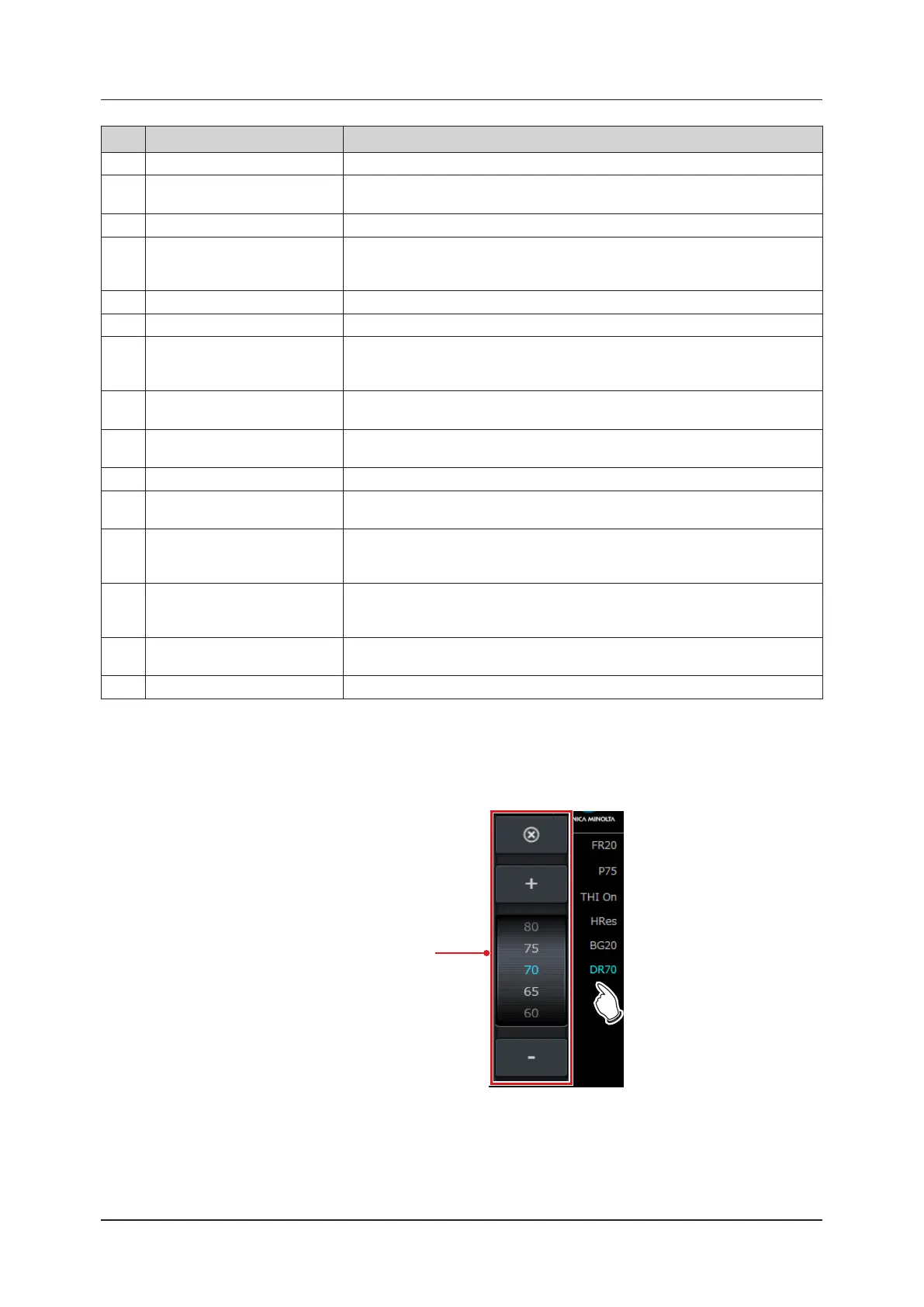
To change parameters
The pop-up window appears with a direct touch of the target parameter value. The currently selected parameter
value can be changed by using the up / down or [+] / [-] buttons, or by dragging the value or the character displayed
in the pop-up window up or down.
Pop-up window


 To Next Page