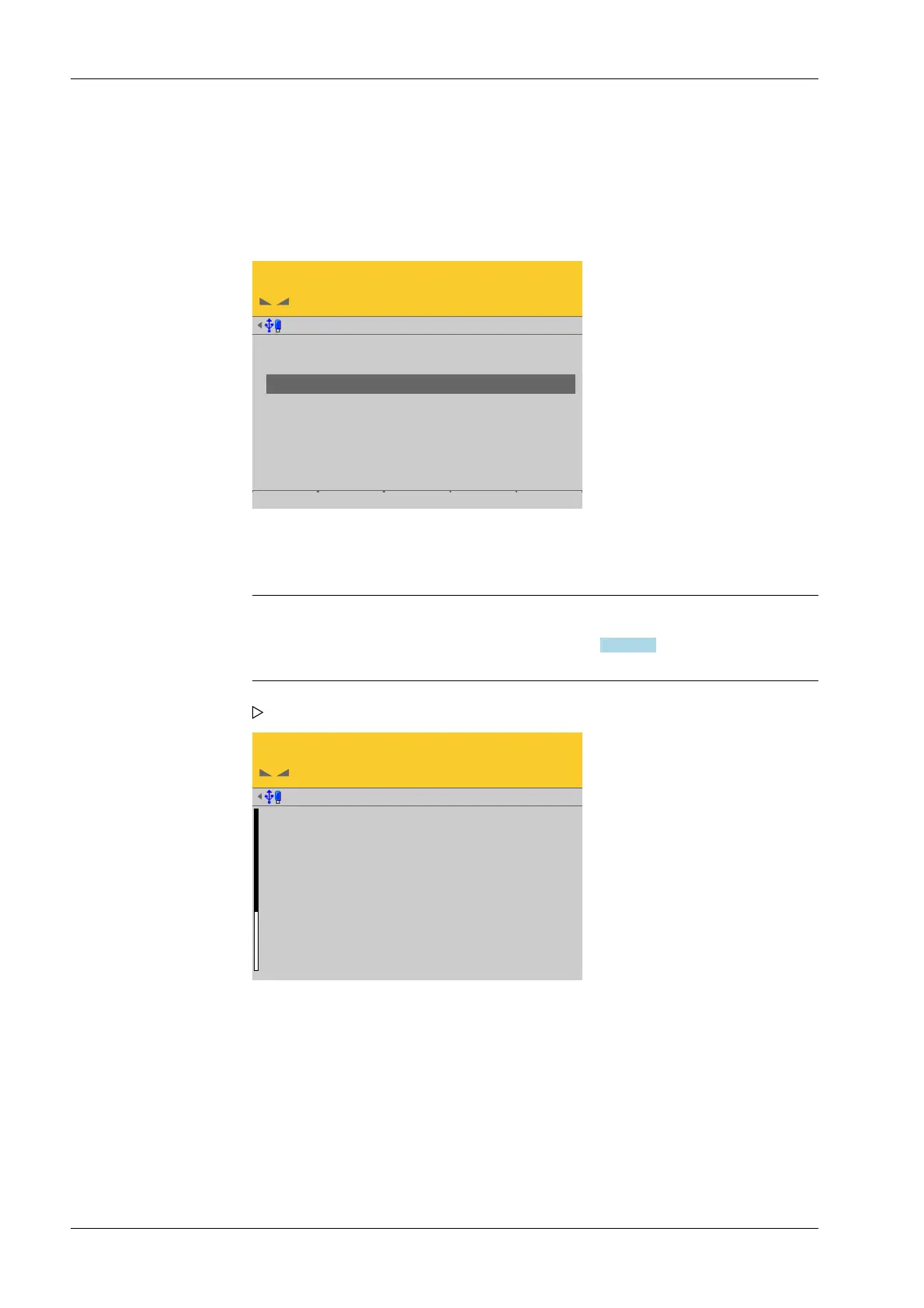
4.7.7.3.3.1 Info (display load cell data)
In this menu item (under View and assign load cells), the load cell data of the digital
weighbridge load cell Pendeo
®
Truck is displayed.
Accessible via MENU - [Operating] - [System setup] - [Weighing points] - [Weighing
point x] - [Calib] - [View and assign load cells] - [Info] .
View @admin
LC 1
LC 2
LC 3
LC 4
1.316 t
1.477 t
2.230 t
2.484 t
Info Assign by name Accept
The load cells are displayed with their item number, serial number, and load.
Note:
If load cell names have been assigned (see Chapter 4.7.7.3.5), the view can be
switched with the [by name] soft key.
Load cell info @admin
Model name
Software version
LC serial number
Emax
n
Y
Z
Overload
Overload counter
PR6224/50tC3
1.00.04
104
50.0 t
3000 e
14000
3000
75.0 t
0
4.7.7.3.3.2 Assign (installation locations)
In this menu item (under View and assign load cells), the load cells (serial numbers) of
the digital weighbridge load cell Pendeo
®
Truck are assigned to the installation
locations.
This is important for correcting the dead load (distribution to the individual load cells), for
corner correction and in the event of load cell replacement.
1. Select the desired load cell and press the [Info] soft key.
The load cell data is displayed.
2. Press EXIT to return to the previous window.
Process Controller Maxxis 5 PR 5900 4 System setup
Minebea Intec EN-172



 To Next Page