4 Product description
Maschinenfabrik Reinhausen GmbH 2020 413587317/21 EN TAPCON
®
You can configure the rights system and roles system to meet your require-
ments. You will find more information on user rights in the User administra-
tion [►Section 8.26, Page 240] section.
You can only modify the device settings or parameters if you have the nec-
essary user rights.
Logging on, logging off and changing users
The control of access rights to device settings and parameters is user-
based. Various users can log in at the same time (e.g. via the visualization)
and access the device.
If you want to operate the device via the controls and visualization at the
same time, you have to log in on the device and via the visualization.
1. Select the LOGIN or CHANGE button in the status line.
2. Enter your user name and password and select the OK button.
ð The name of the logged-in user appears in the status line.
To log out as a user, proceed as follows:
► Press the LOGOUT button in the status line.
Navigation
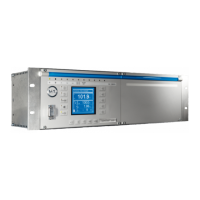
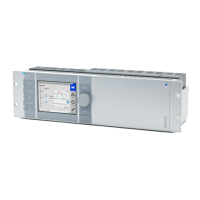
If you are operating the device using the controls on the front panel, you can
use the rotary knob to navigate through the entire menu. The menu currently
selected has a blue border. To open the highlighted menu, you have to
press the key. Pressing the key returns you to the previous menu
level.
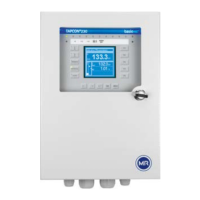
If you are operating the device using the web-based visualization, you can
navigate by clicking on the appropriate buttons.
Example 1. Go to Settings.
2. Go to Parameters.
3. Go to System.
4. Go to Time synchronization.
5. Select Time.
In these operating instructions, the path for navigating to a parameter is al-
ways shown in an abridged form: Go to Settings > Parameters > System >
Time synchronization.
Setting parameters
There are various ways to configure the settings, depending on the parame-
ter.


 To Next Page