PRISMAproduction Explorer Job Lists
A29247-X3-X-6-7670 83
Filter menu
Note: By saving an empty filter, you can permanently save the column settings without re-
stricting the actual content of the job list.
’New...’ Opens the filter dialog box to create a new, empty filter which you can
edit.
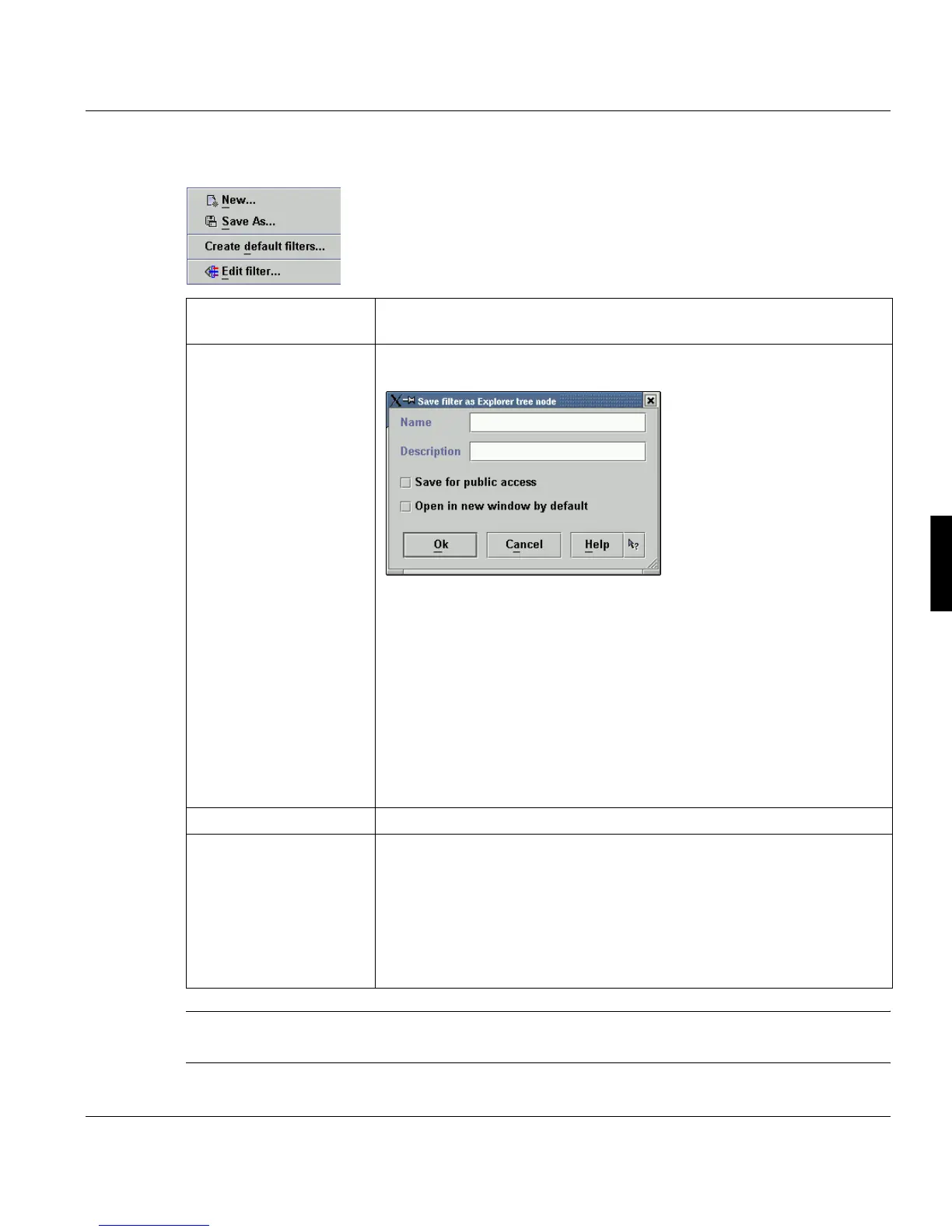
’Save as...’ Opens a dialog allowing you to save the filter settings under a freeform
Name, which appeares in the Eplorer tree view.
You can also add a Description of the filter, which appeares as tooltip
for the filter name in the tree view.
Check Save for public access if you wish the filter to be made availab-
le to every user in the ODS network. If you leave the box unchecked,
the filter will only be available in the local Explorer tree.
If you check the box Open in new window by default, clicking the
name of the filter in the tree view of the Explorer will open the job queue
with the filter settings in a separate window.
Click 'Ok' to create a new entry under The node 'All Jobs' in the tree
view of the Explorer.
’Create default filters...’ Resets all modifications you have made on the default filters.
’Edit Filter...’ Opens a dialog box with 8 tabs to make your individual filter settings.
To select the filter criteria for each category, you have to check the box
'Display only selected icons'. Unchecked items are not visible in the job
list.
Click 'Ok' to apply the filter setting to the opened job list. If there are al-
ready settings defined in a filtered job list, they will be displayed when
opening the edit window using this menu entry (in contrast to 'New...').



 To Next Page