d-Color MF552/452/362/282/222 15-57
15
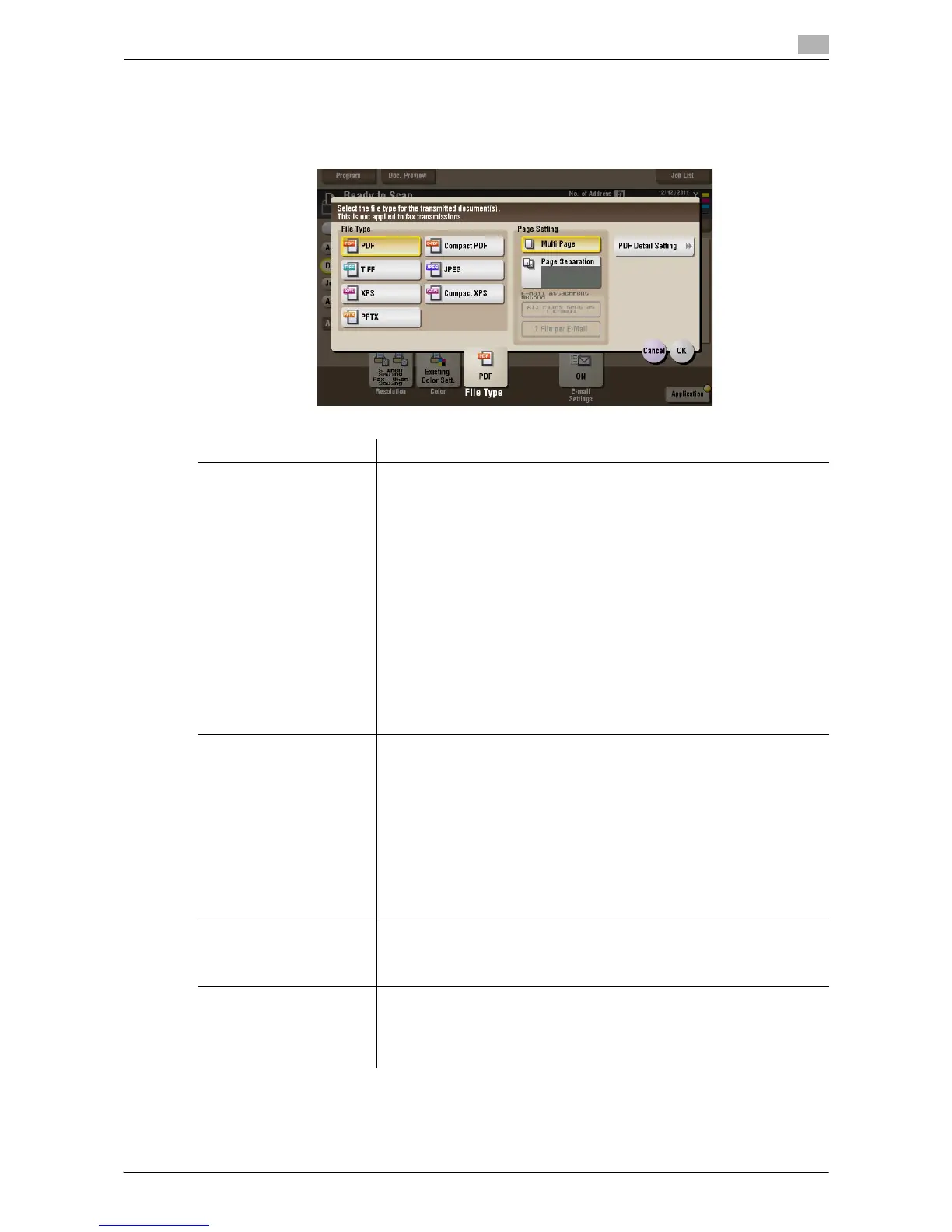
[File Type] ([Public]/[Personal]/[Group]) ([Send])
To display: [Box] - Select a User Box - [Open] - Select the file - [Send] - [File Type]
Select a file type to scan and send the file.
Settings Description
[File Type] Select a type of file you wish to send as follows.
• [PDF]: A type available in most operating systems, which allows you to
assign a password to a file or encrypt a file. Important original data
should be saved as a PDF file.
• [Compact PDF]: Used to send a file with a smaller file size than the nor-
mal PDF type. We recommend this format when you want to reduce file
size to enable sending by E-mail etc.
• [TIFF]: This is one type of versatile image formats. TIFF format supports
multiple pages, in which multi-page documents can be saved as single
file.
• [JPEG]: A file type to save a file commonly used for a digital camera,
which is suitable for saving photos. JPEG format does not support the
saving of multiple pages as a single file.
• [XPS]: A file type supported by Windows Vista and later OSs.
• [Compact XPS]: Used to send a file with a smaller file size than the nor-
mal XPS type.
• [PPTX]: Extension of an XML-base file that is created with PowerPoint
of Microsoft Office 2007 or later.
[Page Setting] Select a filing page unit when an original consists of multiple pages.
• [Multi Page]: Used to convert all pages to a single file. However, if [File
Type] is set to [JPEG], you cannot select [Multi Page].
• [Page Separation]: Convert the original into files containing the speci-
fied number of original pages when sending the saved files using Scan
to E-mail, SMB Send, or FTP Send. For example, if you enter "2" and
scan 10 original pages, the original is divided into five separate files and
sent.
When a file in which the Page Separation setting has been applied is sent
using Scan to E-mail, SMB Send, or FTP Send, the [Page Separation] state
is maintained and the number of pages that was specified when the file
was saved is set. The setting can be switched to [Multi Page].
[E-mail Attachment] You can select the E-mail attachment method when [Page Setting] is set to
[Page Separation].
• [Send All as 1 E-mail]: Attaches all files to one E-mail.
• [1 File per E-Mail]: Sends one E-mail for each file.
[PDF Detail Setting] If the file type is set to [PDF] or [Compact PDF], you can set the PDF op-
tions.
You can enhance security by attaching a digital signature that identifies the
author of the file, by file encryption, etc.
For details, refer to page 15-58.



 To Next Page
 Loading...