Advanced Features
Automatic Sorting Into Groups [Programme]
135
How to Programme Print
There are two ways to print in sets using “Programme” printing feature.
• Programme, then print (without saving the settings)
• Retrieve a saved programme, then print (when programme is registered)
Tip:
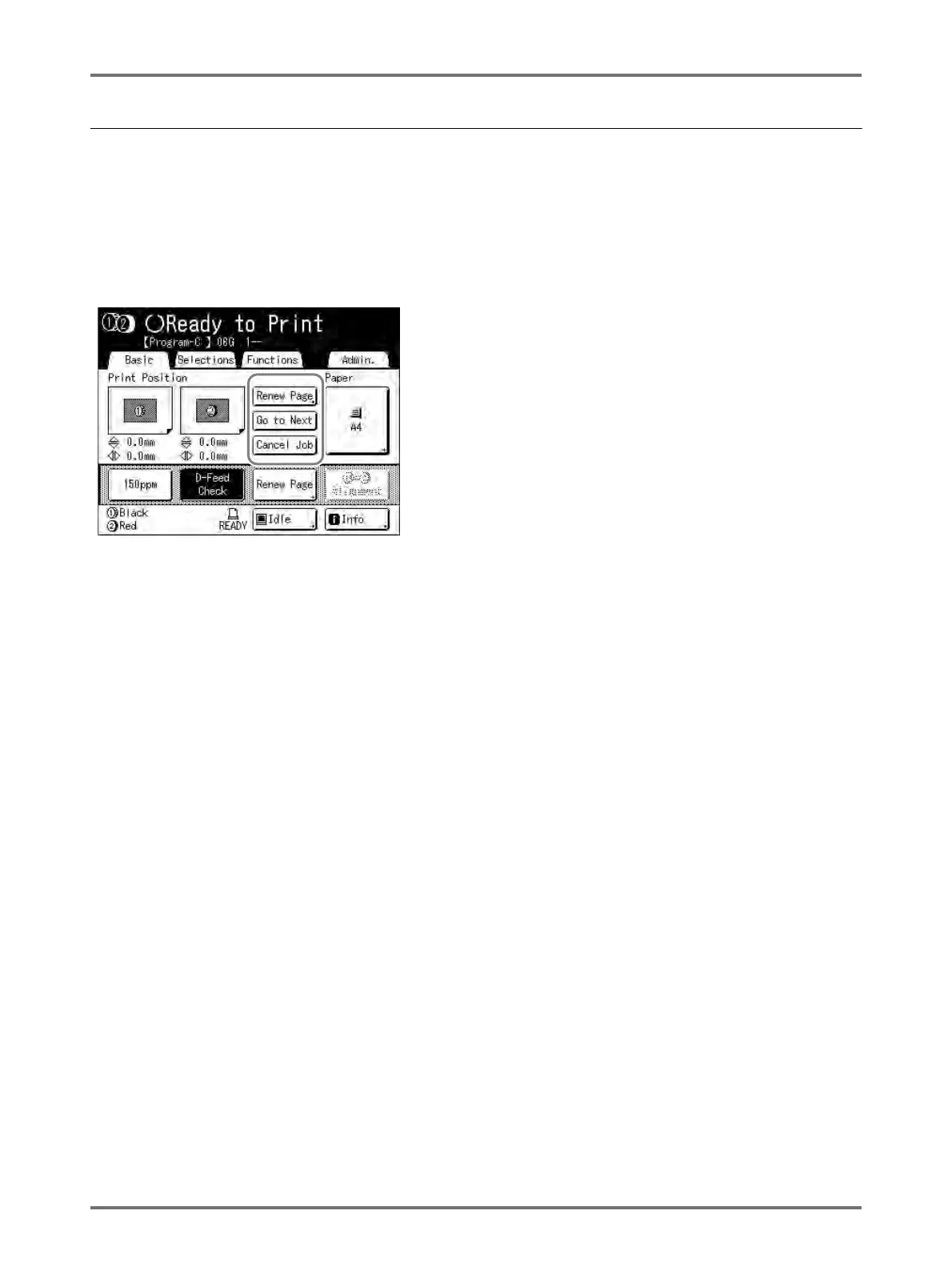
Choose from the following actions on the Print Basic Screen.
Touch a button to proceed.
[Renew Page]: Creates a master from the last Master-Making data.
[Next Page] or [Go to Next]: Stops current print job, skips to the next original, set or group.
[Cancel Job]: Cancels execution of the Programme.
Note:
• The Job Separator (option) is useful for Programmed Printing.
The Job Separator releases a piece of tape after each set or original document, thereby automatically separating
sets or groups. It eliminates the need to manually remove a stack of sheets or insert a marker between sets.
Remember to activate “Job Separation” in the Functions screen when printing with the Job Separator.
You must remove each stack from the Paper Receiving Tray, or insert a marker during the pause if not using the
Job Separator.



 To Next Page