Basic Operations
Printing from a Computer Data [Direct Print]
65
Printing Computer Data
1
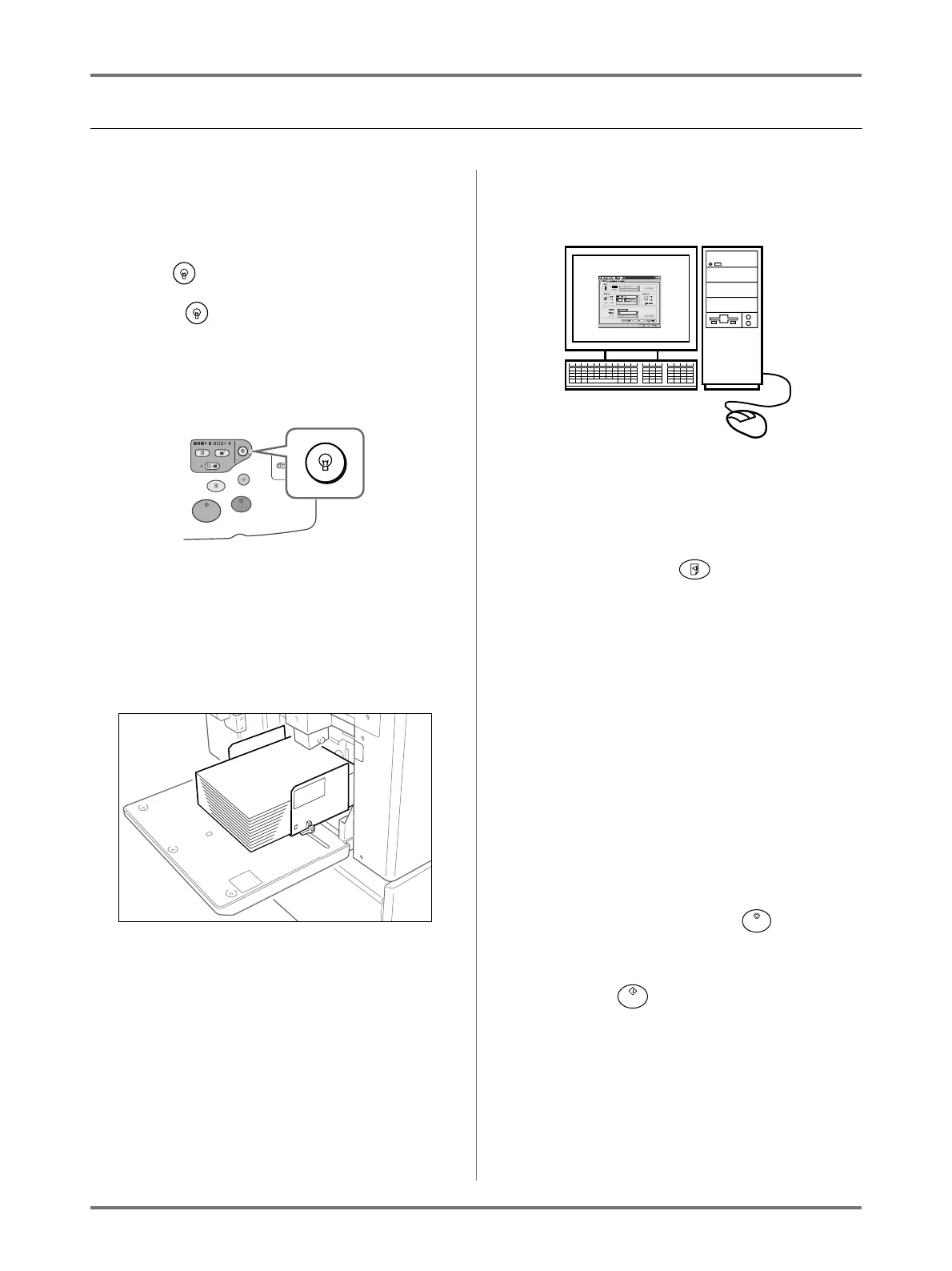
Make sure the machine is ON.
Check the Control Panel.
Note:
• When the power is OFF, both the Display and
the key are off. Turn the power ON.
)p.33
• If the key is lit, the machine is in Energy
Saving mode. The machine automatically
wakes up from Energy Saving mode when data
is sent from a computer, and it starts processing
the data.
• If you are using RISORINC-NET (Option), you
can check the machine status (power ON/OFF,
paper settings, etc.) remotely from your compu-
ter monitor.
2
Check for printing paper.
Make sure paper is loaded.
To load or to change the paper, see the following
page:
)p.33
After replacing with paper of a different size,
adjust the position of the Receiving Tray Paper
Guides and Paper Stopper.
)p.35
3
Set printing options from your com-
puter screen.
Important!:
• Make sure to uncheck the “Collate” option in the
Print dialog box.
• Before printing, either perform an Idling Action
()p.160) (especially when using Full Auto
mode) or press the key to print proof cop-
ies several times.
4
Click [OK] on the print dialog box.
Data is sent from the computer.
When the machine receives data, a print job auto-
matically starts in accordance with the printer
driver settings.
Continue to step 5 if you are printing in the Semi-
Auto (Print) mode or in the Manual mode.
Skip to step 7 if you are printing in the Semi-Auto
(Master) mode.
Skip to step 10 if you are printing in Full Auto.
Note:
• If the data contains multiple pages, all pages
are printed at once.
• To manually stop a job during master-making or
printing operation, press the key. In mas-
ter-making process, the machine will stop after
the master is made. In the printing process, the
machine will stop printing.
Press the key to resume the job.



 To Next Page