Advanced Features
Selecting Scanning Sides When Using the Auto Document Feeder DX-1 [Scanning Side -ADF]
167
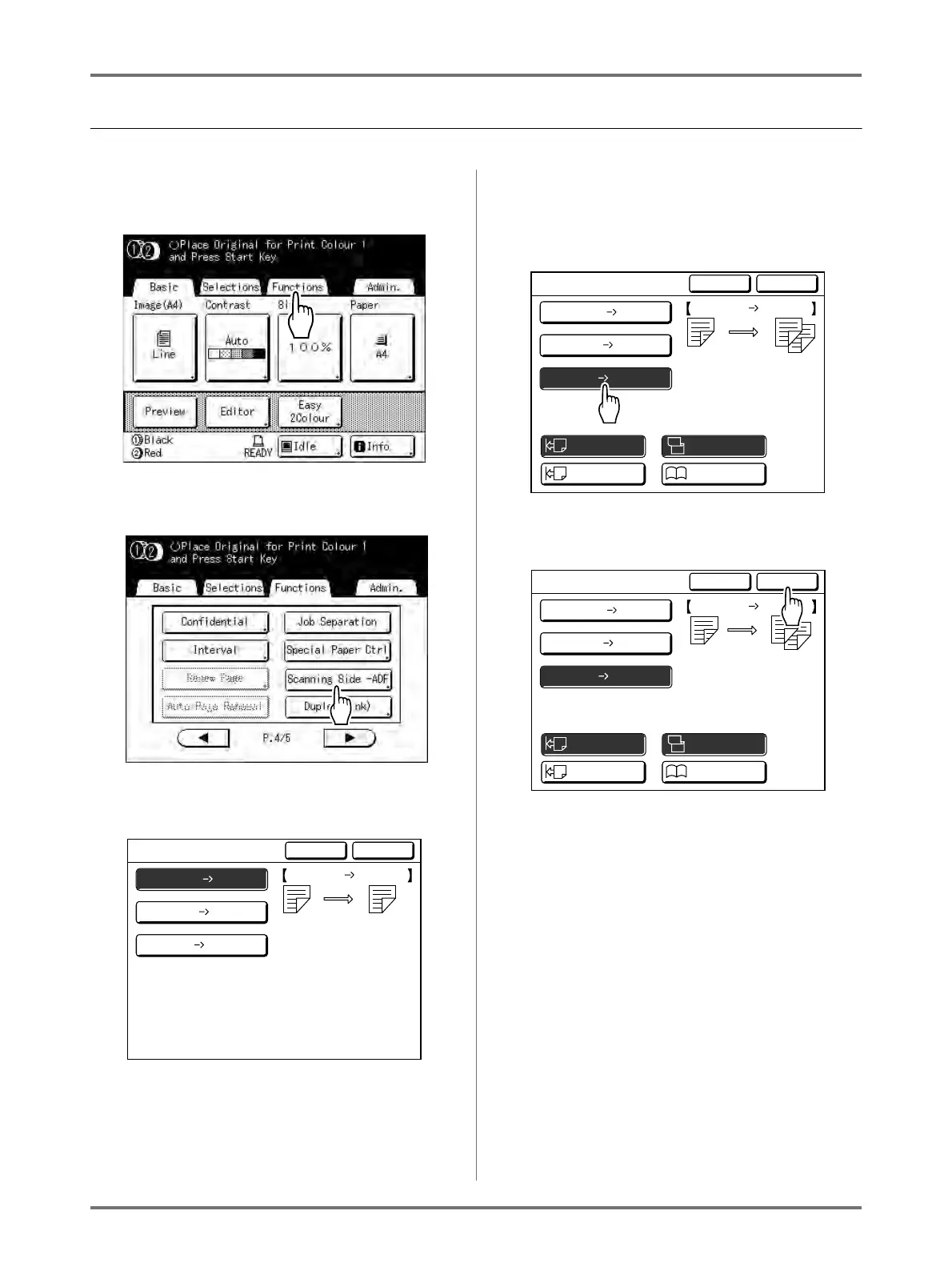
Specifying the Scanning Side
1
Touch [Functions] on the Basic
Screen for each mode.
2
Touch [Scanning Side -ADF].
3
Touch a scanning option button.
See )p.164 for details of scanning options.
When you select [Duplex ->
Simplex]
Touch to select [Setting Direction] and [Paging
Direction] buttons, shown on the screen.
4
Touch [OK].
Returns to the basic screen after the “Scanning
Side -ADF” settings have been saved.
Note:
• To confirm the current “Scanning Side -ADF”
settings, open the “Scanning Side -ADF”
screen once more.
The selected settings buttons are highlighted.
Duplex
Front Side Simplex
Simplex
Simplex
Simplex
Back Side
Scanning Side -ADF
Cancel OK
Front Side
Only front sides
(upsides) of
originals will be
scanned by the ADF.
Setting Direction Paging Direction
A
A
A
A
A
A
Duplex
Front Side Simplex
Simplex
Simplex
Simplex
Back Side
Scanning Side -ADF
Cancel OK
Duplex
Both sides of originals
will be scanned by the
ADF.
Align Top
Align Side
Left / Right
Top / Bottom
Setting Direction Paging Direction
A
A
A
A
A
A
Duplex
Front Side Simplex
Simplex
Simplex
Simplex
Back Side
Scanning Side -ADF
Cancel OK
Both sides of originals
will be scanned by the
ADF.
Align Top
Align Side
Left / Right
Top / Bottom
Duplex



 To Next Page