Functions for Master-Making
Automatic Printing [Auto-Process]
83
Automatic Printing [Auto-Process]
Master-making and printing can be performed automatically in sequence.
When “Auto-Process” is selected, simply enter number of copies to print, then press the key.
Important!:
• If you are using the ADF unit (option) for 2-Colour printing, pay close attention to the order in which you place the original.
)p.41
Note:
• On the Admin. screen, you can make such a setting that “Auto-Process” is always set to ON when you reset or start
the machine.
)p.174
• “ADF Semi-Auto” is another handy function when using the ADF unit (option).
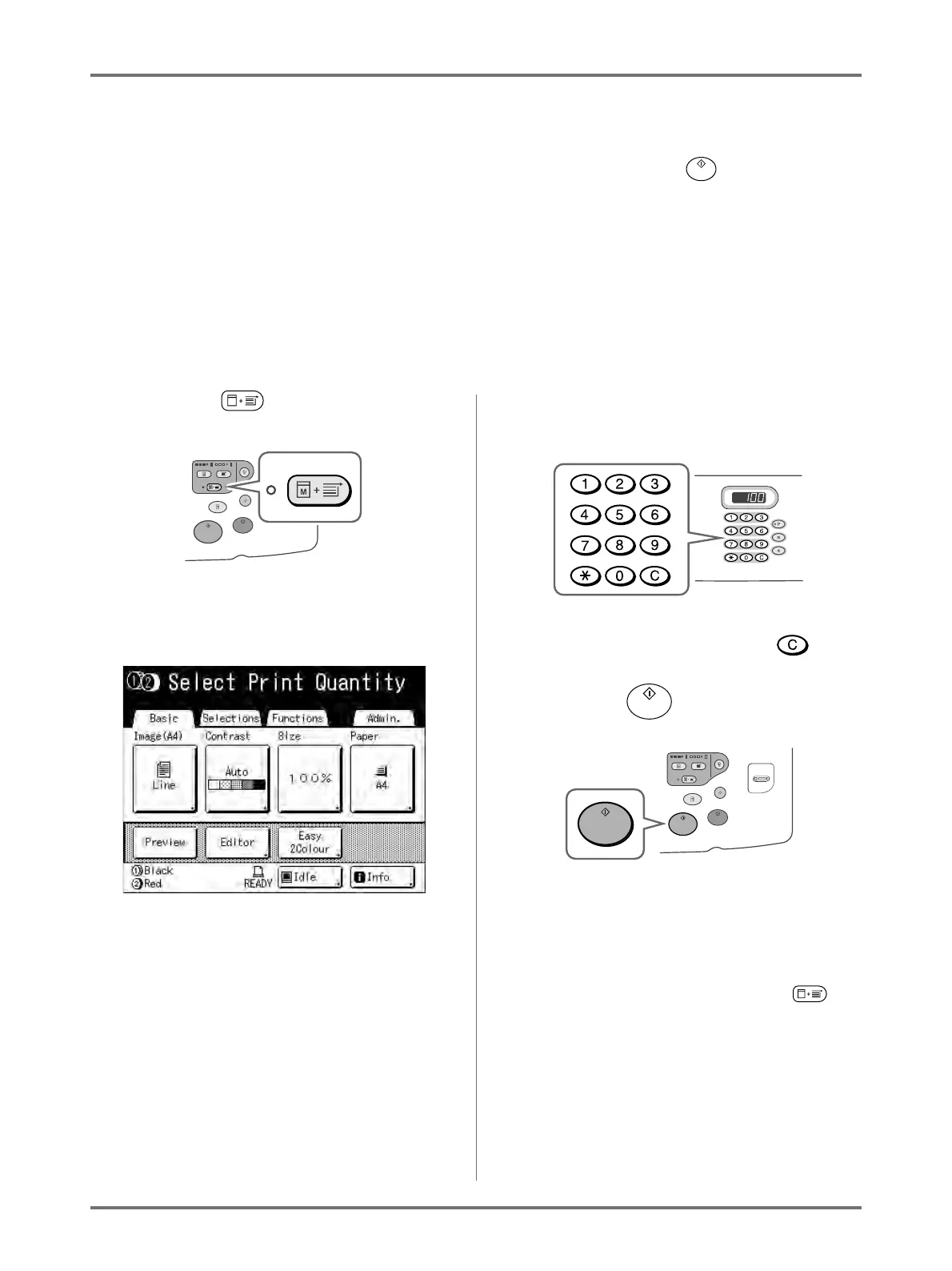
1
Press the key.
The Auto-Process Indicator turns on, and “Select
Print Quantity” is displayed on the Master Making
Basic Screen.
Input the number of copies prior to creating the
master, because when “Auto-Process” is set, the
job will be printed as soon as the master is created
on Drum 1 or Drum 2.
2
Enter the number of copies using the
Print Quantity Keys.
Note:
• To change the number, press the key,
then re-enter the correct number.
3
Press the key.
Creation of the master starts.
Once the masters are made on Drum 1 and Drum
2, printing automatically starts, and the number of
copies indicated prints.
Note:
• To cancel “Auto-Process”, press the key
again. The indicator turns off.
• When printing is completed, Print Quantity will
restore the number originally entered.
• If multiple originals are placed on the ADF unit
(option), “Auto-Process” is automatically set to
"ON" by default, and all the originals are printed
using “Auto-Process”.
This setting can be changed in “Admin.”.
)p.174



 To Next Page