Advanced Features
Selecting Scanning Sides When Using the Auto Document Feeder DX-1 [Scanning Side -ADF]
164
Selecting Scanning Sides When Using the
Auto Document Feeder DX-1
[Scanning Side -ADF]
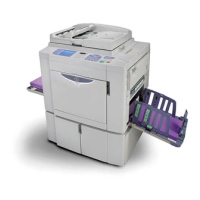
When scanning originals using the optional Auto Document Feeder DX-1, there are three scanning side options:
“Front Side”, “Back Side”, or “Duplex”.
Important!:
• If the original is set on Auto Document Feeder DX-1, “Book Shadow” function cannot be used.
Note:
• Go to “Admin.” and select “Scanning Side -ADF” to save a frequently used setting as the default.
)p.174
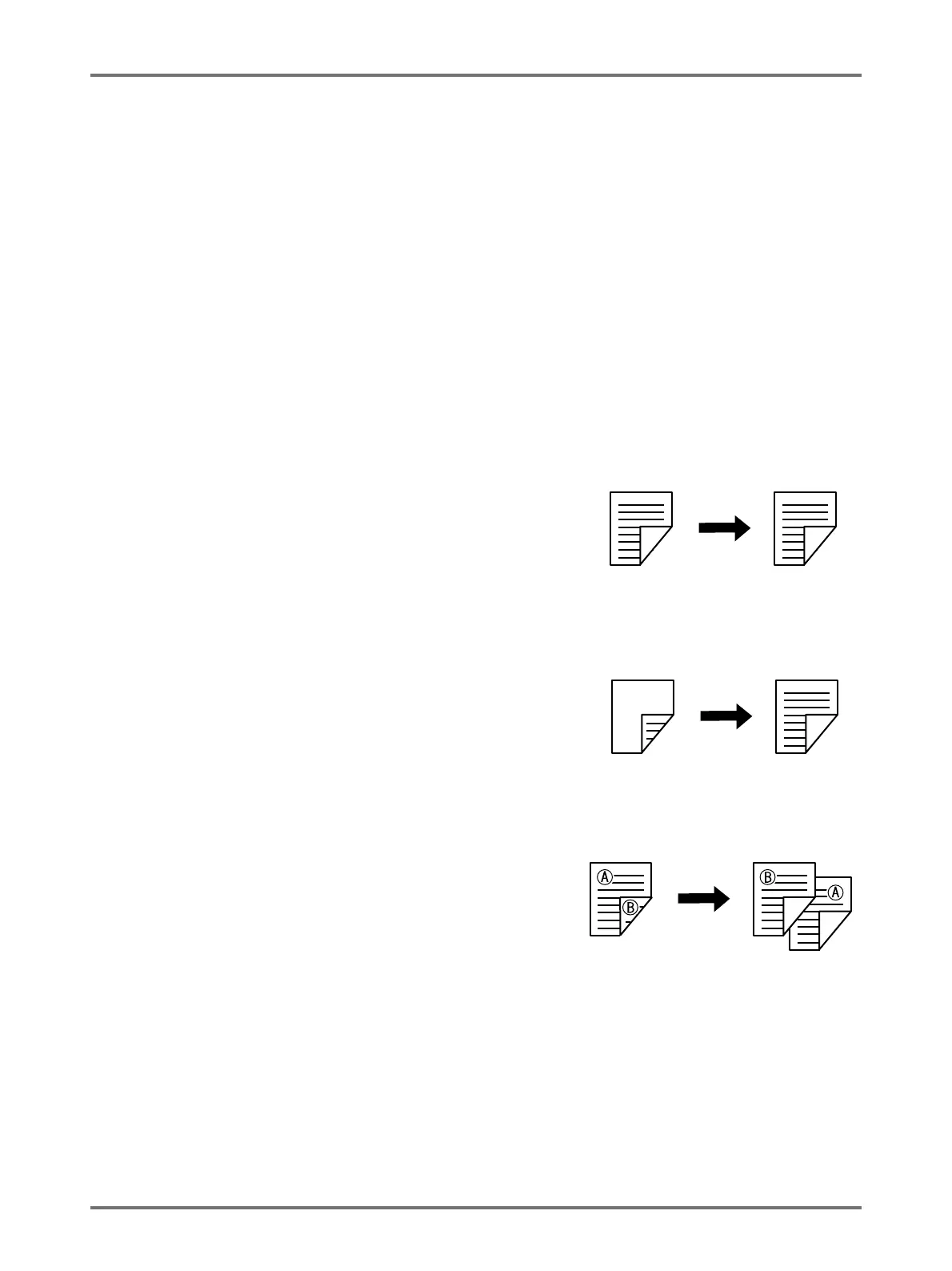
Front Side -> Simplex
Scans the front side of the original, and prints on one side.
Important!:
• If the “Auto-Link” function is ON or the “Top Margin” function is used,
the setting, “Front Side -> Simplex” must be used.
Back Side -> Simplex
Scans the back side of the original, and prints on one side.
Duplex -> Simplex
Scans both sides of the original and prints on one side. The front side is scanned first and then the back side. “Set-
ting Direction” and “Paging Direction” of the original must be specified.
Important!:
• When setting 2-Colour Print, “Duplex -> Simplex” cannot be
set.(after setting “Duplex -> Simplex”, if 2-Colour Print is set, “Front
Side -> Simplex” or “Back Side -> Simplex” is restored.)
• The “Duplex -> Simplex” option is not available in “Programme;
Multi-Page Mode” and “Multi-Up Print”. Likewise, if “Duplex -> Sim-
plex” is selected, “Multi-Page Mode” and “Multi-Up Print” are not available.
Note:
• If the original includes blank pages, these will also be scanned and included in copies.
Original Printed Copies
Original Printed Copies
Original Printed Copies



 To Next Page