Storage and Scan Modes (Option)
2-Colour Printing with the Original and Storage Data [Stamp]
215
2-Colour Printing with [Stamp]
Pre-select 2-Colour Printing.
1
Place an original and load paper.
Place the original on Platen Glass or in ADF unit
(option).
See the “Basic Operations” chapter for informa-
tion on placing the original.
2
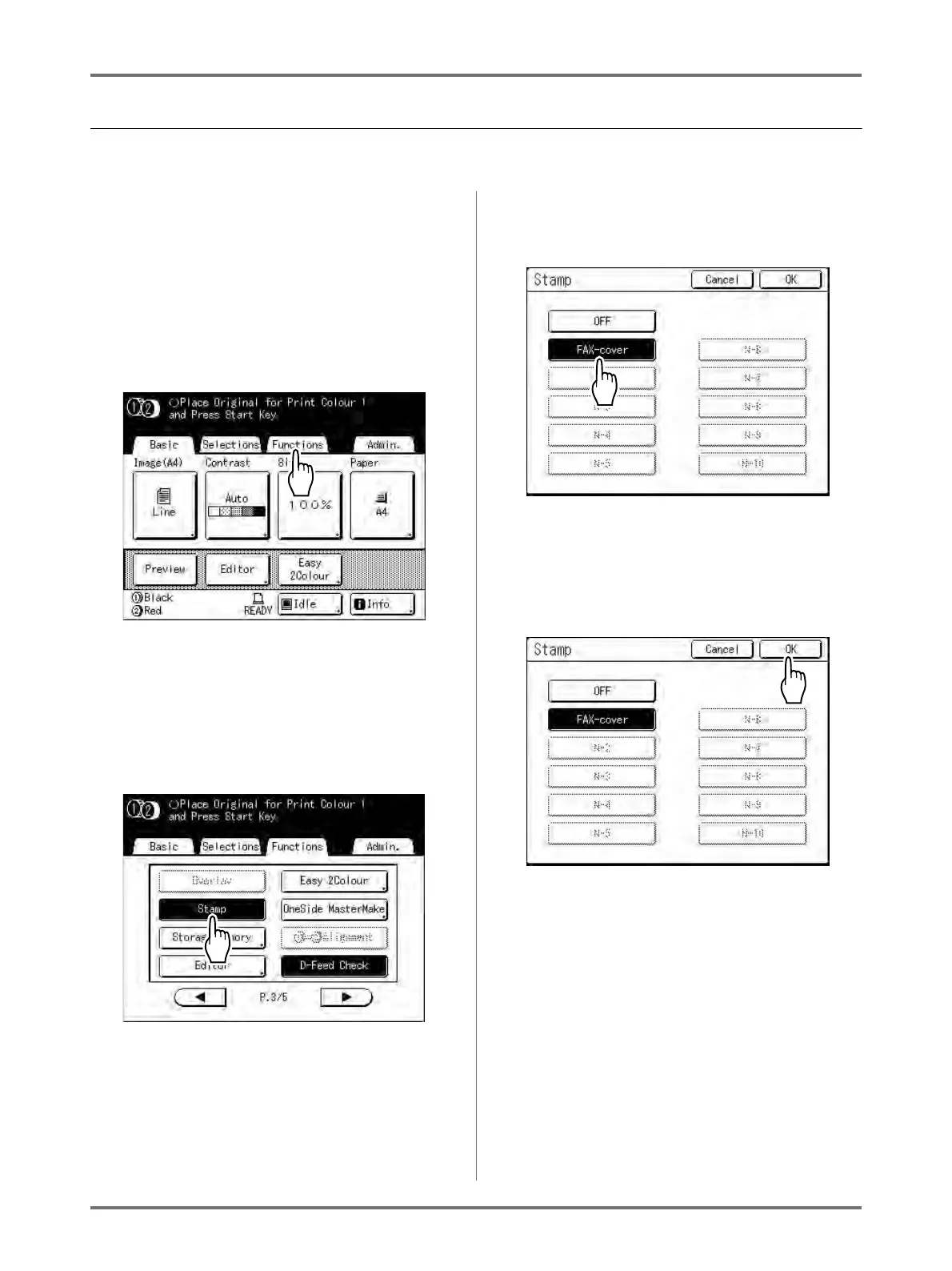
Touch [Functions] on the Master
Making Basic Screen.
3
Touch [Stamp].
Important!:
• If data for the “Stamp” is not registered, the
[Stamp] button does not display on the Func-
tions screen.
4
Touch the button of the Stamp Data
to use.
Greyed-out buttons are not available (no Stamp
Data has been registered).
5
Touch [OK].
Stamp is set.
6
Set the print functions.
You can make adjustments to the print functions
as needed.



 To Next Page