When using a Linked Printer (sold separately)
Printing Scanned Original from a Linked Printer [Link Mode]
228
Printing Scanned Original from a Linked
Printer
[Link Mode]
The mode in which an original is scanned into the machine and printed from a Linked Printer is called “Link Mode”.
In Link Mode, the original is printed from the Linked Printer, regardless of the number of copies to print.
1
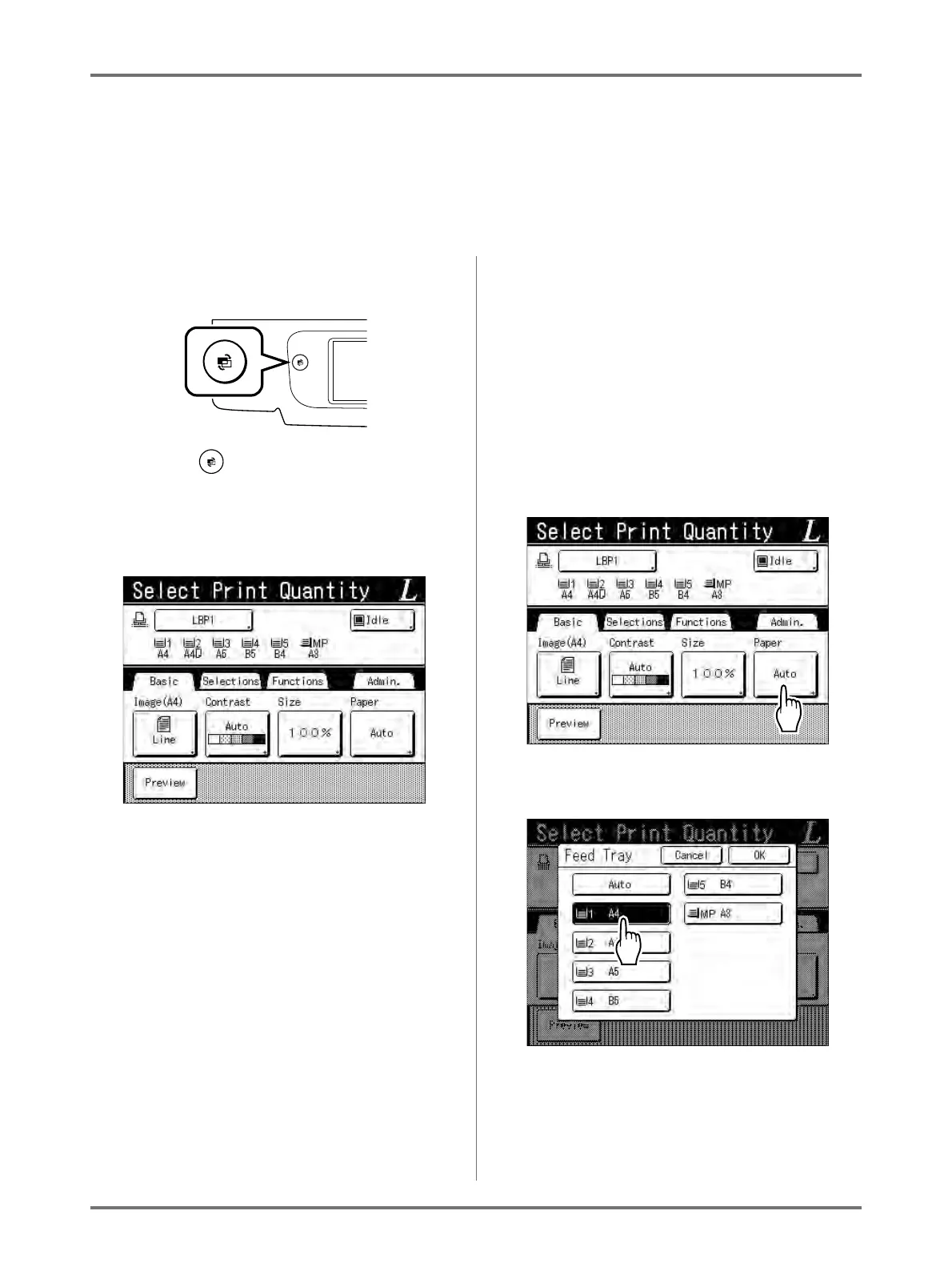
Switch to Link Mode.
Press the key on the machine to switch to
Link Mode.
From Mode Screen, touch [Link Print] to switch
to the Link Basic Screen.
)p.24
Note:
• While the message “Starting Up RISORINC-
NET / Acquiring Linked Printer Configuration
Data Please Wait a Moment” is displayed on
the machine, the Linked Printer information is
being retrieved via the network. Wait until the
message disappears.
2
Place the original.
Place the original on Platen Glass or in the ADF
unit (option).
For information about placing the original, see
step 5 in “2-Colour Printing with 2 Originals”
()p.41).
3
Select printing paper.
If the Linked Printer has multiple feed trays, touch
[Paper] to specify the tray (paper size).
1) Touch [Paper] in the Link Basic Screen.
2) Select the desired paper size.



 To Next Page