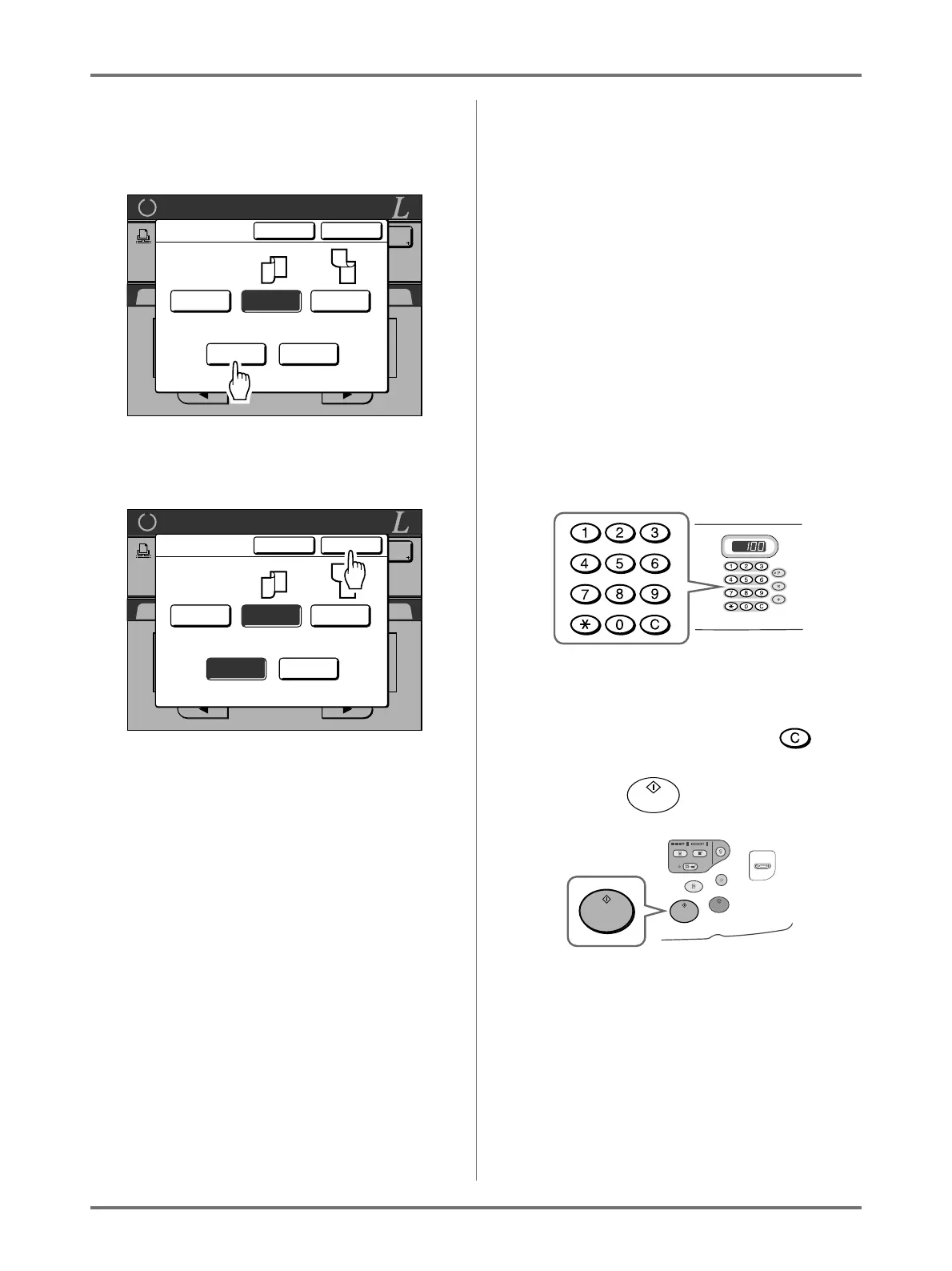
When using a Linked Printer (sold separately)
Duplex Printing [Duplex]
236
Important!:
• This step is not necessary unless using the
ADF unit. Continue on to step 4.
4
Touch [OK].
Note:
• To cancel Duplex Printing, touch [OFF] then
[OK].
5
Place the original.
Note:
• For information about placing the original, see
step 5 in “2-Colour Printing with 2 Origi-
nals”.()p.41)
• To scan a single sheet of an original, place it on
the Platen Glass.
• When Duplex Printing from odd number of orig-
inals scanned in the ADF unit, the reverse side
of the last page will be blank.
6
Select Print functions as needed.
The following functions are available:
• Image Processing mode ()p.70)
• Scanning Contrast ()p.77)
•Size ()p.78)
• Dot Process ()p.72)
• Memory ()p.150)
• Contrast Adj ()p.74)
• Tone Curve ()p.75)
• Book Shadow ()p.84)
• Top Margin ()p.104)
• Preview ()p.108)
• Overlay ()p.208)
• Storage Memory ()p.204)
7
Enter the number of copies using the
Print Quantity Keys.
The number is displayed on the Print Quantity Dis-
play.
Note:
• To change the number, press the key,
then re-enter the correct number.
8
Press the key.
The next steps are different, depending on
whether the original is scanned from Platen Glass,
or from the ADF unit.
Perform one of the following steps:
Important!:
• Either Platen Glass or ADF unit may be used,
but not both at a time.
Ready for Link Print
SelectionsBasic Functions Admin.
P
.1/6
LBP1
MP
1 2
Idle
A4 A3 B4
Duplex
Cancel OK
Page Total
Short Edge
OFF
A
B
A
B
Even Odd
Long Edge
Ready for Link Print
SelectionsBasic Functions Admin.
P
.1/6
LBP1
MP
1 2
Idle
A4 A3 B4
Duplex
Cancel OK
Page Total
Short Edge
OFF
A
B
A
B
Even Odd
Long Edge



 To Next Page