Getting Acquainted
Display
28
Printing from a Computer Data
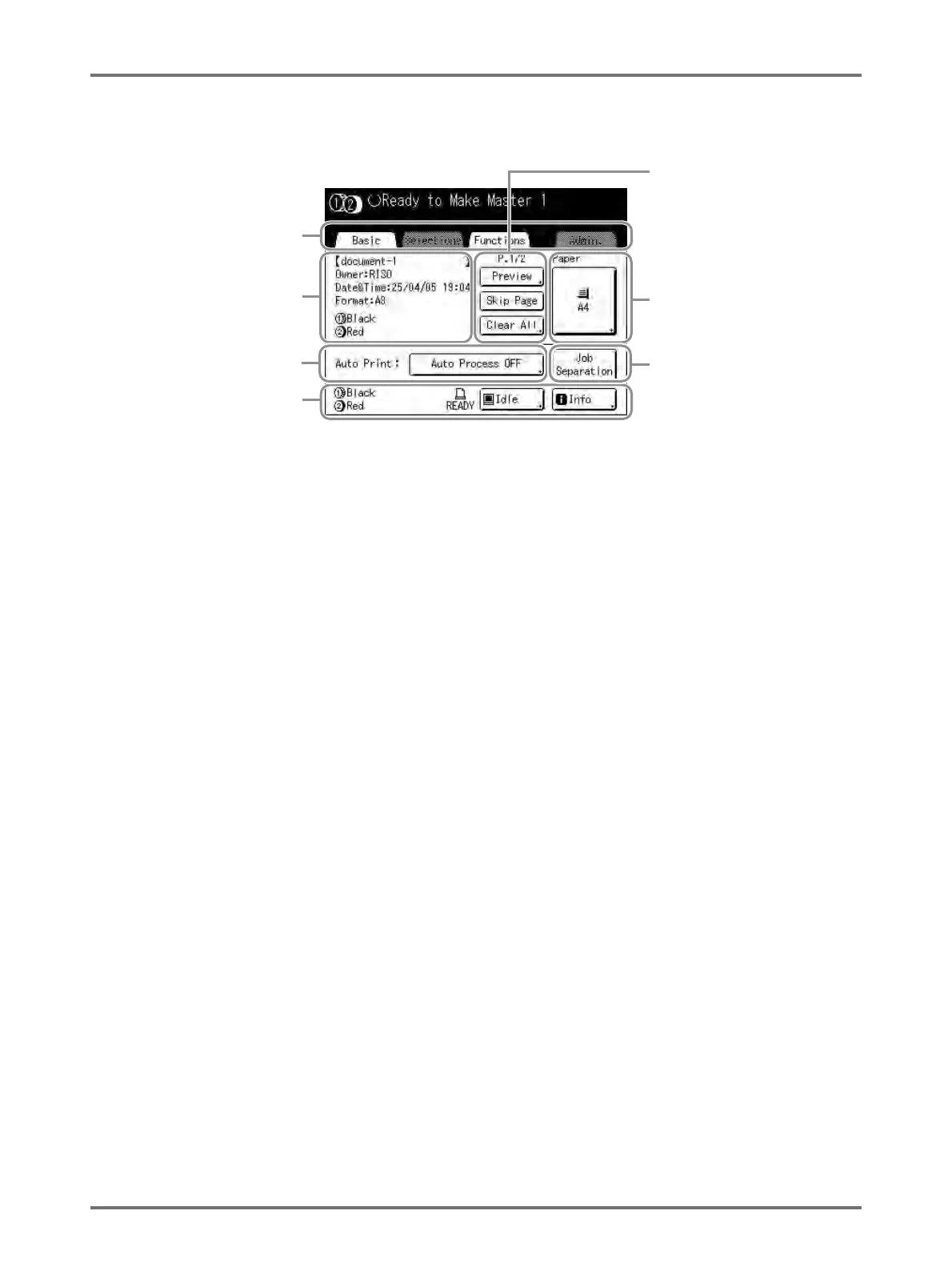
1) Tab Area
(“Selections” and “Admin.” tabs are disabled)
Touch a tab to display its screen.
2) Job Properties Area
Properties of the current print job is displayed.
Refers to the computer data ready for print output.
3) Job Operation Area
• [Preview]: Displays the master making image of the
page currently awaiting creation. (Available only in the
Master Making Basic Screen.)
• [Renew Page]: Create another master when current
one is damaged or compromised, without having to
download data from the computer. (Available only in
the Print Basic Screen.)
• [Skip Page]: Stops processing the current page and
moves on to process the next page.
• [Clear All]: Stops the current process altogether.
4) Paper Button
)p.82
5) Auto Print
A printing operation can be set to stop at certain points.
(overrides driver settings)
6) Optional Device Area
Displays when an optional device is attached.
Touch to activate.
Note:
• When no optional device is attached, “150ppm” button
is displayed.
7) Status Area
Displays the current status of the machine and its Linked
Printer (sold separately).
This area shows the same information as that on the
“Printing from the Original Document” screen. ()p.27)
Note:
• Depending upon the usage environment, some of the “Admin.” features may not be available (“Admin.” tab may not
be displayed). Consult your dealer (or authorised service representative) for details.
• For information on other screens and their functions or settings, refer to corresponding pages.
7
65
4
3
2
1



 To Next Page