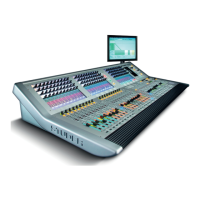
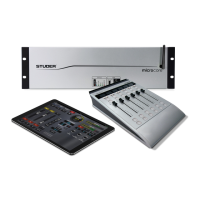
Vista 5 M3 Digital Mixing System
4-102 GC Operation
Document generated: 28.08.13
SW V4.9
Restore Backup This action opens the Restore Backup window entitled, where a backup
directory is selected for reloading.
To restore a backup directory:
• SelectRestoreBackupfromtheFilemenu;
• Highlightthedesiredbackupdirectory;
• ClicktheOKbuttonorpressEnter on the keyboard;
A pop-up dialog box will appear giving you the option of replacing the exis-
ting title, saving the restored title as a new title, or canceling the backup. If
you select ‘Replace the Existing Title’, you will not be able to replace the
Session Configuration if it is currently loaded and will be given the option
to continue. You will also have the opportunity to replace the monitor file
if it also exists. Choosing ‘Restoring the Title As’ will result in the normal
Window’s save screen.
Notes Regardless of the method used to create it, after a backup has been restored,
the resulting title must be opened before use.
If you move production data between different consoles, it is advisable not to
restore certain files onto the destination console, since it may have different
hardware. This is valid in particular for the monitoring.ini files. You will
be asked whether you want to restore these files as well; in this case answer
negative if the two consoles are not identical in terms of monitoring.
4.6.1.4 Import
Using the Import utility in the File menu, snapshots, presets, mixes, and titles
can be imported.
Import This action is used to select the type of data you wish to import. Once the
type of data is selected, an open window appears allowing to select the data
source. The following rules apply when using the Import utility:
• Snapshotsandmixescanonlybeimportedintoanopentitle
• ImportedpresetswillbesavedwiththecurrentDSPconfiguration
• Itemscanberenamedastheareimported
• AtitlewillneedconversionifitisimportedforusewithadifferentDSP
configuration
Note Importing a snapshot, preset, mix, and/or title will not autmatically make it
the current one. For example, a snapshot will not be applied to the console
upon being imported. It must be recalled, in addition, using the snapshot page.


 To Next Page