Vista 5 M3 Digital Mixing System
GC Operation 4-147
Document generated: 28.08.13
SW V4.9
4.7.7 Offline Conferencing
When configuring the N–X buses, a subset of N–X owner channels may be
defined to be members of a conference. Whenever their fader is closed, they
will automatically hear all other members (without hearing themselves back),
rather than the normal N–X signal. As soon as the fader is opened, they will
instantly hear the N–X signal again.
4.7.7.1 Offline Conference Setup
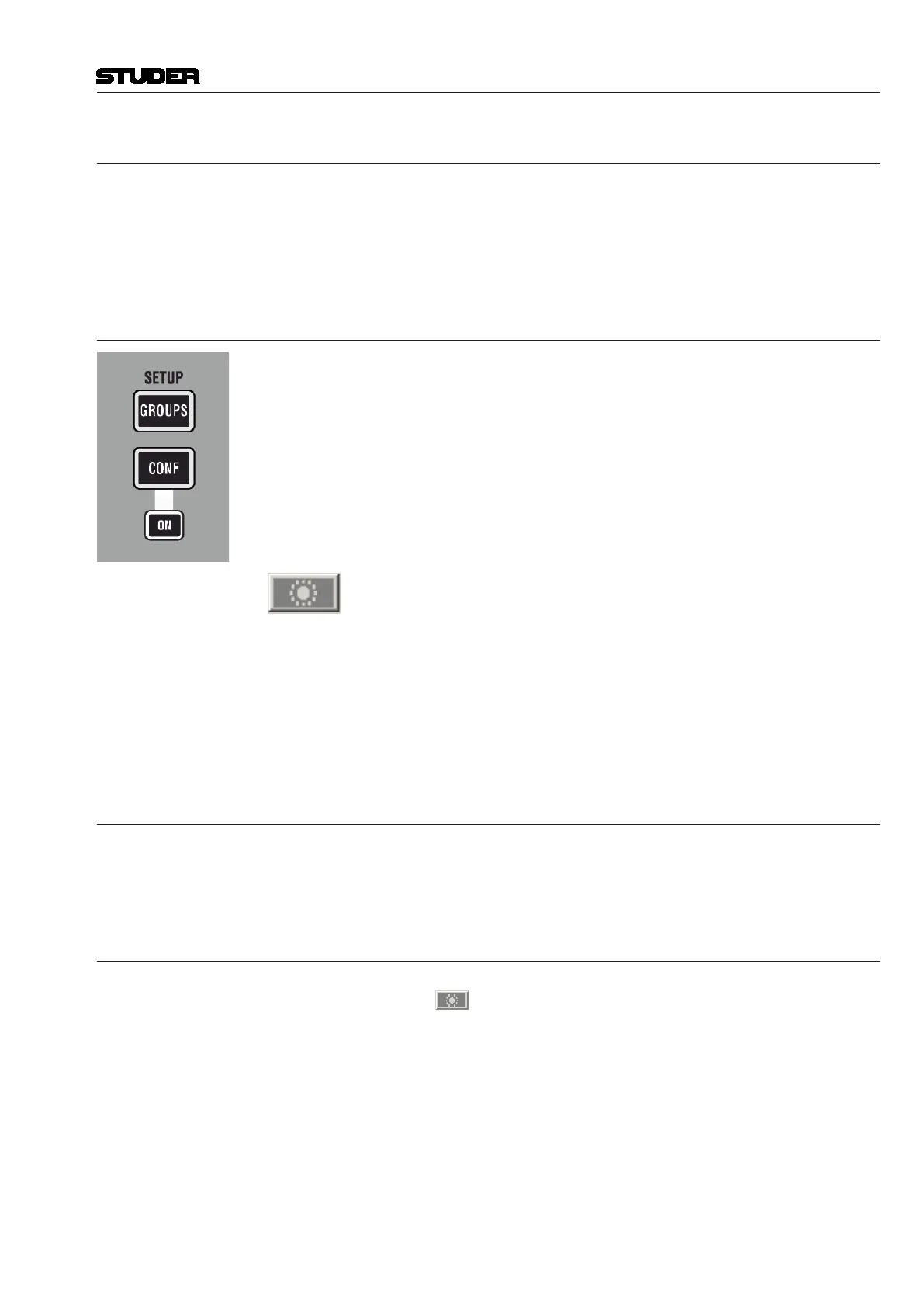
By pressing the SETUP CONF key on the control bay, the console is put
into conference setup mode. The LINK / SEL keys of all possible conference
member channels (all N–X owner channels) are half-lit, and the user may
select any number of them to be members of the conference. If the user
wishes to adapt this setting frequently, he may even stay in this mode during
a live production, since the channels are instantly added or removed from the
conference when pressing their LINK / SEL key (however, other features such
as ganging will not be available while in setup mode).
All the channels currently defined as conference members are marked in the
strip setup window.
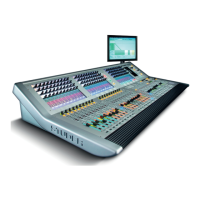
The conference icon in the toolbar has three states:
Grayed out No conference active nor defined
Colored Conference active (if member faders closed)
Colored, crossed out Conference defined, but temporarily deactivated (even if member faders
closed).
Note: In certain circumstances, also an AUX master can be selected as a conference
member (indicated by its half-lit LINK / SEL key). This is intended for adding
e.g. an on-air signal to the conference. See details below.
4.7.7.2 Talk to the Conference
When pressing the TALK key on a channel which is currently conferencing,
the talk function is automatically activated on all members of the conference
at the same time.
4.7.7.3 Temporary Conference Deactivation
The conferencing may temporarily be deactivated by clicking on the confe-
rence icon
in the toolbar or the CONF ON key. In this case the conference
definition is retained. As soon as the conference is reactivated globally (by
pressing CONF ON or clicking on the conference icon in the toolbar again),
the previously selected channels may talk to each other again. Temporary
activation of the CONF ON key is possible as well.


 To Next Page