Vista 5 M3 Digital Mixing System
Desk Operation 2-45
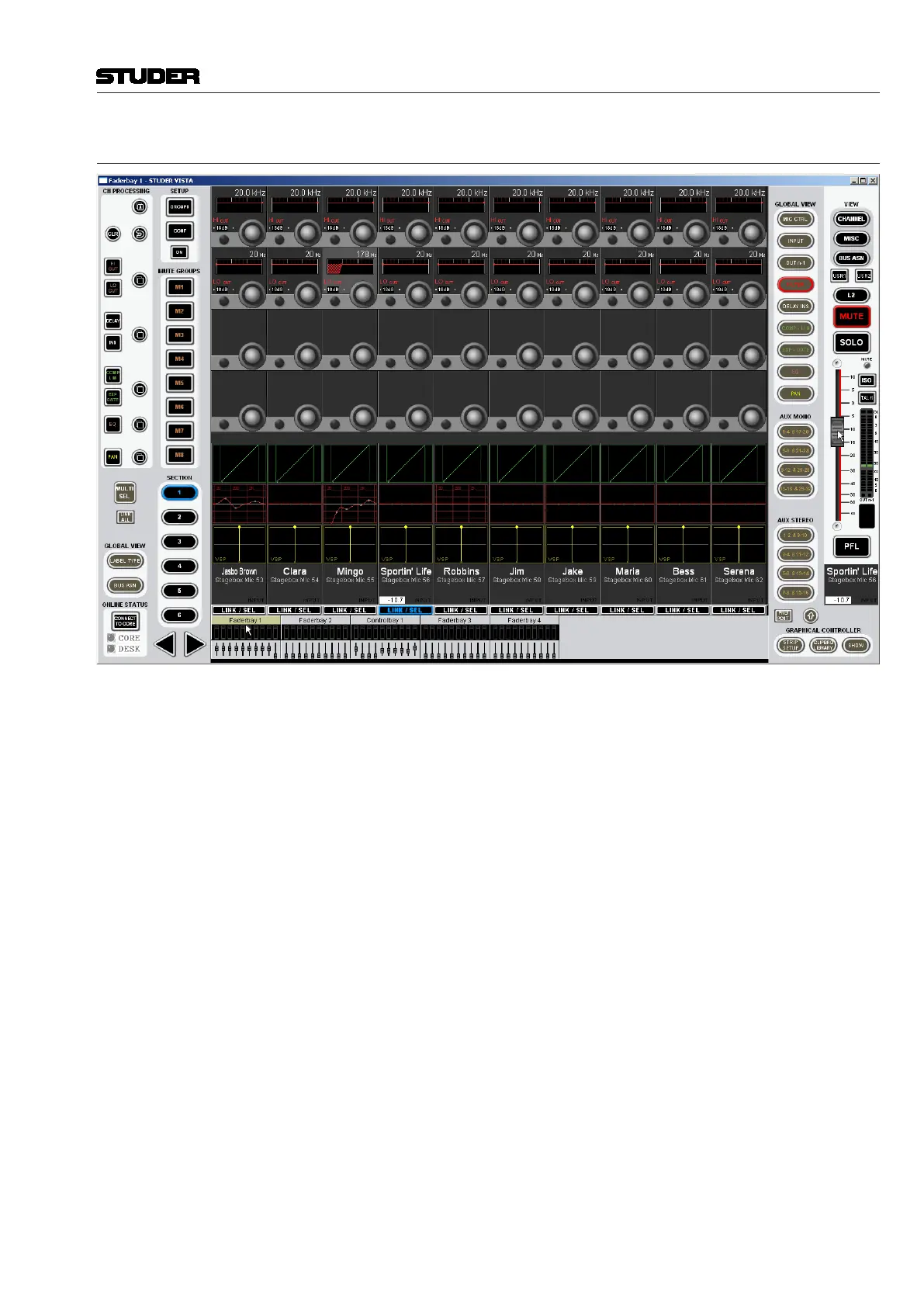
2.11.2 Fader Bay View
By clicking into the meter area of one of the fader bay icons (Faderbay 1...),
the corresponding Vistonics view opens up. The upper part of the selected
fader bay icon is highlighted in order to make clear which bay the operator
is looking at.
The LINK / SEL button below the label area of the Vistonics screen is used
to assign a single central fader that is displayed on the right-hand side. As
long as the fader knob is ‘touched’ (i.e., the mouse pointer is located upon it
and the left mouse button is pressed), the current fader value is displayed in
both channel label fields, as shown in the screenshot above. If FaderGlow is
active, this is reflected on the single fader as well.
Channel Grouping (Ganging) The MULTI SEL button allows grouping channels for parallel operation. If a
channel is selected with its LINK / SEL button, a click on MULTI SEL fol-
lowed by a click on the next desired LINK / SEL button builds a two-channel
group; a third channel is added to the group by another click on MULTI SEL
and the next LINK / SEL button, and so on, until all the desired channels are
grouped. The other way round, a click on LINK ALL and any LINK / SEL
button selects all currently displayed channels; then, using the MULTI SEL
and LINK / SEL buttons allows removing channels from the group.
There is a different, convenient way for building a channel group (or gang):
Left-click-and-hold a LINK / SEL button, then – while still holding the left
mouse button – right-click on another one. This will add all LINK / SEL
buttons between the selected ones to the group. This works, by the way, also
when right-clicking-and-holding first and left-clicking afterwards.
Document generated: 28.08.13
SW V4.9



 To Next Page