6.4.7.6 Generate Menu
All Starts the Load Balancing and automatic generation of the DSP core file. For
a description, please see previous chapters.
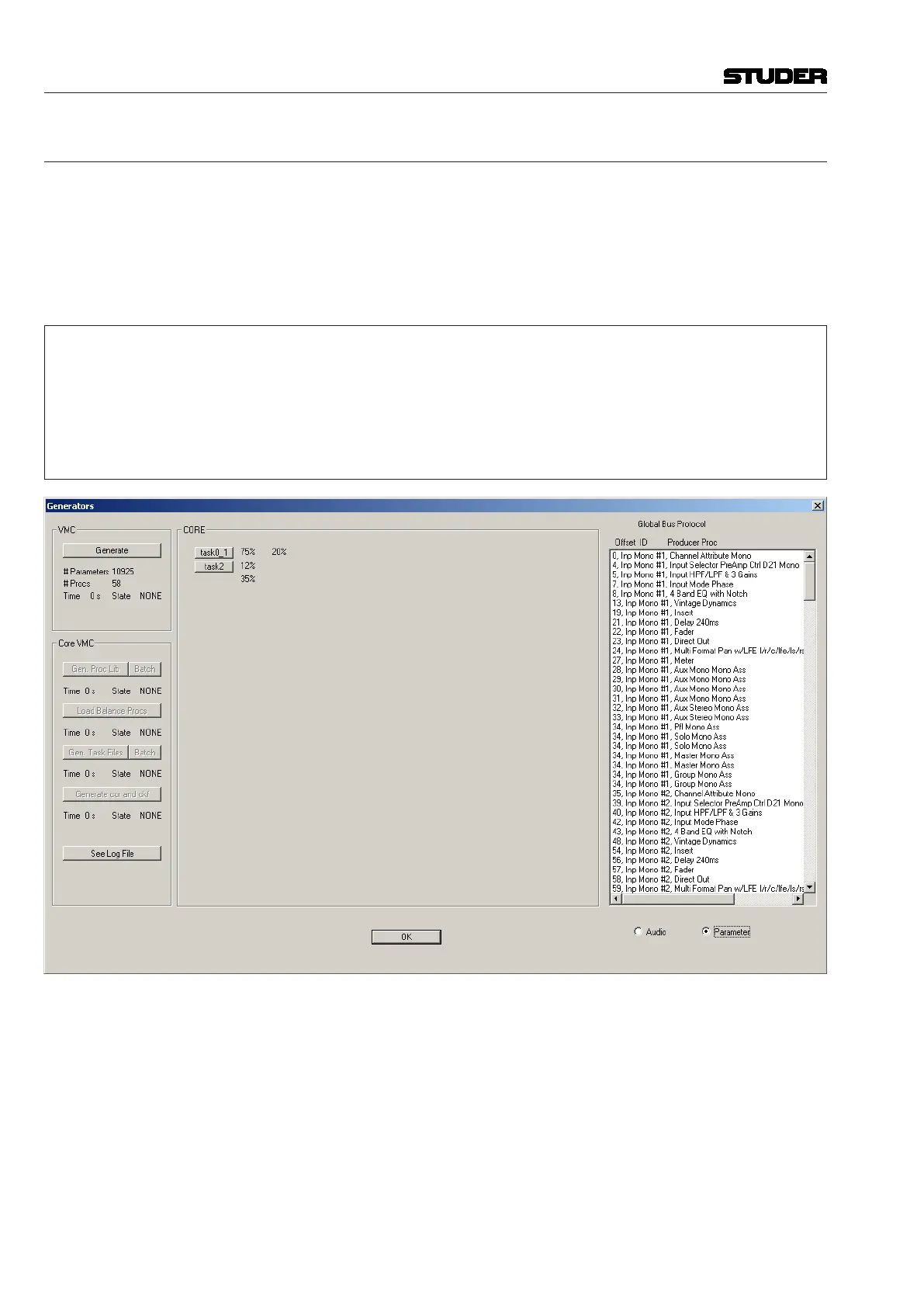
Detailed This menu item opens up an interactive dialog box that allows to start step-
by-step manual Load Balancing and generation of the DSP core file. It allows
an expert user to see more details of the current configuration as if Generate/
All was used.
For Experts Only! It is not necessary to go to this menu item to do the whole generate process.
The main reason for looking at this page is to see the load distribution to
various DSP cards and individual PE processors. There is a lot of other
information here that does not mean much to an ‘ordinary human’.
This menu item becomes active only when you are in the expert mode.
Expert mode is activated by right-double-clicking into the ‘About’ dialog
box while holding the Ctrl/Shift keys.
If a Generate process has already been done, the ‘CORE’ area will show the
results of load balancing and distribution of the load to DSP cards. Click on
one of the buttons to see the load distribution on one DSP card in detail. If
the Generate process has not yet been done, the ‘CORE’ area is empty.
To start the individual Generate process from here, all seven boxes in the
‘VMC’ and ‘Core VMC’ areas have to be clicked in turn, waiting for the result
of the previous action to appear before the next box is clicked. The order of
the individual processes is as follows:
• Generate(VMC)
• GenProcLib
• Batch
• LoadBalanceProcs(nowthe‘CORE’areawillbefilledin)
Vista 5 M3 Digital Mixing System
6-36 Session Conguration
Document generated: 28.08.13
SW V4.9


 To Next Page