Vista 5 M3 Digital Mixing System
AutoTouchPlus 5-119
Document generated: 28.08.13
SW V4.9
5.17.2.5 Function Controls
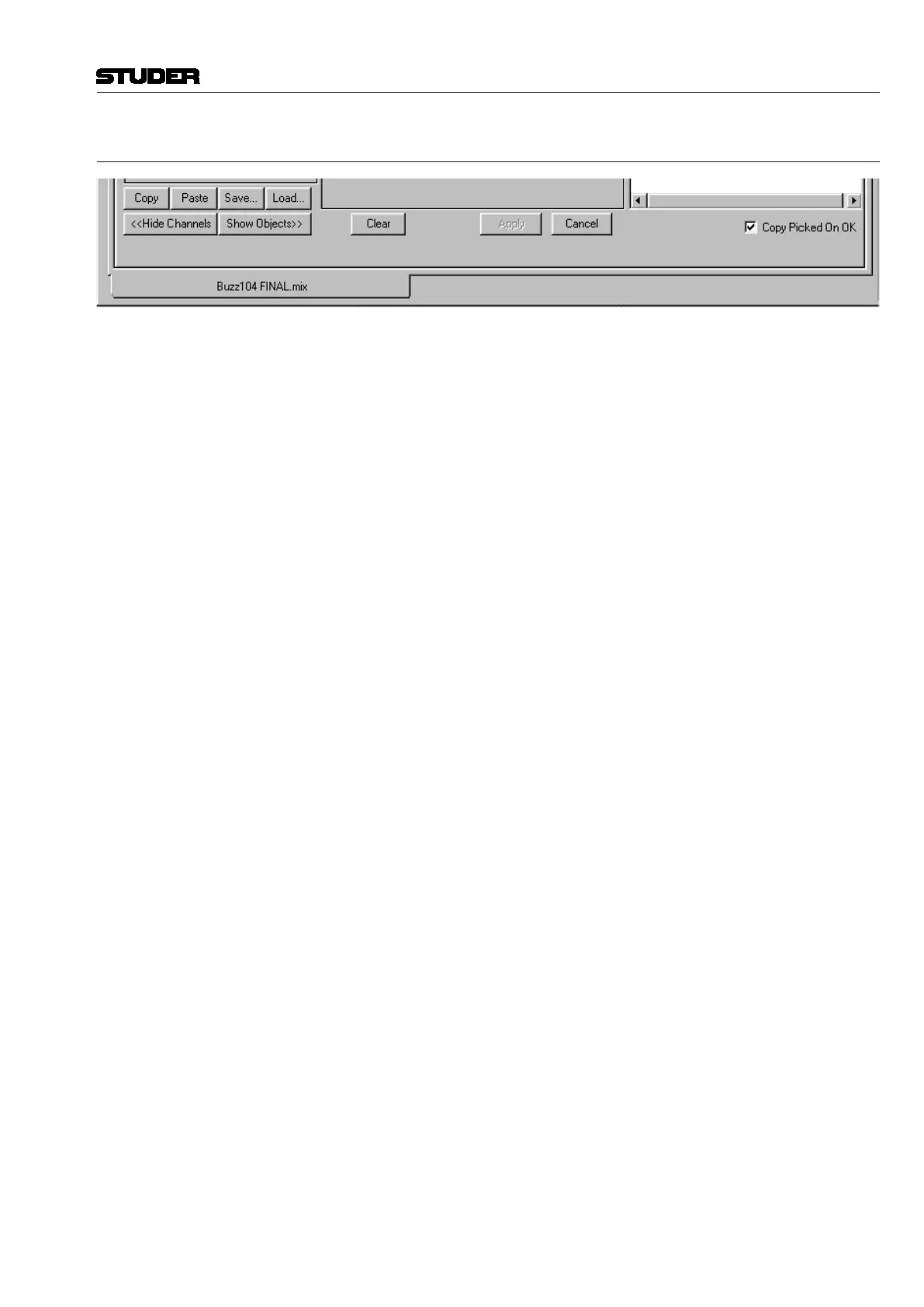
A set of function controls is provided below the Channel/Object Selector
windows. These function buttons are as follows:
Copy copies the Selected Objects Set to the PC clipboard;
Paste pastes the contents of the PC clipboard (copied Selected Objects Set) to the
Object Picker;
Save… saves the Selected Objects Set as a file;
Load allows saved object files to be reloaded;
Clear clears the selection of all objects;
Apply selects the objects chosen in the Object Picker for editing;
Copy Picked on OK if checked, the Selected Objects Set is copied to the clipboard when the ‘Ap-
ply’ button is clicked;
Cancel cancels changes made to the Selected Objects Set since the last set was ap-
plied, saved, loaded, copied, or pasted.
Once an object or set of objects has been selected in the Object Picker, they are
then selected for editing by clicking the ‘Apply’ button. The selected objects
from the selected channels will be displayed in the ‘Selected Objects’ window.
Those are the only objects that will be affected when edits are performed.
Note If an object has been chosen but a channel has not, the object will not be
selected for editing when the ‘Apply’ button is clicked.
Open Mix Selector Tabs A set of tabs, each of them representing a mix, are located at the bottom of the
Object Picker window (bottom left in the picture above). Every mix that is
currently open in the OFLA has its own tab. When the mix selector menus are
set to ‘Selected Mix’, these tabs are used to choose a mix by simply clicking
on the appropriate tab.



 To Next Page