Vista 5 M3 Digital Mixing System
AutoTouchPlus 5-159
Document generated: 28.08.13
SW V4.9
Locate System on Standing Code <Never>: AutoTouchPlus will never locate to a standing timecode location.
<Always>: AutoTouchPlus will always locate to a standing timecode location.
<After ... milliseconds>: AutoTouchPlus will locate to a standing timecode
location after the time specified in the milliseconds pull-down menu.
Other Miscellaneous Options <Read Safe>: Normally when a control is moved its changed value is able to
be auditioned, and then it snaps back to the Read Mix value (unless TOUCH
– Hold is active). When this option is set, any controls in Read mode will
not be able to be auditioned. They will always follow the read mix value
regardless of the physical or virtual control position.
<Disable Trim Replay>: When this option is selected, faders will not play
back any recorded Trim data. Note that this has no effect on the mix values
that are being played from the read mix. Only that the faders will not track the
any previous Trim values that were recorded. The Read Mix values already
contain the effects of any previously recorded Trims. So this only affects how
the faders respond when they are in Trim Enable mode. Also note that Trim
replay is only available on faders.
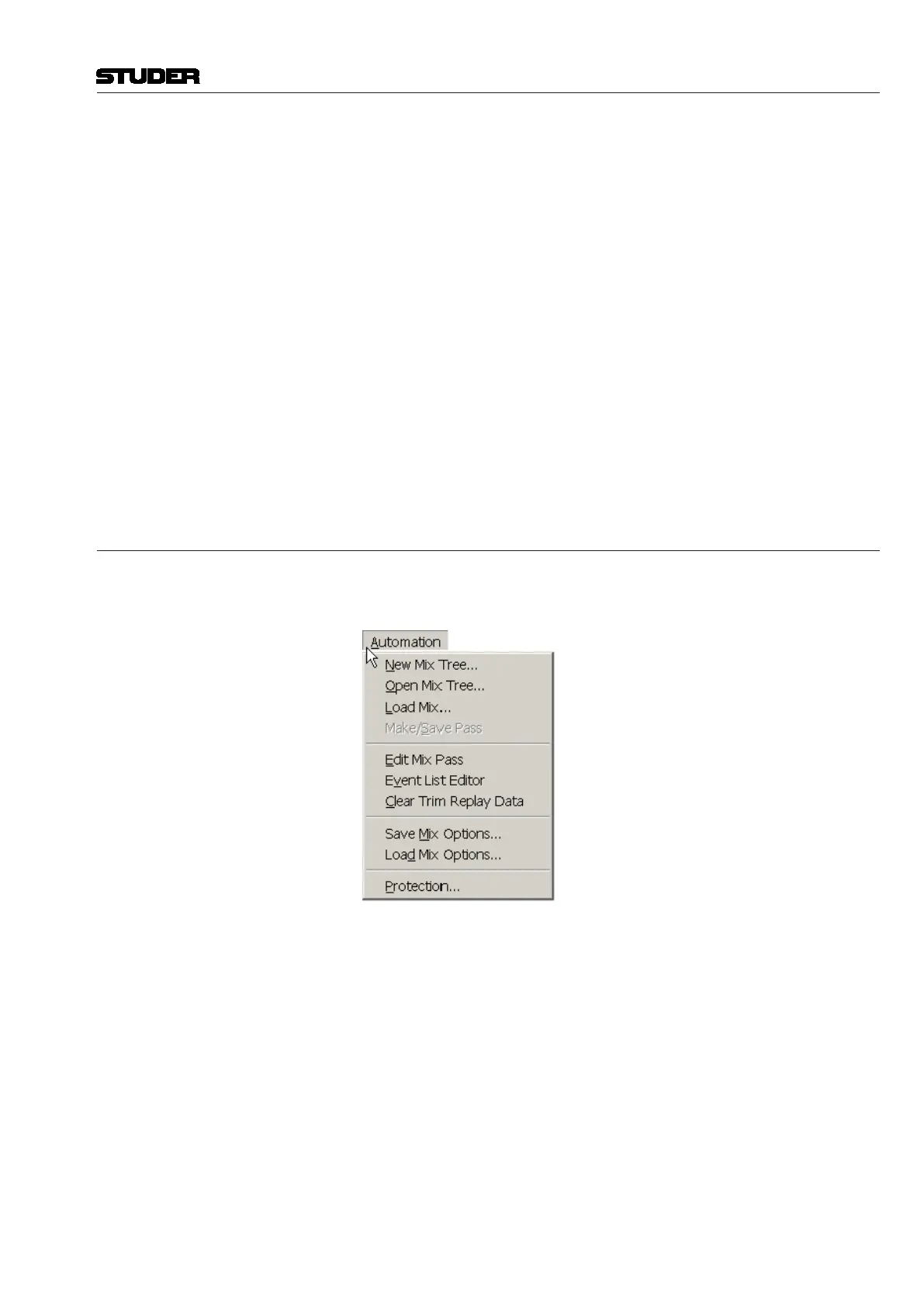
5.23 GC Automation Menu
The GC Automation menu contains several items used in the operation of
AutoTouchPlus. These menu items are referenced throughout this document
and are explained briefly below.
New Mix Tree… Selecting New Mix Tree… from the Automation menu opens the New Mix
Tree dialog window. A new Mix Tree may be created using this window.
Open Mix Tree... Selecting Open Mix Tree... from the Automation menu opens the Open
Mix Tree dialog window. An existing Mix Tree may be opened using this
window.
Load Mix... Selecting Load Mix... from the Automation menu opens the Load Mix Into
Tree dialog window. An existing Mix from any Title may be loaded into the
current Mix Tree using this window.
Make/Save Pass Selecting Make/Save Pass from the Automation menu will generate a new
Mix Pass. This is useful when it is desirable to save updated Static values
without having to perform a record pass.


 To Next Page