Vista 5 M3 Digital Mixing System
Desk Operation 2-21
2.6.9 Control and Mute Groups
2.6.9.1 Control Group Setup
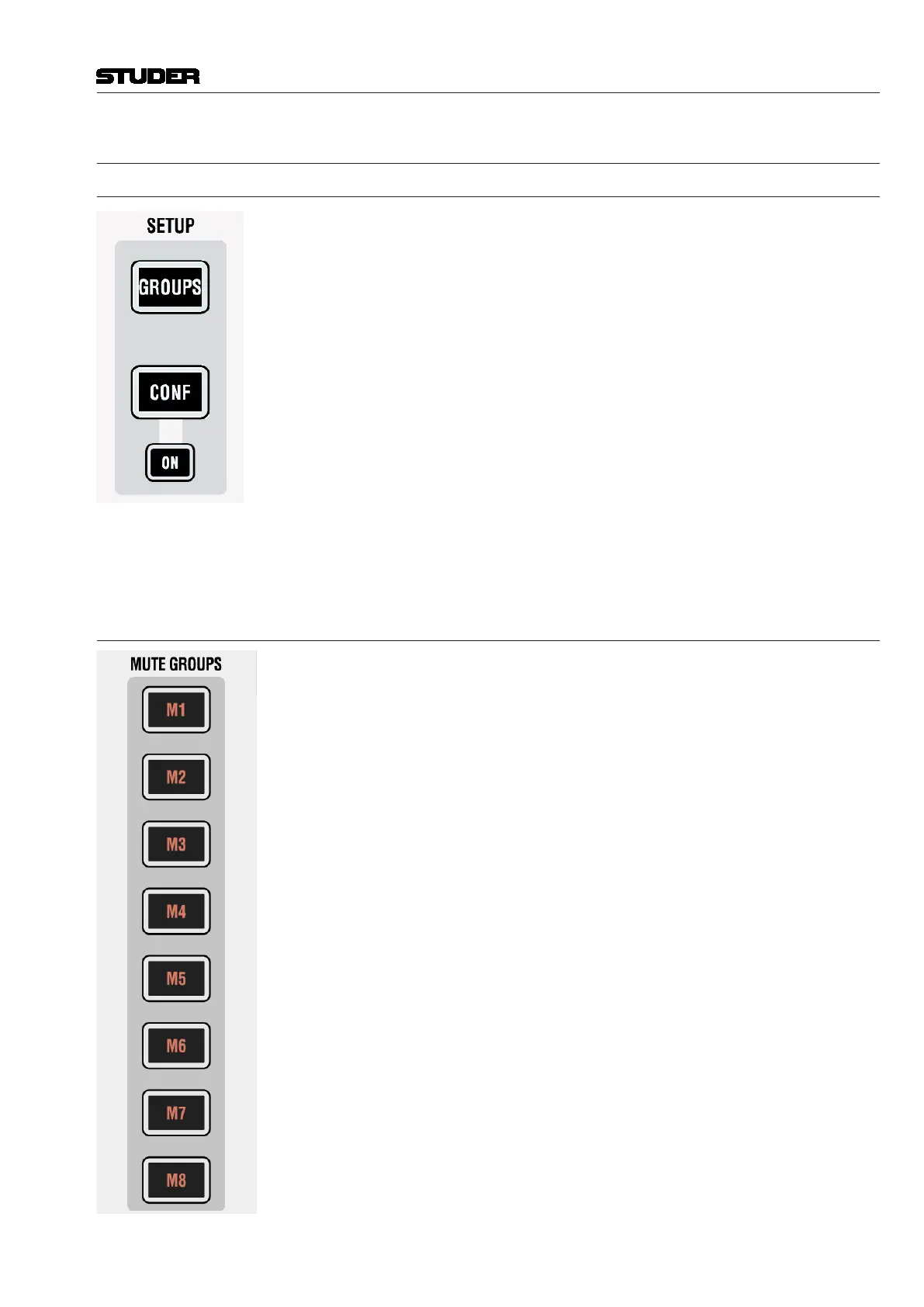
SETUP: GROUPS
Pressing this key will enter/exit control group and mute group mode.
After having entered SETUP: GROUPS, the user selects the control group
he wants to edit by pressing LINK / SEL on the corresponding control group
master channel. Then the desired channels are added to or removed from the
control group by pressing their LINK / SEL key. The 7-segment display next
to the channel fader indicates the control group number.
The control group assignment is saved within each snapshot, therefore the
assignment may change from snapshot to snapshot.
The MULTISEL key is active as standard, thus allowing to select and de-select
individual channels. Clearing the entire definition of a control group is easily
done by pressing the MULTI SEL key, so that it gets dark. After that, any press
on LINK / SEL of any channel will clear all others. It is also possible to add
multiple channels to a control group: Press and hold one LINK / SEL key and
press another one on a different channel. All channels in between will be
added to the control group.
2.6.9.2 Mute Groups
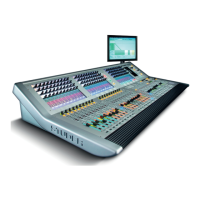
Vista 5 M3 provides up to 16 mute groups. MUTE GROUPS M1...M8 have
dedicated keys on the left side of the control bay.
Mute groups M9...M16 may be operated using eight of the 16 monitoring
source selectors. Use of these keys (monitoring source selectors or mute
groups) is defined in the ‘Option: Vista Settings’ menu, as shown below.
Document generated: 28.08.13
SW V4.9



 To Next Page