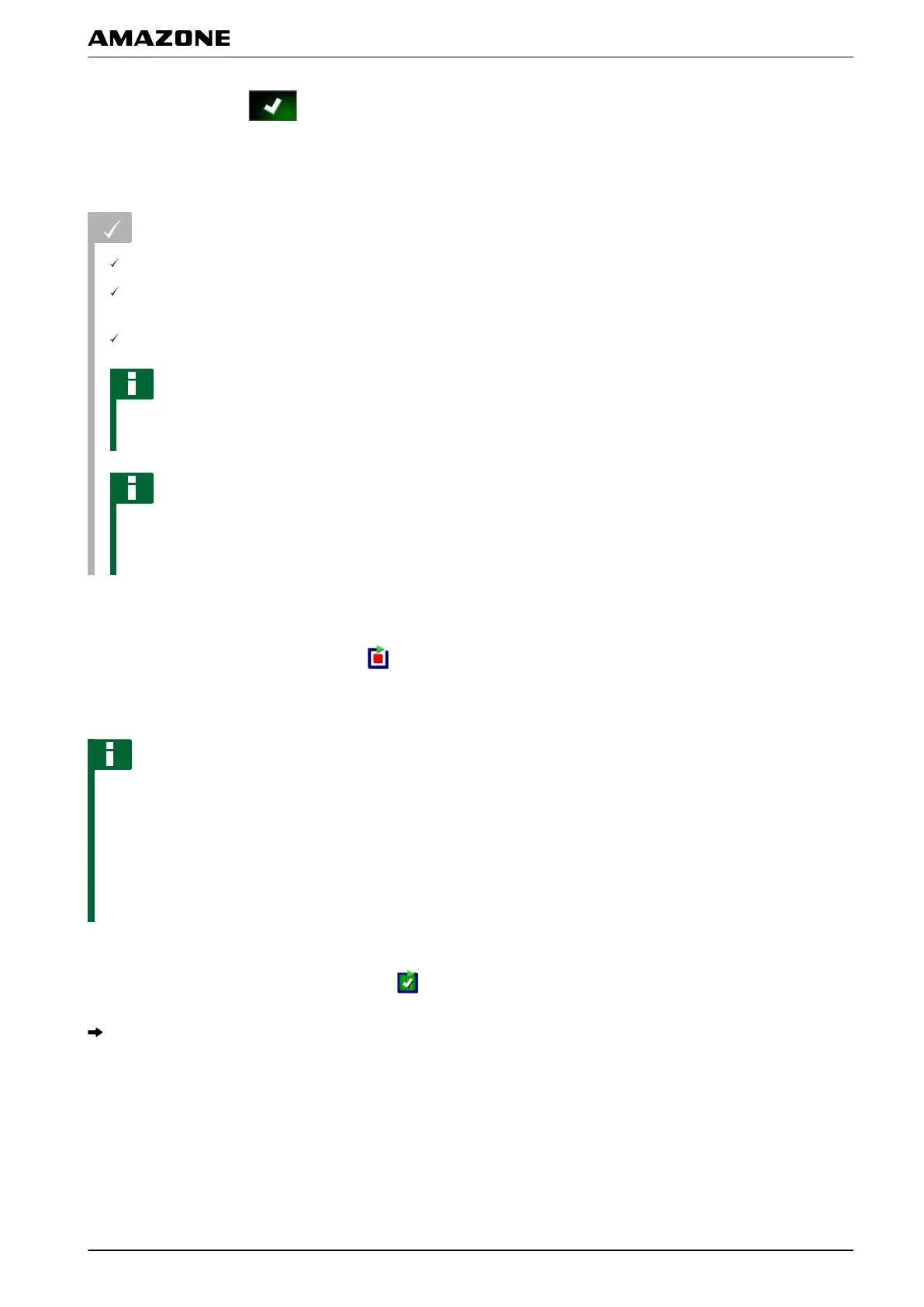
6. Confirm entries with .
2.1.2 Starting the boundary line recording
REQUIREMENTS
Field is created; see page 127
Job is created and the field is added to the job;
see page
116
Implement is selected; see page 86
NOTE
The implement does not need to be connected to
the
vehicle.
NOTE
The boundary line can also be recorded during
application.
To do so, the job must be started; see
page 115.
1. Drive to the field edge.
2. Start the boundary line recording with
.
3. Drive around the boundary area.
NOTE
If obstacles prevent driving at the edge of the
boundary
area or the vehicle must be turned, the
boundary line recording can be interrupted. When the
boundary line recording is continued, the resulting gap
in the boundary line is automatically replaced by a
straight line. To interrupt the boundary line recording,
see page 132.
4. When t
he starting point has been reached,
terminate the boundary line recording with
.
The boundary line will be saved and assigned to the
selected field.
5. Edit the boundary line, see page 135.
009136
J | Managing fields | Creating a boundary line
MG5574-EN-II | B.1 | 25.10.2016
131


 To Next Page