Implement selection: In this menu bar, the
connected
implements and input devices can be
selected.
Buttons on the user interface of the ECU
(implement
control): These buttons can be operated
using the touchscreen.
Selection: These buttons open a selection list.
Input lines: Input lines open the number pad or the
key pad to enter characters.
Full screen
With this button, the menu for the configuration of
the AUX-N input is opened.
For example, for a
multi-function stick or the additional buttons on the
AMAPAD.
After a software update or if the display is faulty,
this button can be used
to clear the user interface
of the Universal Terminal. After restarting, the
Universal Terminal is ready again.
Switch between the connected implements.
Switch between the buttons of the user interface.
Cancel or one menu back.
Confirm selection, entry or message.
1
Opening the Universal Terminal
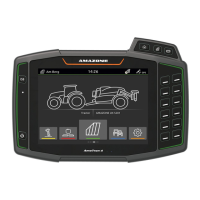
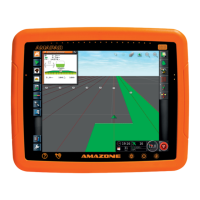
The Universal Terminal can be used to access the
implement ECU. The user interface of the implement
control is shown on the AMAPAD and can be operated
there.
The miniature view for the Universal Terminal can be
found on
function bar in the operating menu.
1. In the function menu, tap on
.
NOTE
There may also be a symbol for the connected
implement
or the connected input device on the
button in the function menu. Example with fertiliser
spreader:
002235
N | Using the Universal Terminal| Opening the Universal Terminal
MG5574-EN-II | B.1 | 25.10.2016
175


 To Next Page