The selection confirmation
will be coloured after
half a second.
2. Move your finger on a boundary line until the
boundary line information
is shown.
3. Take your finger off the map.
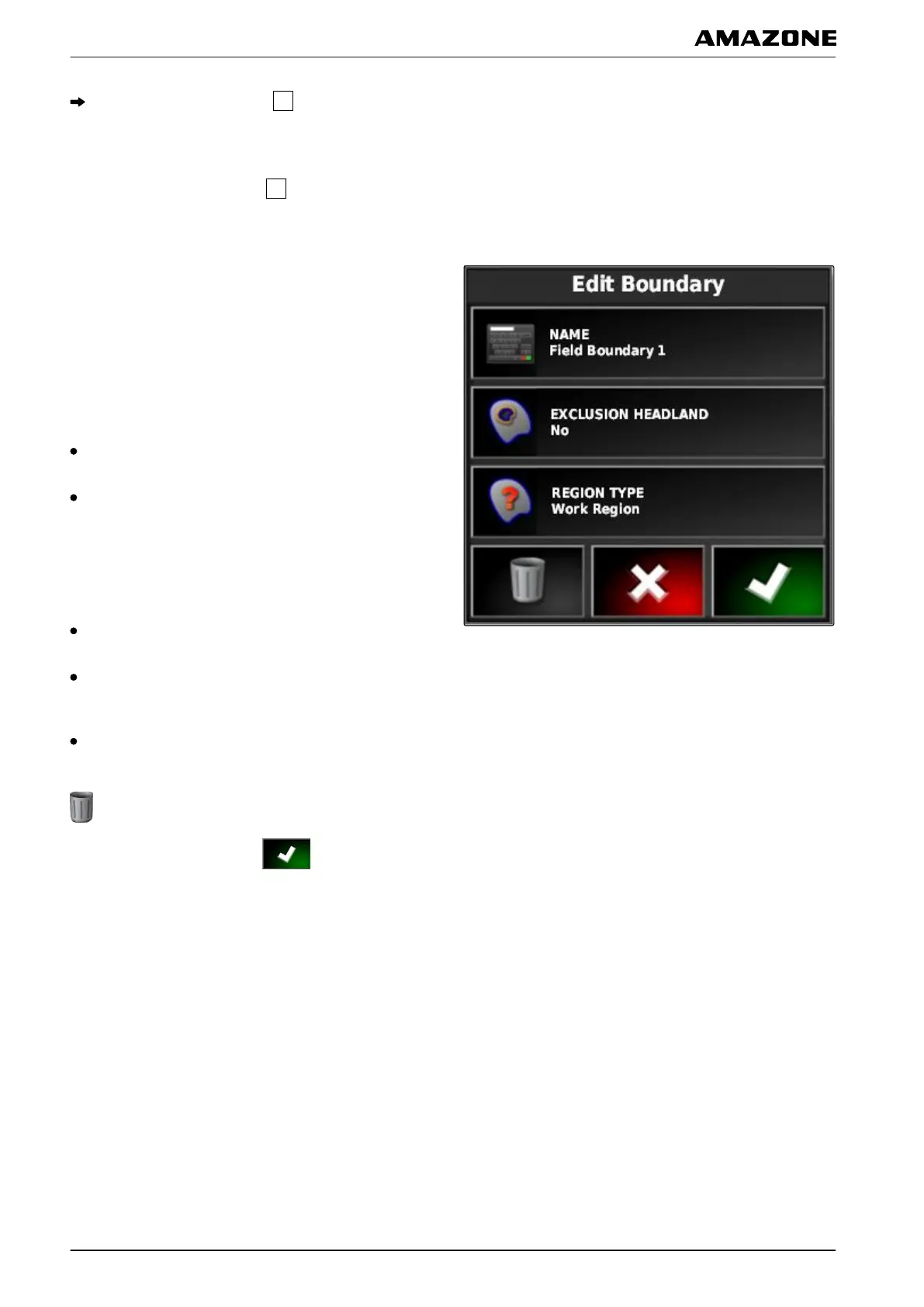
4. Enter a name for the boundary line under "Name".
If
the selected boundary line is located within a different
boundary line, a headland can be drawn around the
selected boundary line with the "Including the
headlands" setting.
Possible settings:
"Yes": A headland is drawn around the inner
boundary line.
"No": The inner boundary line has no headland.
The "Boundary
area type" setting defines how the
selected boundary line should be treated.
Possible settings:
"Work area": the area within the boundary line can be
worked.
"Exclusion area": the area within the boundary line
cannot be worked. The automatic part-width section
control stops the spreading/application.
"Disabled": the boundary line is not taken into
account.
: Delete boundary area.
5. Confirm the settings with .
J | Managing fields | Editing the boundary line
MG5574-EN-II | B.1 | 25.10.2016
136


 To Next Page