REQUIREMENTS
Field is created; see page 127
Track line pattern for curved track lines is
selected; see page
147
1. Select
.
2. Call up the "New track" menu with .
3. Enter the track name.
4. Confirm with
.
5. Drive to the position on the field where the curved
track line should begin.
6. Set the starting point of the curved track line with
.
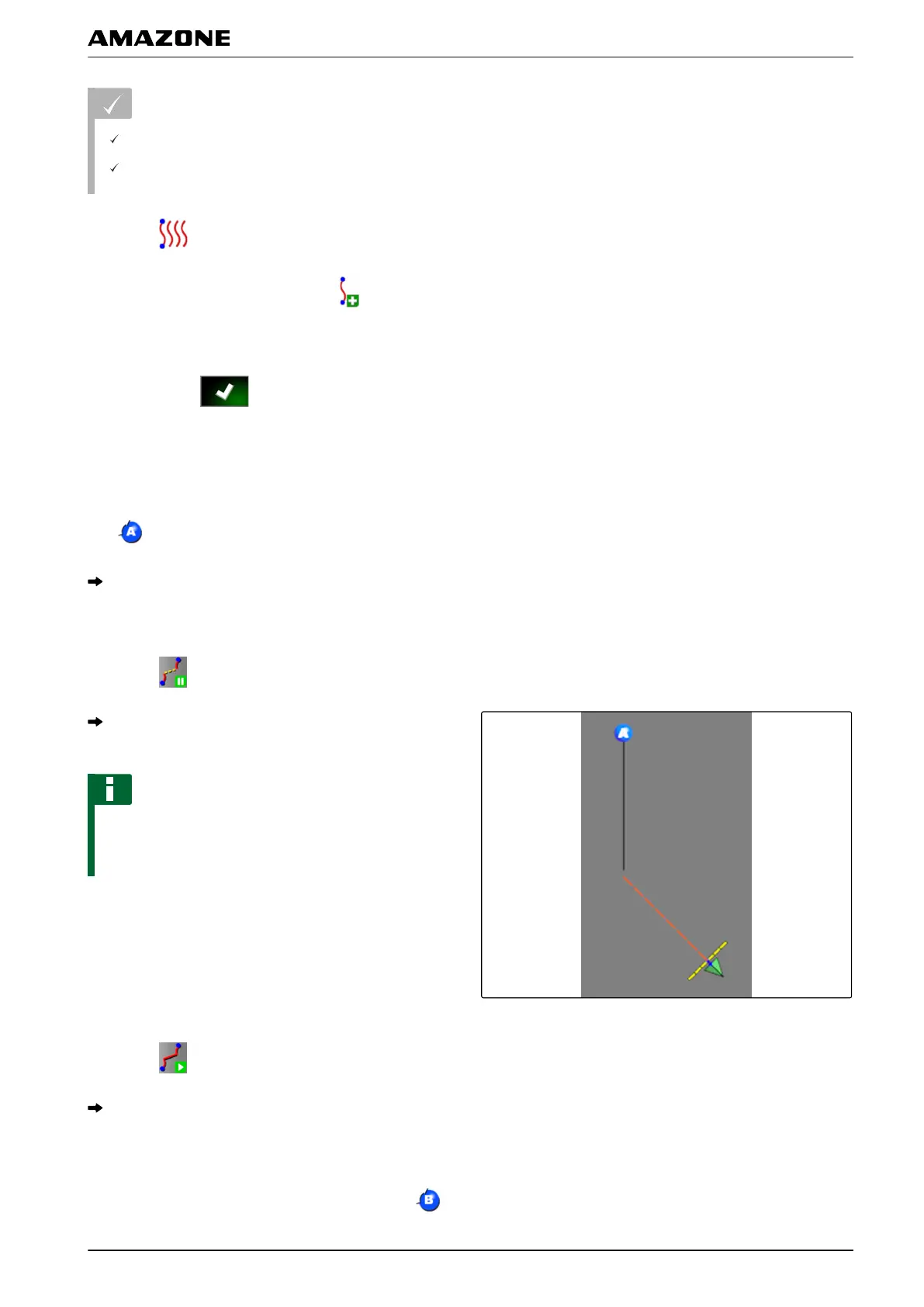
The recording of the curved track line will be marked
with a black line.
7. T
o interrupt the track line recording,
tap on
.
A red dashed line appears between the end of the
recorded track line and the vehicle symbol.
NOTE
When the track line recording is resumed, the gap
between
the end of the recorded track line and the
vehicle symbol will be replaced by a straight line.
8. T
o resume the track line recording,
tap on
.
The red dashed line will be replaced by a black line.
9. Drive to the end of the row.
10. Set the end point of the curved track line with
.
K | Using track lines | Creating track lines
MG5574-EN-II | B.1 | 25.10.2016
151


 To Next Page