1. Insert the USB flash drive into the AMAPAD.
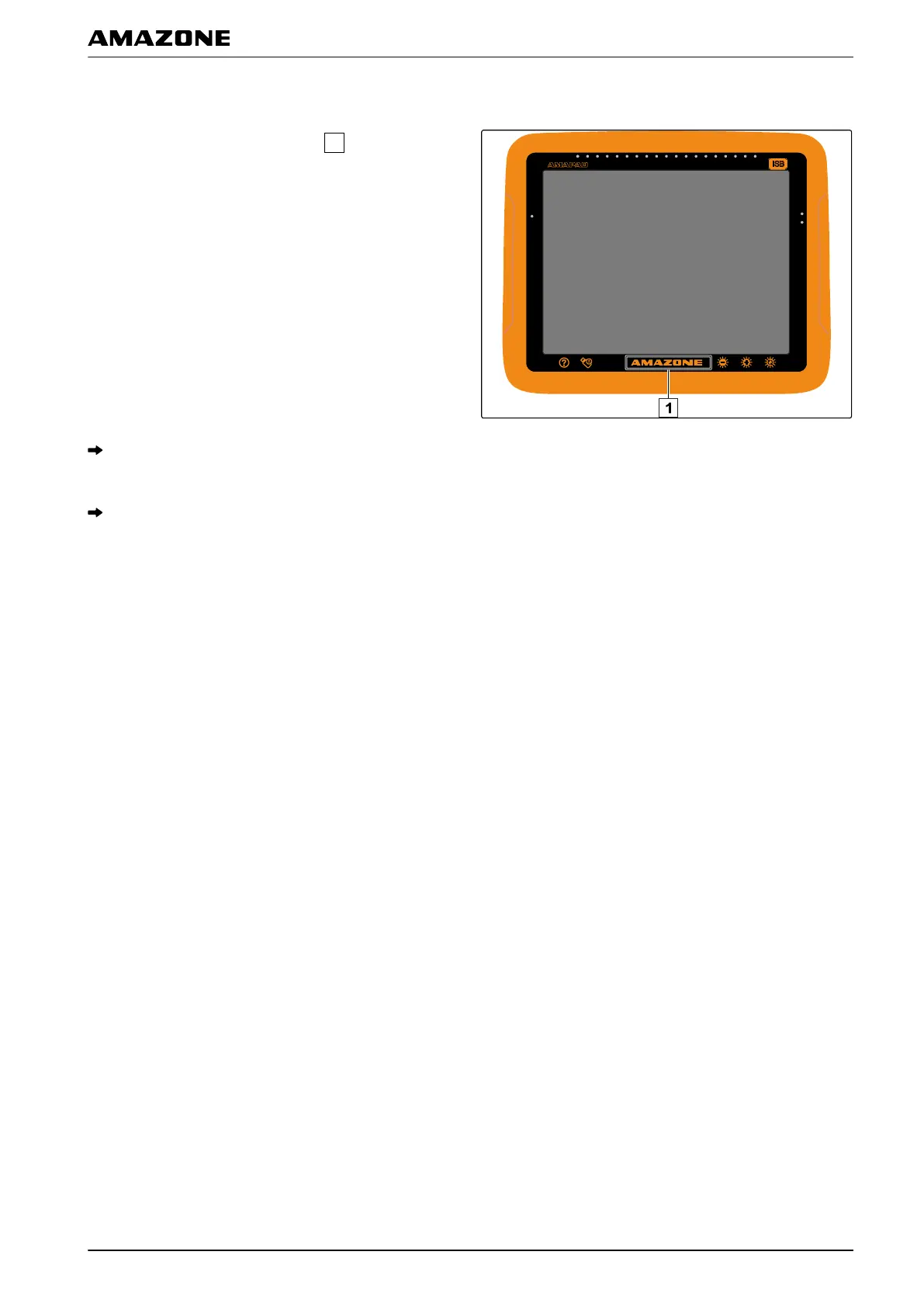
2. Tap on the multi-function button
.
The background of the user interface will briefly turn
grey
.
The screenshot will be saved to the USB flash drive
in the "Screenshots" folder
.
S | Using the multi-function button| Taking screenshots
MG5574-EN-II | B.1 | 25.10.2016
221


 To Next Page