Custom Transfer Functions
104 MC4 User Guide
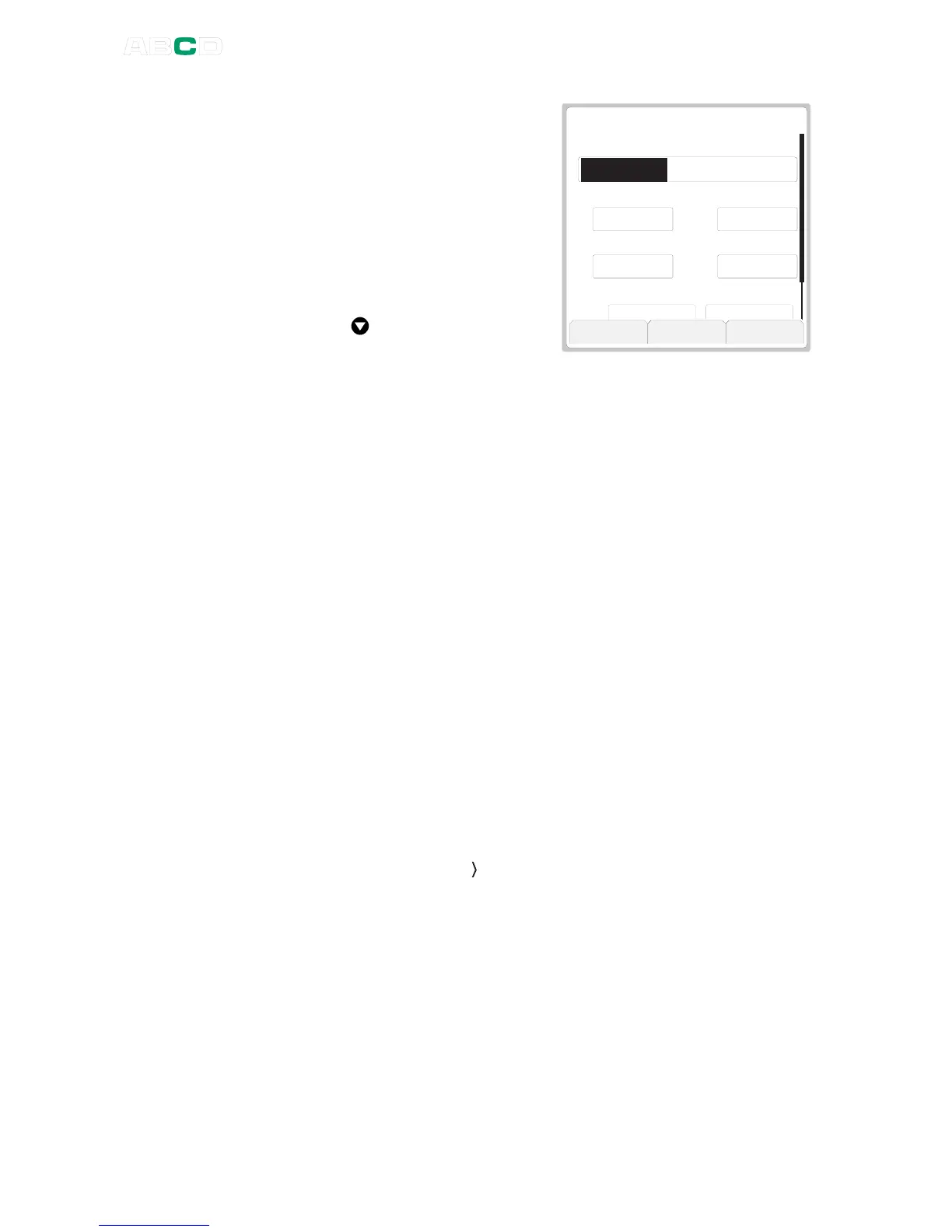
Give a name to the custom
transfer function.
The
Input Range
and
Output
Range
fields are scaled ranges for
the custom transfer function.
Default values are for percentage
scaling.
Enter Input/Output pair values in
ascending order. Press down
arrow ( ) to add more
Input/Output pairs below the last
Input/Output pair.
E D I T T R A N S F E R F U N C T I O N
T r a n s f e r F u n c t i o n N a m e
I N T
I n p u t R a n g e
I n p u t
O u t p u t R a n g e
0 . 0 0 0 00 . 0 0 0 00 .
O u t p u t
C l o s e M e n u S a v e
O u t p u t
I n t h e C a s e
0 % 1 0 0 %
0 . 0 0 0 0 1 0 0 . 0 0 0
0 % 1 0 0 %
0 . 0 0 0 0 1 0 0 . 0 0 0
The F2/
Menu
Function Key opens a menu for editing the
Input/Output pairs or the whole set. Options:
Insert Row
Delete Row
Delete All Rows
Copy Set
Delete Set
The
Insert Row
option adds an Input/Output pair above the current
Input/Output pair. The new row has default values based on the
Input/Output pairs above and below it (calculated using linear
approximation).
The F3/
Ok
Function Key saves the custom transfer function and
adds it to the
Transfer Function
combo list. An inverted copy of
the custom transfer function is also added to the
Transfer
Function
combo list. The inverted transfer function has a "x
-1
"
symbol before its name. The custom transfer function and its
inverted copy are located after all pre-entered transfer functions but
before the
Create New
option.
To separate custom transfer functions from pre entered ones,
custom transfer functions are prefixed "User:" and the row ends with
a chevron pointing right " ". This indicates that the point set may be
edited.
Hint!
The maximum Input/Output pair values may be outside the ranges'
maximum values.


 To Next Page