Sync Control System 27
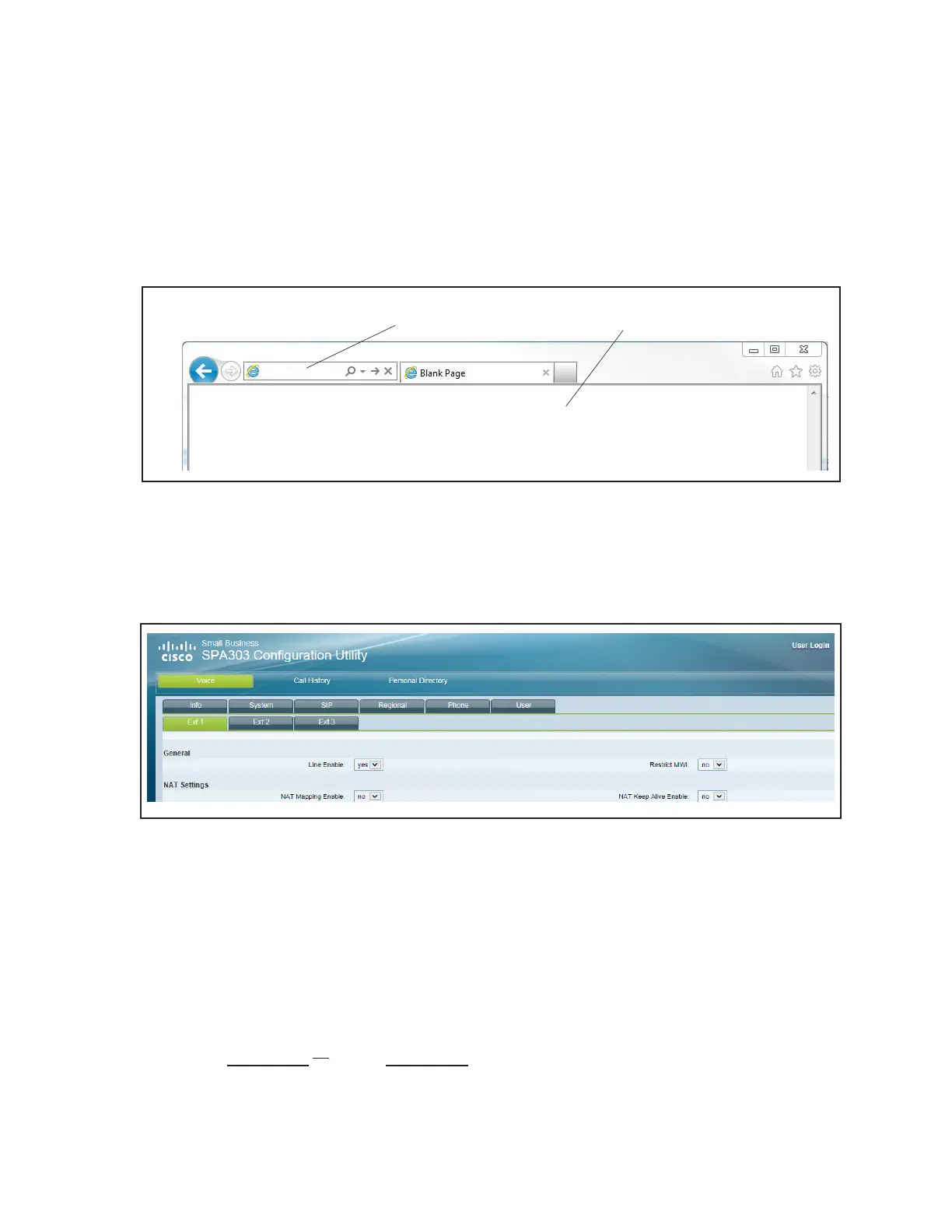
2. On the desk computer, open the web browser Internet Explorer
3. In the URL bar, type the IP address found on the phone in step 1. At the end of the address type
/admin/basic.
EXAMPLE: Using IP Address as found in step 1: 192.168.100.62/admin/basic
Press Enter to connect to a web page in the phone. No login is required. Refer to gure titled
Phone Setup Page.
(1)
WEB
BROWSER
(2)
ENTER IP ADDRESS +
ADDED TEXT
IN URL BAR
192.168.100.62/admin/basic
Phone Setup Page
(1) WEB BROWSER (2) ENTER IP ADDRESS + ADDED TEXT IN URL BAR
4. Once the Cisco SPA303 Conguration Utility loads, Click on the EXT 1 Tab. Refer to gure
titled EXT Tab.
EXT Tab
5. Set the following parameters found under the EXT 1 tab:
A. Proxy and Registration Section (Refer to gure titled Proxy and Register Settings.):
1) Set the Proxy to the IP Address of the server. The IP Address for the server will be the
same rst 3 sets of numbers as the phone’s IP Address as identied in step 1, followed by .1
Example of Server IP using the address found in step 1 of this procedure:
192.168.100.62 >>>> 192.168.100.1



 To Next Page