CDM-570A/570AL Satellite Modem with Optional Packet Processor
Revision 5
Updating Firmware 4–8 MN-CDM570A
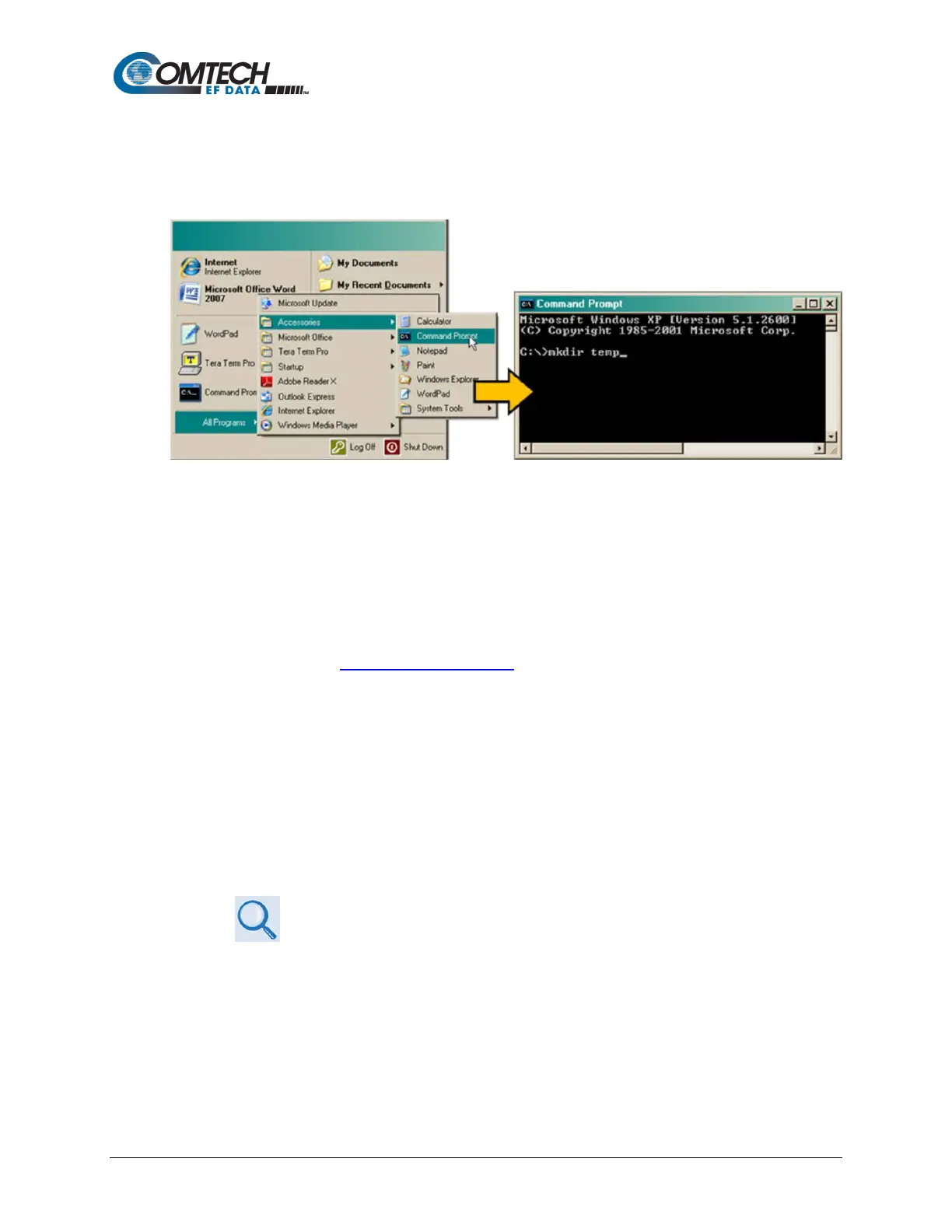
o Alternately, from [Start], select All Programs > Accessories >
Command Prompt.
o Finally, from the Command-line prompt (c:\>), type “mkdir temp” or “md
temp” (mkdir and md stand for make directory), and then click [OK]:
There should now be a "temp" folder created and available for placement of the firmware
file download.
4.2.2 Download and Extract the Firmware Update
Do these steps:
1. First, download the firmware update file from the Comtech EF Data Web site:
a. Go online to
www.comtechefdata.com.
b. On the Main page – under Support Information or the Support tab, select the
Software Downloads hyperlink.
c. On the Software Downloads page – click Download Flash and Software Update
Files.
d. On the Flash & Software Update Files page – select the (Select a Product Line)
Satellite Modems hyperlink.
e. On the Satellite Modems product page – select the CDM-570A & CDM-570AL
products hyperlink.
f. Select the appropriate firmware archive EXE or ZIP file download hyperlink.
Sect. 0 About Firmware Numbers, File Versions, and Formats
g. Download the archive file to the temporary folder.
• Once the EXE or ZIP hyperlink is selected, the ‘File Download’ window opens
and prompts selection of [Open] or [Save]:
o Click [Open] to turn over file extraction to the user-supplied utility program.
Be sure to extract the firmware files to the “temp” folder created earlier.



 To Next Page