System Basics 93
Note:
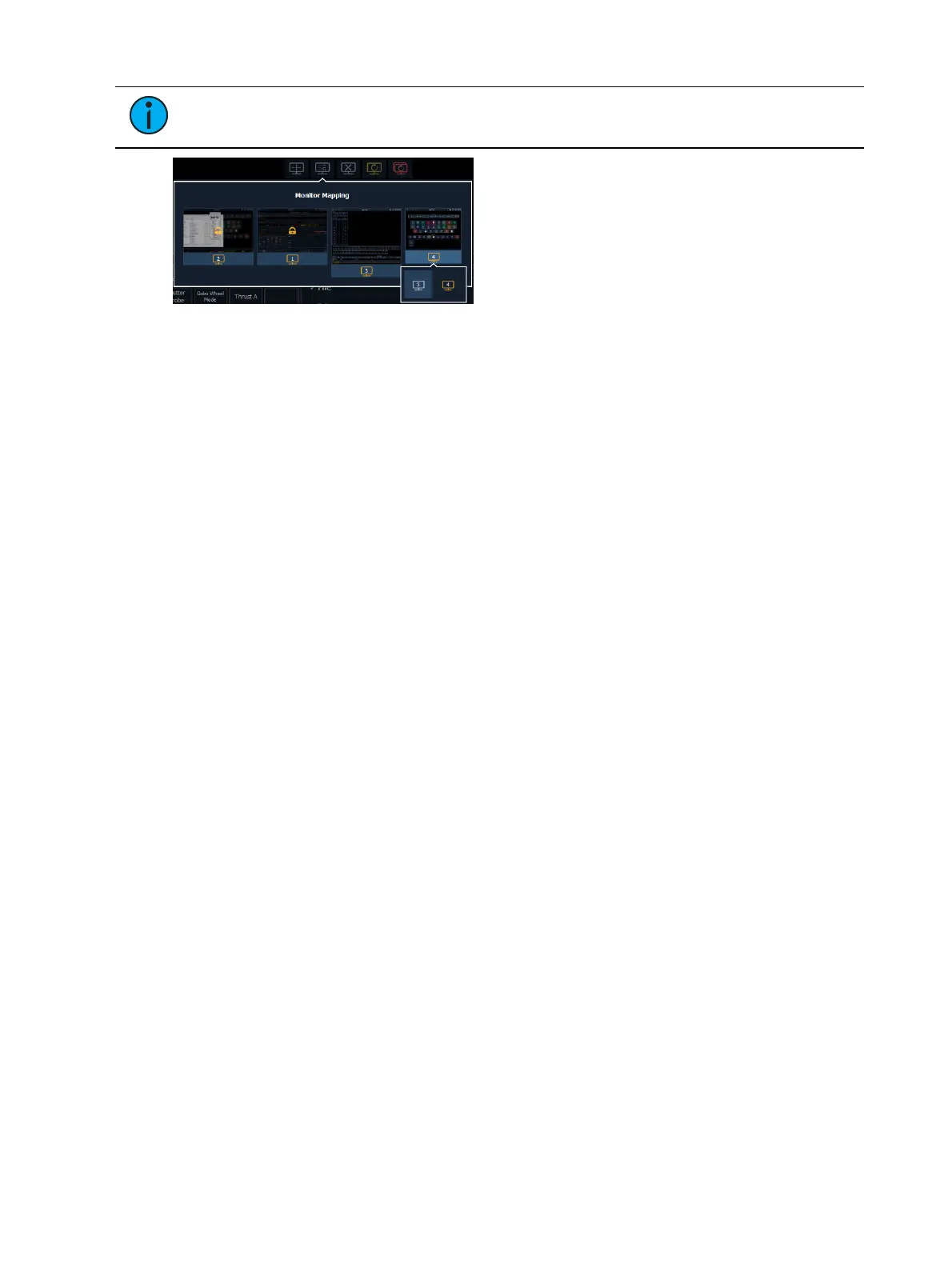
On-board touchscreens are locked, and their arrangement cannot be
changed.
Close All Tabs In This Workspace
Closes all of the tabs in the active workspace on the active monitor only.
Reset This Workspace
Closes all tabs and frames and resets the layout for the active workspace to a single frame
displaying theWorkspace Layout Menu, from which you can select new tabs to open.
Reset ALLMonitors &Workspaces
Closes all tabs and frames on all monitors, resets all layouts to a single frame, and returns their
workspaces to the Workspace Layout Menu, from which you can select new tabs to open.
Flip Monitors
This option is only available on Apex consoles, allowing you to temporarily flip the displays
upside down if the monitors are angled to face the rear of the console.
Single Monitor Snapshots
The snapshots displayed here are single monitor-only snapshots recorded for the visible
workspace. For information about snapshots, see
About Snapshots (on page438)
. These
snapshots can be recalled from any selected monitor from the Workspace Layout Menu. You
can recall a monitor-only snapshot from the command line by using the syntax [Snapshot] [n]
[Enter]. When recalled from the command line, the selected snapshot will only affect the
monitor from which it was originally recorded.
To record a monitor-only snapshot, press the {New Snapshot} button on the Display Controls
menu screen. [Delete] [Snapshot] [n] [Enter] [Enter] will delete a monitor-only snapshot.
All snapshots can be viewed on the snapshot list display, which can be opened by pressing
[Snapshot] [Snapshot] or from the Workspace Layout Menu.
Updating a Single Monitor Snapshot
A single monitor snapshot can be updated or deleted by right-clicking on its icon in the
Snapshot area of the Workspace Layout Menu.
Using Expand With Displays
[Expand] allows you to quickly create additional frames on a monitor.
To add frames, press [Expand] & [Page Right] or [Expand] & [Page Down].
To collapse frames, press [Expand] & [Page Left] or [Expand] & [Page Up].
This button will expand the Live / Blind tab from one display screen to other screens as well.
This doubles the number of channels visible on any tab. Live, Blind, and Playback Status tabs
may be expanded.



 To Next Page