218 Eos Apex, Eos Ti, Gio, Gio @5, Ion Xe, Ion Xe 20, and Element 2 User Manual
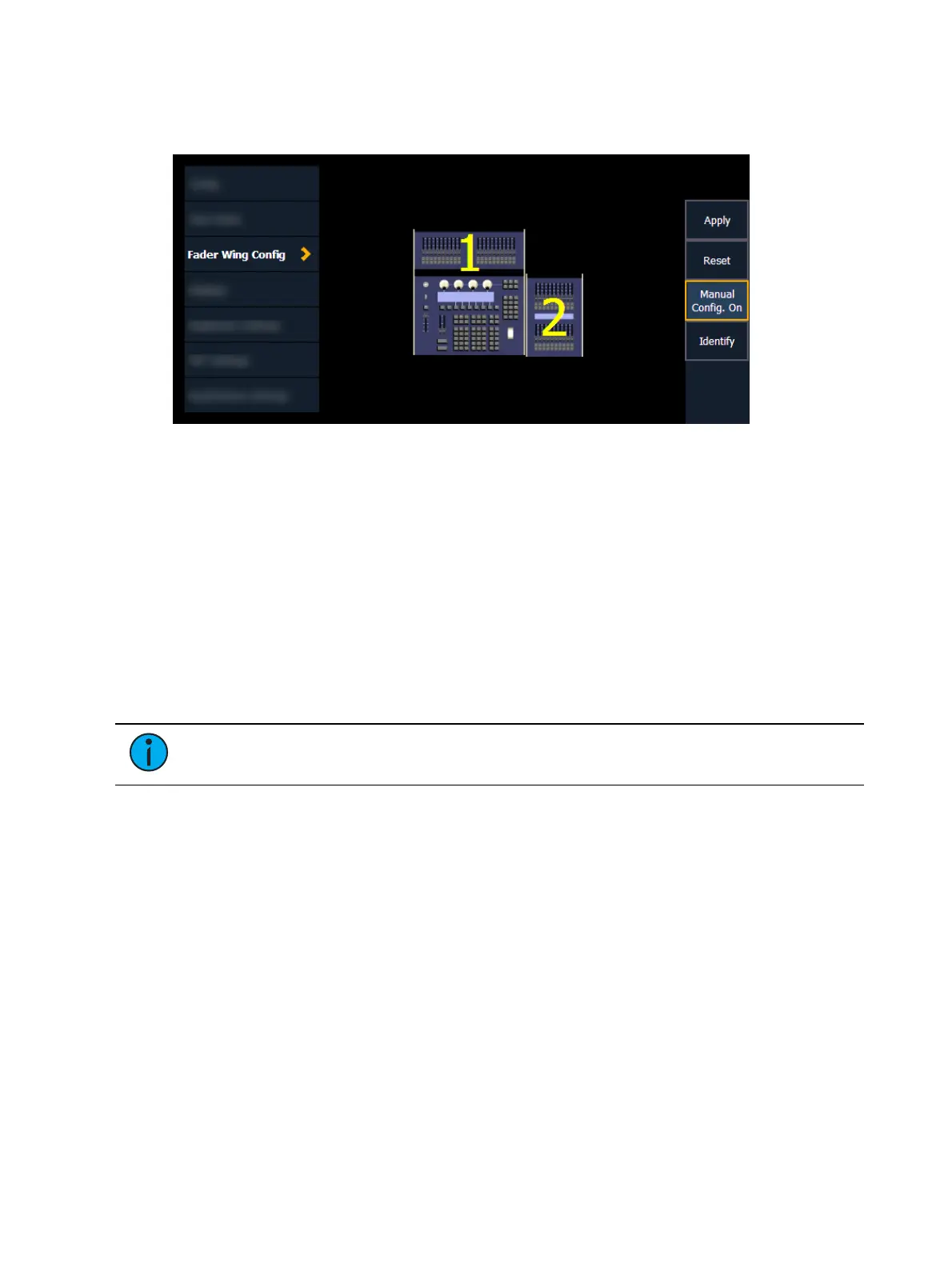
Clicking {Identify} will display numbers on each wing’s display to aid in configuration. The
numbers do not identify the wings as to their actual order. Order is determined from left to
right. The left most wing will contain the first faders.
Click and drag the wings to match your physical layout. Click {Apply} to save the changes.
Clicking {Reset} will restore to the last saved configuration. Clicking {Manual Config. On} will
turn off manual configuration and will require a restart of the application before the console
will automatically configure the wings.
Wing Paging Groups
This screen allows you to organize both internal and external faders into wing paging groups.
All configuration and navigation settings are applied to any fader wings or banks included in a
group.
ID - a unique identifier assigned to all connected internal and external faders, which
appears on the fader bank displays while in this menu.
Type - information about the connected fader wing or bank.
Group - select in this column to edit the group number for a wing or bank.
Note:
Internal banks default to Group 1. External wings default to Group 2.
When advancing fader pages by group, Group 1 is the default used with [Fader Page] or [+].
To control a specific group, you can use [Fader Page] [Group] and the paging group number.
Displays
See
Live and Blind Configuration Menu (on page103)
and
Playback Status Display
Configuration (on page110)
for additional display settings.
Show Ref Labels
When enabled, referenced record targets (such as presets or palettes) with labels will have
their labels displayed rather than their target type and number. Enabled by default.
{Show Reference Labels} is a global setting that will affect all displays. For some displays such
as live and blind, {Show Reference Labels} can be enabled at the individual tab level by
accessing the tab's configuration menu. This will override the setting in Setup.
Default Display Order
Determines the appearance of the
Workspace Layout Menu (on page90)
.



 To Next Page