3.7 Data Backup
113
Chapter 3
z
Backing up the settings for the system
1
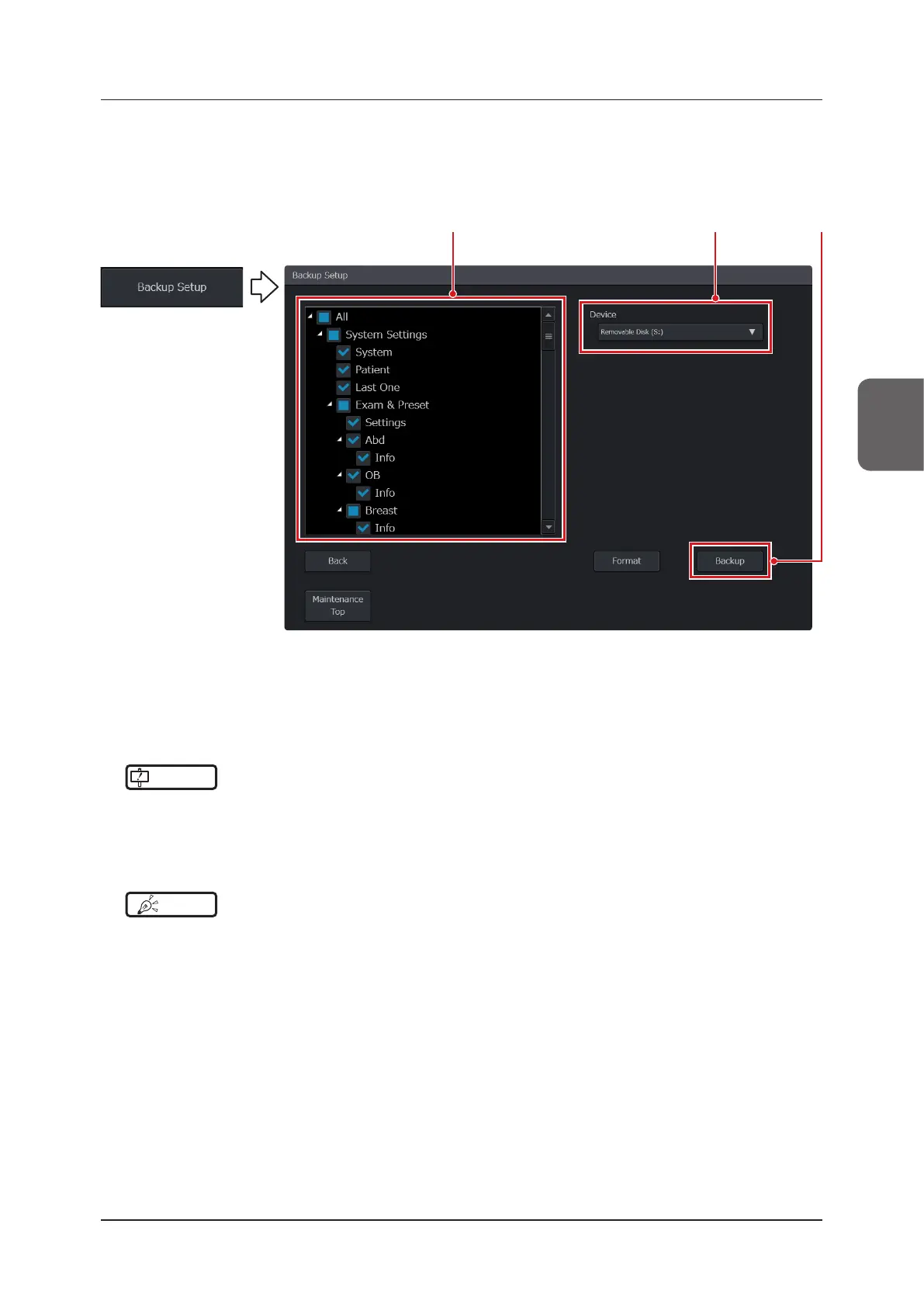
Press the [Backup Setup] button on the [Backup / Restore] screen.
• The screen changes to the [Backup Setup] screen.
Step 2 Step 4Step 3
2
Select a backup destination from the [Device] pull-down menu.
• When formatting connected external storage media, select a desired external storage medium and then press
the [Format] button.
• When [Temporary Backup] of [Device] has been selected, data is backed up in Internal Storage.
IMPORTANT
•••••••••••••••••••••••••••••••••••••••••••••••••••••••••••••••••••••••••••••••••••••••••••••••••••••
• When you press the [Format] button while selecting [Temporary Backup], the [Temporary Backup] data is deleted.
•••••••••••••••••••••••••••••••••••••••••••••••••••••••••••••••••••••••••••••••••••••••••••••••••••••••••••••••••••••
3
Check a category box to be backed up.
HINT
•••••••••••••••••••••••••••••••••••••••••••••••••••••••••••••••••••••••••••••••••••••••••••••••••••••
• You can back up information of a user presets by selecting the check box of the user preset’s name under [Exam &
Preset].
• If you are not sure which category to check, select the [All] check box to select all of the category check boxes.
•••••••••••••••••••••••••••••••••••••••••••••••••••••••••••••••••••••••••••••••••••••••••••••••••••••••••••••••••••••
4
Press the [Backup] button.
• A screen on which to enter the name of data item to be backed up is displayed.
5
Press the [OK] button.
• Backup starts.
• When you return to the [Backup / Restore] screen, press the [Back] button.


 To Next Page