3.7 Data Backup
114
z
Backing up patient / study data
1
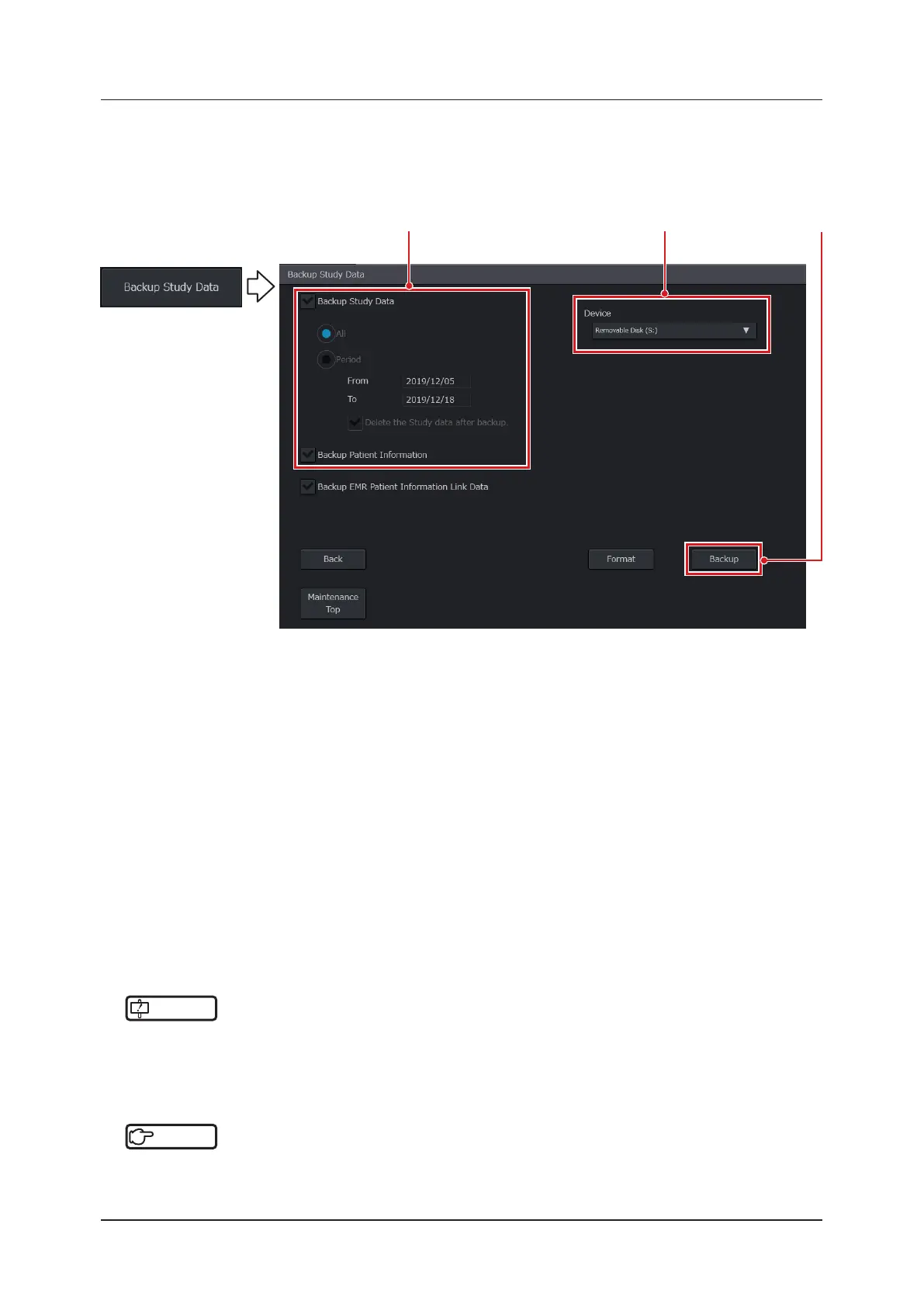
Press the [Backup Study Data] button on the [Backup / Restore] screen.
• The screen changes to the [Backup Study Data] screen.
Step 2 Step 4Step 3
2
Select a backup destination from the [Device] pull-down menu.
• When formatting external storage media, press the [Format] button at the bottom of the screen.
3
Check the [Backup Study Data] or [Backup Patient Information] box.
• If you checked the [Backup Study Data] box, select [All] or [Period].
• When you select [All], all data are backed up.
• When selecting part of all the data, select [Period] to specify the start date and end date of a period during
which data are backed up. The default settings specify that the start date is the oldest study date in the system
and that the end date is the date on which backup is carried out.
• If you want to delete patient / study data on Internal Storage after backup, check the [Delete the Study data
after backup.] box.
4
Press the [Backup] button.
• Backup is carried out.
• To return to the [Backup / Restore] screen without conguring any settings, press the [Back] button.
• If the [Delete the Study data after backup.] box is checked, data will be automatically deleted after backup.
IMPORTANT
•••••••••••••••••••••••••••••••••••••••••••••••••••••••••••••••••••••••••••••••••••••••••••••••••••••
• You can cancel the backup by pressing the [Abort] button. However, if a single examination contains a large amount
of data such as multiple videos recordings, etc., this can take tens of seconds to several tens of minutes after the
[Abort] button is pressed until the backup stops.
•••••••••••••••••••••••••••••••••••••••••••••••••••••••••••••••••••••••••••••••••••••••••••••••••••••••••••••••••••••
Reference
•••••••••••••••••••••••••••••••••••••••••••••••••••••••••••••••••••••••••••••••••••••••••••••••••••••
• For how to remove external storage media, refer to "To remove an SD memory card" of "1.6.6 Compatible Peripheral
Devices".
•••••••••••••••••••••••••••••••••••••••••••••••••••••••••••••••••••••••••••••••••••••••••••••••••••••••••••••••••••••


 To Next Page
 Loading...