3.7 Data Backup
116
z
Restoring patient / study data
1
Press the [Restore Study Data] button on the [Backup / Restore] screen.
• The screen changes to the [Restore Study Data] screen.
2
Restore data using the same procedure as that of "Restoring the settings for the system"
(above).
IMPORTANT
•••••••••••••••••••••••••••••••••••••••••••••••••••••••••••••••••••••••••••••••••••••••••••••••••••••
• When you fail to restore data, shutdown the system and remove all connected devices other than external storage
media storing data to be backed up, and then restore data again.
• Study data (images), that were acquired by using the SONIMAGE HS1, cannot be restored to the system.
•••••••••••••••••••••••••••••••••••••••••••••••••••••••••••••••••••••••••••••••••••••••••••••••••••••••••••••••••••••
Export
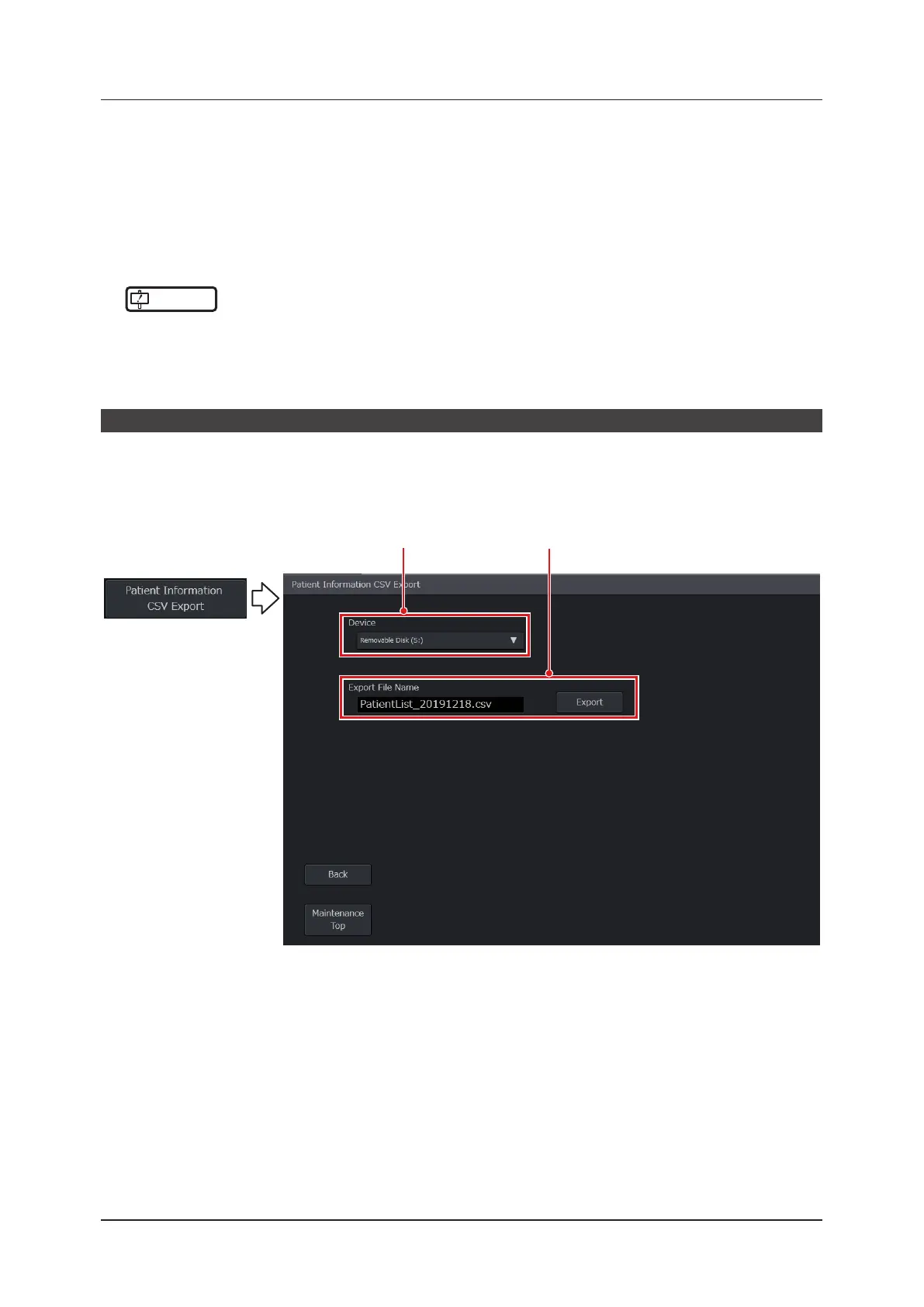
This function is used to output the patient data in a CSV le.
1
Press the [Patient Information CSV Export] button on the [Backup / Restore] screen.
• The screen changes to the [Patient Information CSV Export] screen.
Step 2 Step 3
2
Select an output destination from the [Device] pull-down menu.
3
Enter a le name in [Export File Name] and press the [Export] button.
• You can enter up to 50 characters for the le name.
• The default value is the following le name.
– PatientList_YYYYMMDD.csv
• When the extension is other than .csv, add .csv to the end of the le name and save the le.
• To return to the [Backup / Restore] screen, press the [Back] button.


 To Next Page