229
6.4 Transferring Image Data
Chapter 6
z
When data is output to the SD memory card
IMPORTANT
•••••••••••••••••••••••••••••••••••••••••••••••••••••••••••••••••••••••••••••••••••••••••••••••••••••
• The frame rate is limited to 160 if the clip le format is set to Type 2 (*.mp4) when the frame rate of the ultrasound
image exceeds 160. Also, for clips whose frame rates are limited to 160, the frame rate of the clip itself and the frame
rate of the ultrasound image that appears during the clip are dierent.
• When you save additional images to external storage media on which there is DICOM data that has been output
from a dierent device, it is not possible to browse the tag information in the “DICOMDIR” le that is unsupported by
the device. Conrm DICOM conformance statements before using external storage media. When outputting images
to external storage media using [DICOM Format] as the image output format, we recommend that you output images
to external storage media on which neither “DICOMDIR” les nor DICOM format les from a dierent device exist.
•••••••••••••••••••••••••••••••••••••••••••••••••••••••••••••••••••••••••••••••••••••••••••••••••••••••••••••••••••••
1
Connect the SD memory card to the SD memory card slot.
• The SD memory card icon is displayed in the status indicator area.
2
Select the desired image to be output in the image display area on the [Review] screen.
• An image, if touched, is set to a selection state.
• If an examination has not been performed, press the [Search] button in the control area to call up the image to
be output.
3
Press the [Export Image] button in the control area.
• Displays the [Export Image] screen.
4
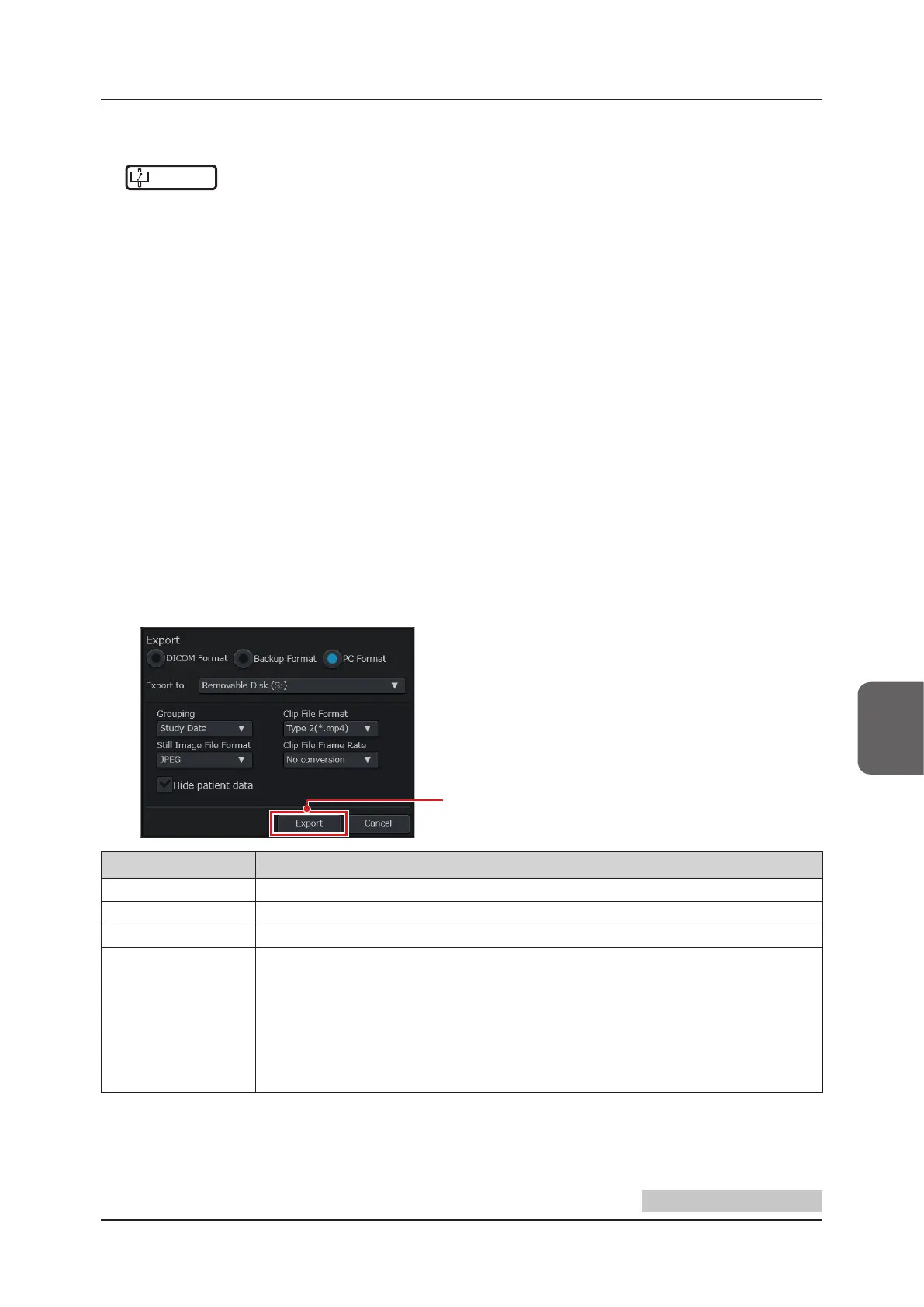
Set the following items on the [Export Image] screen.
[Export] button
Item Functions
[Export]
Selects an output format.
[Export to]
Selects the destination.
[Grouping]
Selects the folder structure for output.
[Still Image File Format]
Selects an output format of a still image le.
[JPEG]
[BMP]
[PNG]
• Outputs at a scale that is suitable for the display of typical computer monitors.
[DICOM (DCM)]*
• This is set if the [Export Image] is in [DICOM Format].
Detailed formats to output depend on the [Contrast Compensation] of the DICOM media stor-
age. For details, refer to "DICOM Screen" of the "Operation Manual: Applications".
Continued on the next page


 To Next Page