230
6.4 Transferring Image Data
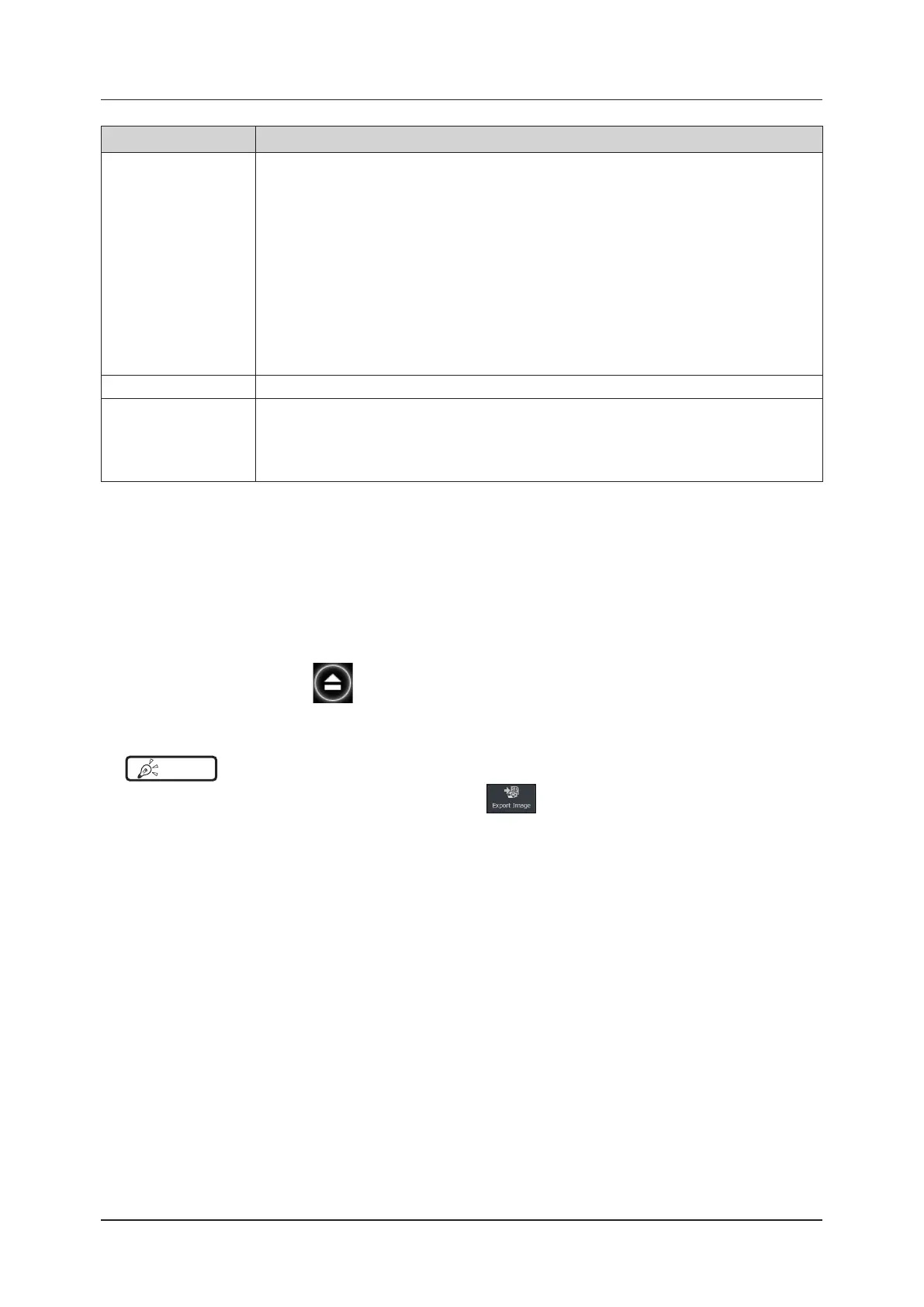
Item Functions
[Clip File Format]
Selects an output format of a clip le.
[Type 1(*.avi)]
• Outputs in *.avi format. Suitable for playback on monitors for medical use that have applied
GSDF (DICOM curve).
[Type 2(*.mp4)]
• Outputs in *.mp4 format. Perfect for playback on typical computer monitors and it is the small-
est le size.
[Type 3(*.avi)]
• Outputs in *.avi format. Suitable for playback on typical computer monitors.
Select this if playback cannot be done using the Type 2 format.
[DICOM(DCM)]*
• This is set if the [Export Image] is in [DICOM Format].
Detailed formats to output depend on the [Contrast Compensation] of the DICOM media stor-
age. For details, refer to "DICOM Screen" of the "Operation Manual: Applications".
[Clip File Frame Rate]
Selects and changes the frame rate of a clip le.
[Hide patient data]
Sets whether to mask the patient information of the image and output.
• Mark the check box to mask and output the patient information.
• If, with the check box marked, an uneditable image is included in the output, a message appears,
conrming that there is an image to be output without masking the patient information. Then you
are prompted to choose between continuing the operation and canceling it.
*
: Selectable only when the optional "DICOM Storage License" has been installed.
5
Press the [Export Image] button on the [Export Image] screen to execute.
• Images are output to an external storage medium.
6
Upon completion of the output, touch the SD memory card icon in the status indicator area.
• A message appears in the pop-up window, confirming that the external storage medium can be safely re-
moved.
7
Select the Remove icon for SD memory card desired to be removed and then remove
the SD memory card.
• The SD memory card icon is hidden.
HINT
•••••••••••••••••••••••••••••••••••••••••••••••••••••••••••••••••••••••••••••••••••••••••••••••••••••
• In the [Other] tab of the menu pop-up window, you can use
to write image data.
•••••••••••••••••••••••••••••••••••••••••••••••••••••••••••••••••••••••••••••••••••••••••••••••••••••••••••••••••••••


 To Next Page
 Loading...