098-00720-000 Revision D1 – February, 2018 SyncServer 600 Series User’s Guide 67
Chapter 3
STATUS Button
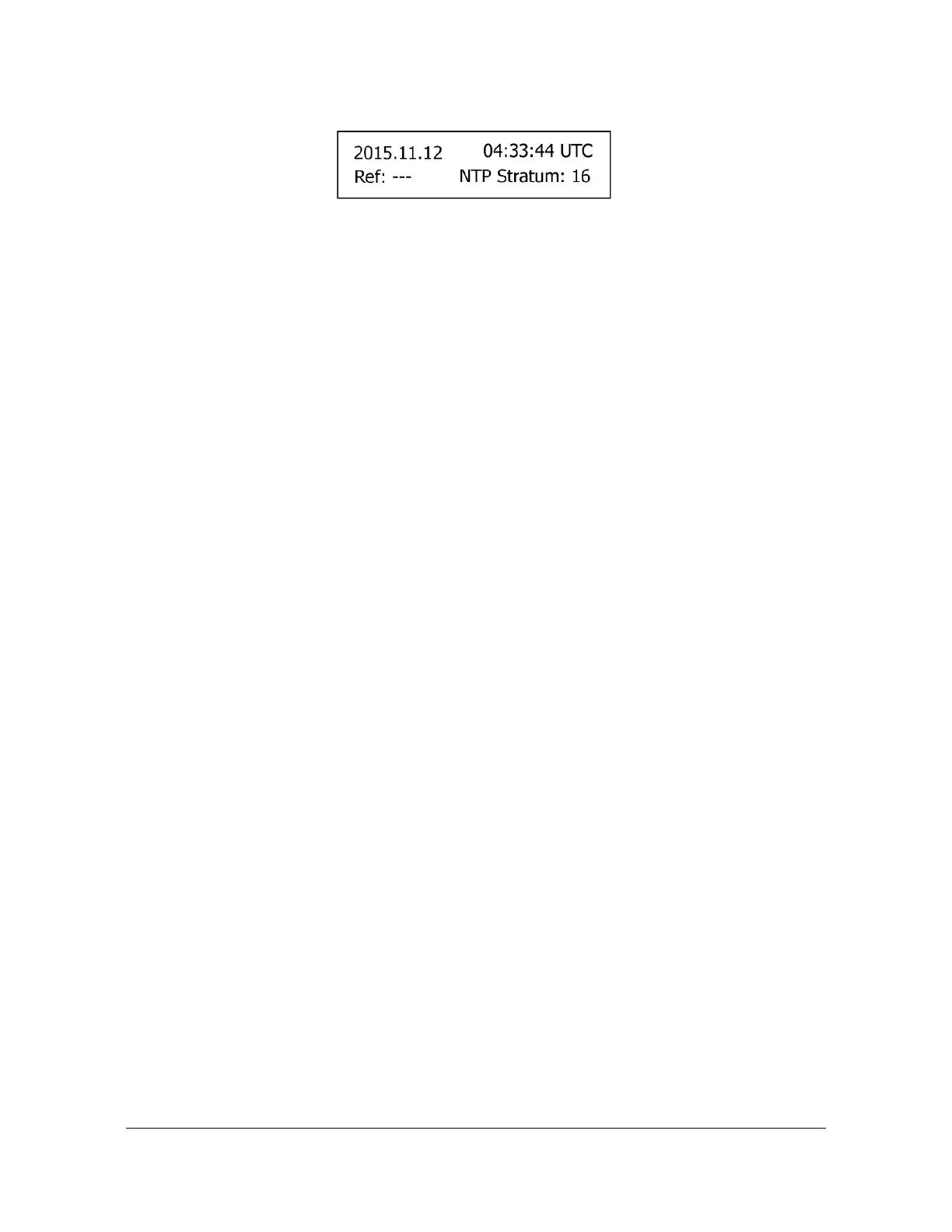
Figure 3-1. NTP Status Screen
Some screens have a "Next>" in the upper right. This means more information is
available by pressing the right arrow button. This cycles through screens on that
topic.
NTP Status Screen
Network Time Protocol (NTP) status.
Stratum: The Stratum number of the SyncServer. Stratum 1 means it is locked to a
Hardware Clock.
Hardware Clock Input Reference that is a Stratum 0 source. Stratum 2-15 means
the SyncServer is locked to another NTP time source. Stratum 16 means that the
SyncServer is unsynchronized.
Reference: This field identifies the "system peer". While stratum is 16, this field
shows the progression of the NTP clock PLL. The field starts with a value of "INIT".
Once a peer has been selected, the clock may be stepped, in which case the
reference ID field changes to "STEP".
Once the PLL is locked, the stratum is updated and the reference ID provides
information about the selected peer. When the SyncServer is operating at stratum 1,
the reference ID displays the name of the Hardware Clock reference input.
NTP Packet I/O: The number of NTP packets the SyncServer has replied to and
initiated. The SyncServer replies to clients that send NTP requests. The SyncServer
also sends NTP requests when the NTP daemon isn't synchronized (i.e., Sync LED
is RED) and when it is configured to synchronize to an NTP association (e.g., a
Server type association).
Alarm Status Screen
Current alarm status. Use the right or left arrow to show details about the alarms.
Major: List of up to three current major alarms
Minor: List of up to three current minor alarms
LAN Status Screens
Multiple screens, four for each network port. There are two screen for IPv4 and two
for IPv6. Use Next> to see the entire IP address configuration.


 To Next Page