Printing in the Windows Environment 2-139
2.8 Appendix: Manual Installation Process of the Printer Driver
2
In Windows Server 2008:
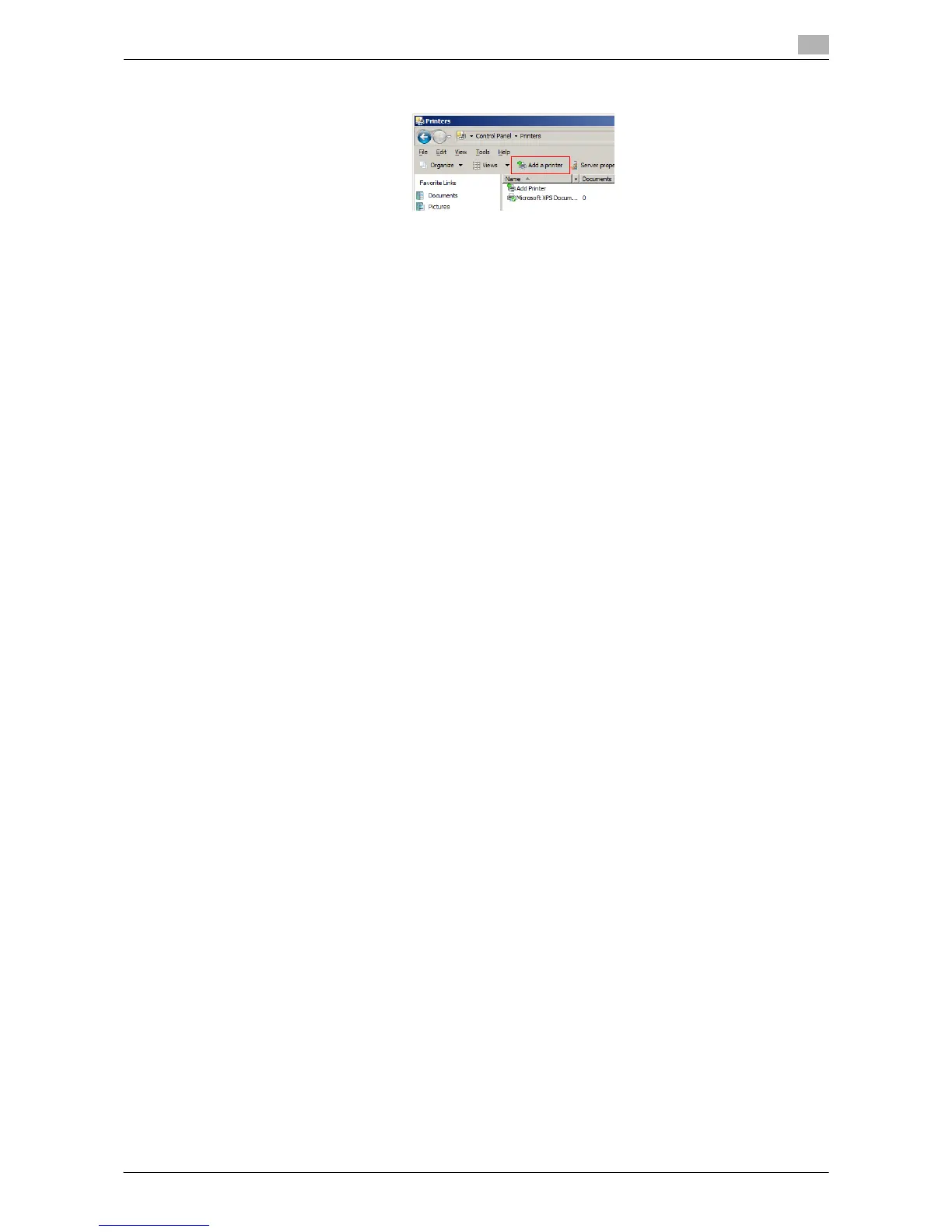
The [Add printer] Wizard appears.
5 Click [Add a network, wireless or Bluetooth printer].
Connected printers are detected.
6 In the window showing the search result, click [The printer that I want isn't listed].
7 In [Select a shared printer by name], enter the URL for the machine in the following format, then click
[Next].
% http://<IP address of this machine>/ipp
Example: http://192.168.1.20/ipp
% When specifying to use IPPS printing, enter "https://[host name].[domain name]/ipp".
For [host name]. [domain name], specify the host name and domain name registered for the DNS
server being used.
% If the certificate for the machine is not the one issued by the certifying authority, you must register
the certificate for the machine on the Windows Vista/7/Server 2008/Server 2008 R2 system as the
certificate by "Trusted Root Certification Authorities" for the computer account.
% When registering the certificate in the machine, check that the certificate shows [host name]. [do-
main name] as the common name.
8 Click [Have Disk...].
9 Click [Browse...].
10 Select the folder on the CD-ROM containing the desired printer driver, then click [Open].
% Select the folder according to the printer driver, operating system, and language to be used.
Selectable printer drivers: PCL driver, PS driver, and XPS driver
11 Click [OK].
The [Printers] list appears.
12 Click [OK].
13 Follow the instructions on the pages that follow.
% If the [User Account Control] window appears, click [Continue] or [Yes].
14 Click [Finish].
15 After finishing the installation, make sure that the icon for the installed printer is displayed in the [Print-
ers] or [Devices and Printers] window.
16 Remove the CD-ROM from the CD-ROM drive.
This completes the installation process of the printer driver. Once the settings for the printer have been
configured, you can use the printer in the same way as a general local printer.



 To Next Page