Printing in a Mac OS Environment 3-67
3.5 Setting Items in the Printer Driver
3
Tips
- [12 e 18] in [Paper Size:] is equivalent to 304.8 e 457.2 mm that is slightly larger than A3.
- When you want to print on the entire paper of the standard size, select "W" for each standard size in
[Paper Size:]. The original is printed at the center of paper larger than the original.
For example, if you want to center and print 8-1/2 e 11 size data on 11 e 17 sized paper, create data
with the "8-1/2 e 11W" size, and then, using the printer driver, set [Paper Size:] to [8-1/2 e 11W] and
specify the paper tray to be used as [Paper Tray].
On this machine, load 11 e 17 size paper into the tray to use, and check the paper size as follows.
Select the tray in [Paper] for the copy mode. Select [Change Tray Settings] - [Wide Paper], specify [8-
1/2 e 11W] and make sure that the [Paper Size] is set to [Auto Detect] and 11 e 17 is displayed.
If you have loaded the 12-1/4 e 18 papers, you must set the [Paper Size] to [12-1/4 e 18].
To print on custom sized paper, use the Bypass Tray. In [Change Tray Settings] - [Wide Paper], select
[8-1/2 e 11W], and enter the paper size to use in [Change Size].
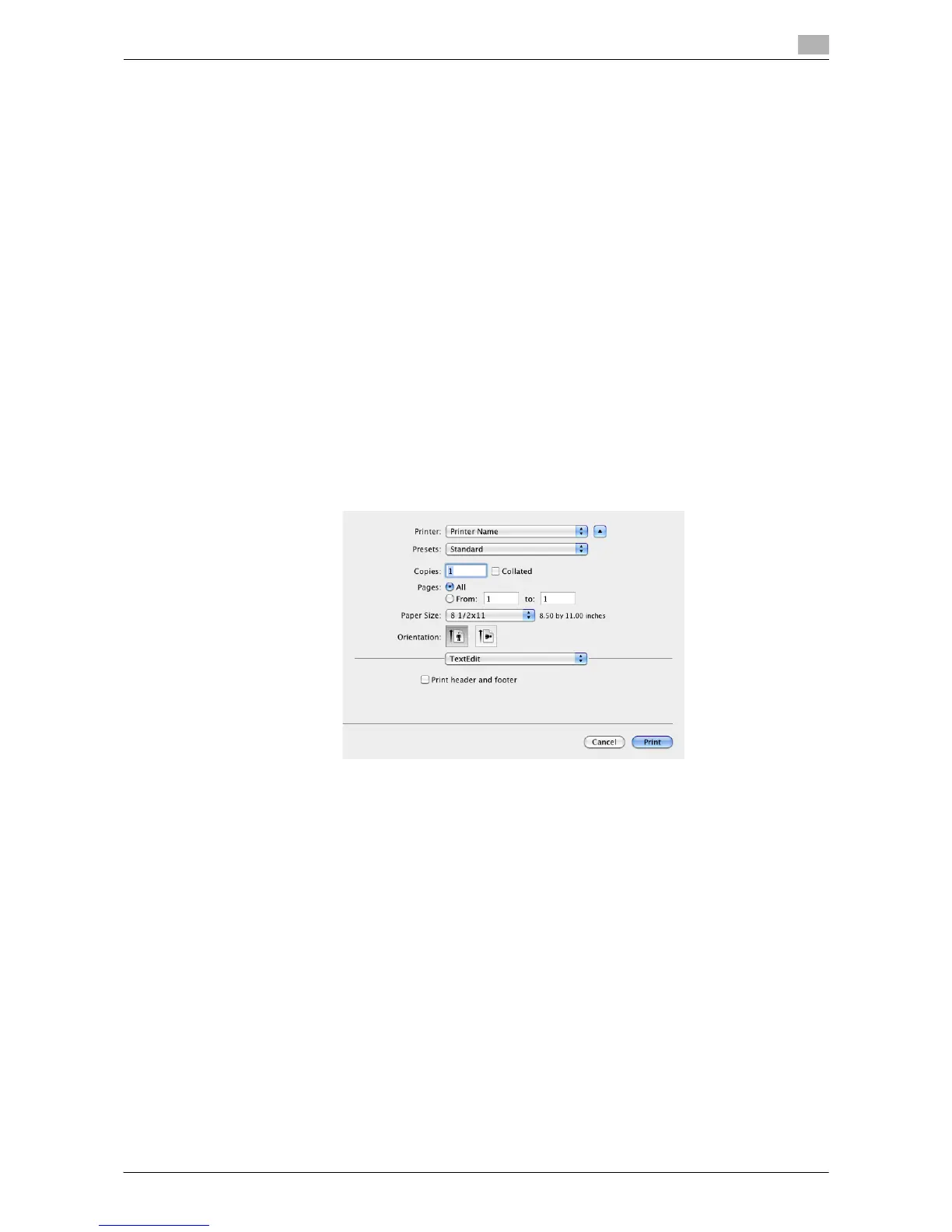
- In Mac OS X 10.5/10.6/10.7, you can also configure [Paper Size] and [Orientation] in the Print window.
3.5.2 [Print] Window of the Printer Driver
How to display the [Print] window
1 Open document data using the application software. From the [File] menu, select [Print].
2 Check that the desired printer is selected in [Printer:].
The [Copies & Pages] window appears.



 To Next Page