Printing in a Mac OS Environment 3-6
3.1 Preparation for Printing (Bonjour Connection)
3
Configuring connection using Bonjour (Mac OS X 10.4/10.5/10.6/10.7)
Add the printer automatically detected by Bonjour to the computer.
1 Select [System Preferences] in the Apple menu.
2 Click the [Print & Fax] or [Print & Scan] icon.
3 Click [+] on the [Print & Fax] or [Print & Scan] window.
% In Mac OS X 10.4/10.5/10.6, go to Step 4.
% In Mac OS X 10.7, if a target printer name is found in the list displayed by clicking [+], select it. When
a printer driver is selected automatically, the printer addition is completed.
% If a target printer name is not found, select [Add Other Printer or Scanner], and go to Step 4.
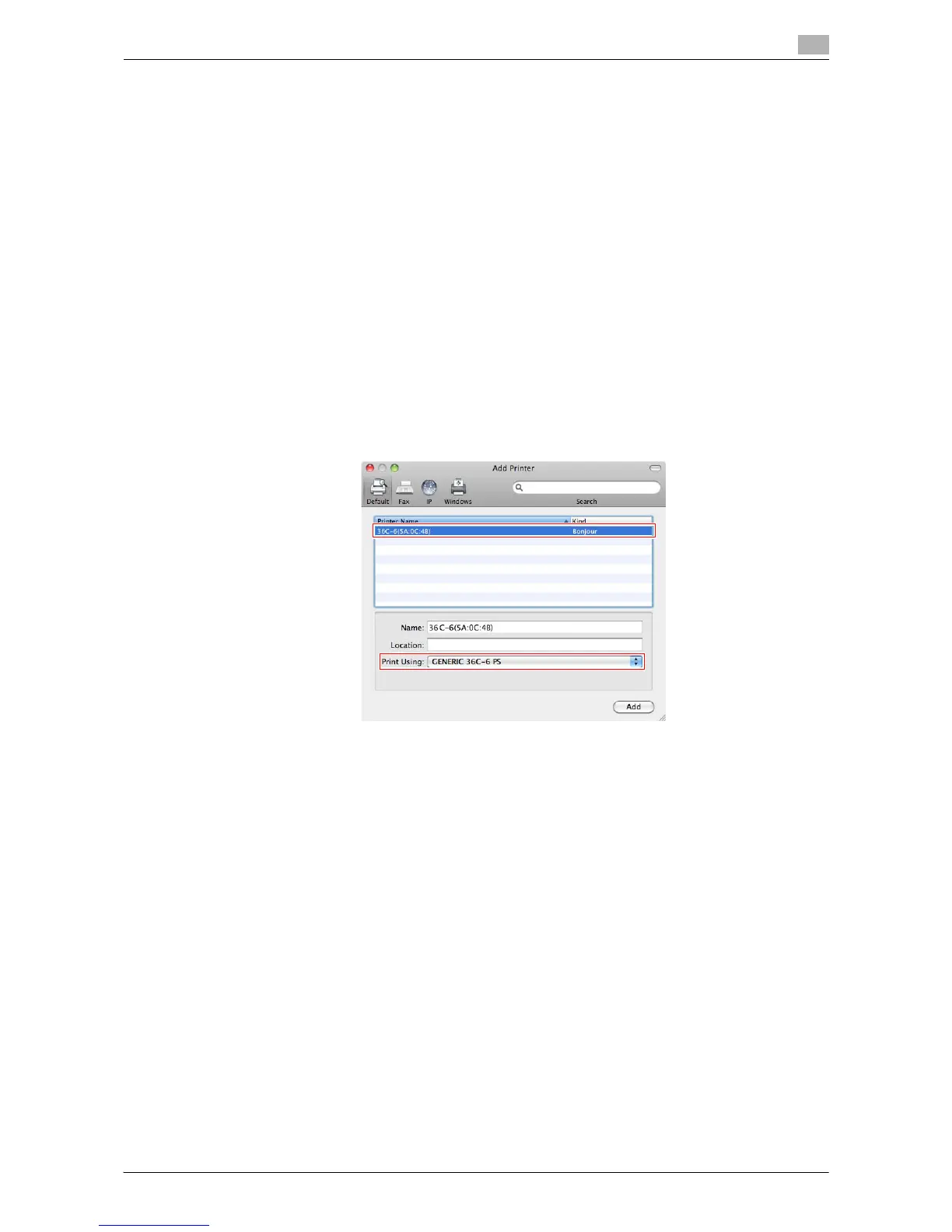
4 Click [Default].
Connected printers are detected.
% If no printers are detected, restart this machine.
5 From the [Printer Name] list, select the desired printer for a Bonjour connection.
% To check the printer name, select [Utility] - [Administrator Settings] - [Network Settings] - [Bonjour
Setting] on this machine.
The printer driver for the selected printer is displayed in [Print Using:].
% When the printer driver is displayed, go to Step 7.
% When the printer driver is not correctly displayed, go to Step 6.
6 Manually select the printer driver.
% In Mac OS X 10.6/10.7, select [Select Printer Software...] from [Print Using:], then click the driver of
the desired printer from the list that is displayed in another window.
% In Mac OS X 10.5, select [Select a driver to use...] in [Print Using:], then click the driver of the desired
printer from the list.
% In Mac OS X 10.4, select [GENERIC] in [Print Using:], and then click the driver of the desired printer
from the list.
7 Click [Add].
This completes the addition process of the printer. Then, proceed to the [Installable Options] window
to configure the optional environment for this machine. For details, refer to page 3-7.



 To Next Page