’Job Attributes’ Section Print Job Manager
254 A29247-X3-X-6-7670
8.7.3.1 Color Toner Workflow
You can define the colors in the PJM to ensure, that the print job submitted is printed with
the correct colors. The color verification IDs are automatically compared to the identification
numbers of the tonerstations installed in the printer.
Setting of the toner colors in the PJM
You can define the colors for the print job in the PJM dialog ’Job Attributes’ -> ’Printer’. The
number of possible settings corresponds to the number of toner staitions installed in the se-
lected printer. You can configure this number in ’Configuration’ -> ’Printers’ -> ’Toner Sta-
tions’. In this dialog you also assign colors to these stations. The colors itself result from the
toner names (color names) and the verification Id of the color. The additional keyword DE-
FAULT means, that no color check is performed.
Effect of the toner colors defined
The column ’Color’ in the job list displays the color verification Id of the submitted print job.
The job will only be sent to the printer if the toner number reported by the printer matches
the number configured for the job (or the checking is disabled). The sequence of the colors
indicated has no effect.
Steps to configure the toner stations
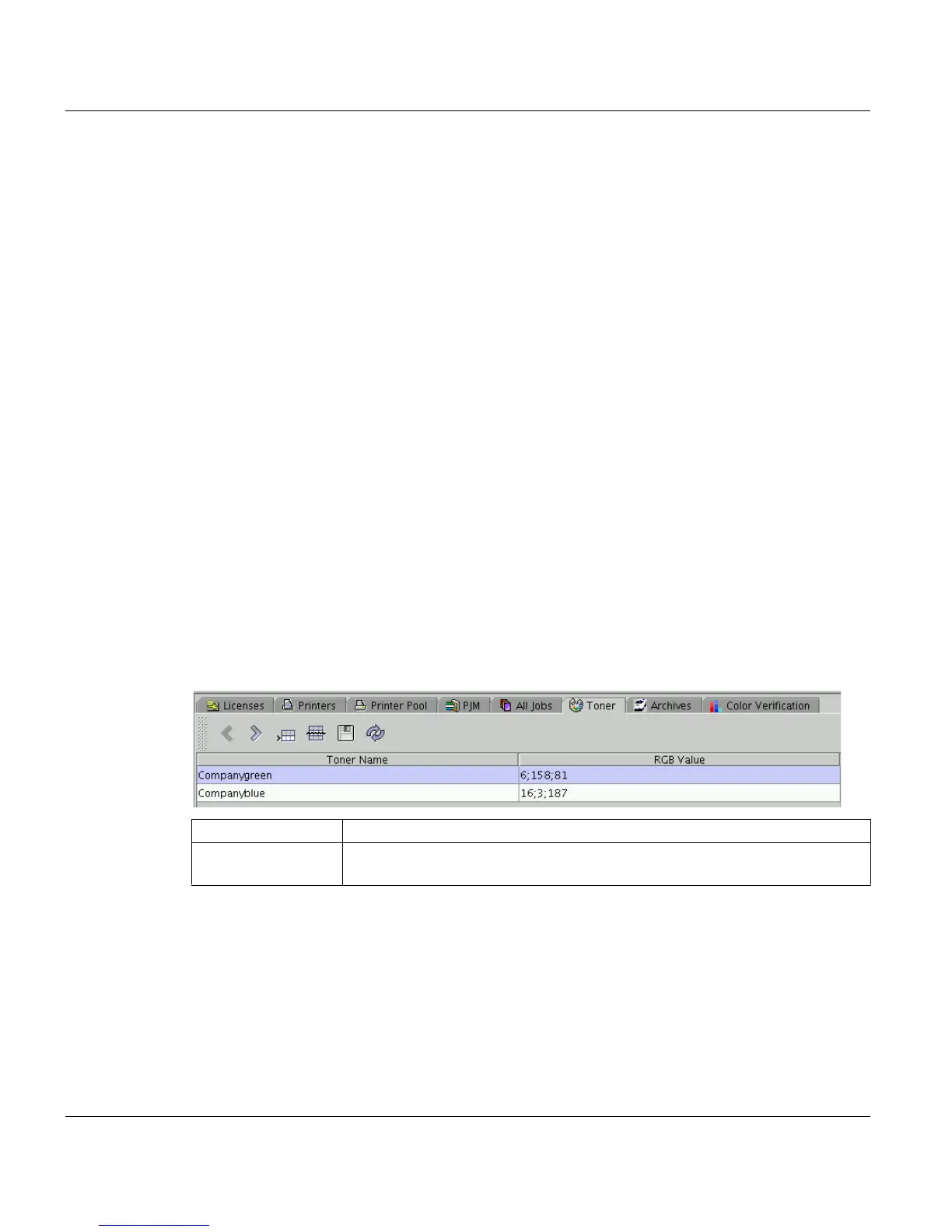
1. In the Explorer open ’Configuration’ -> ’Toner’ and enter the following information:
’Toner Name’ Description of the toner (color or internal number)
’RGB Value’ Red-Green-Blue value. The setting is used by the Professional Document
Composer to display the color.



 To Next Page