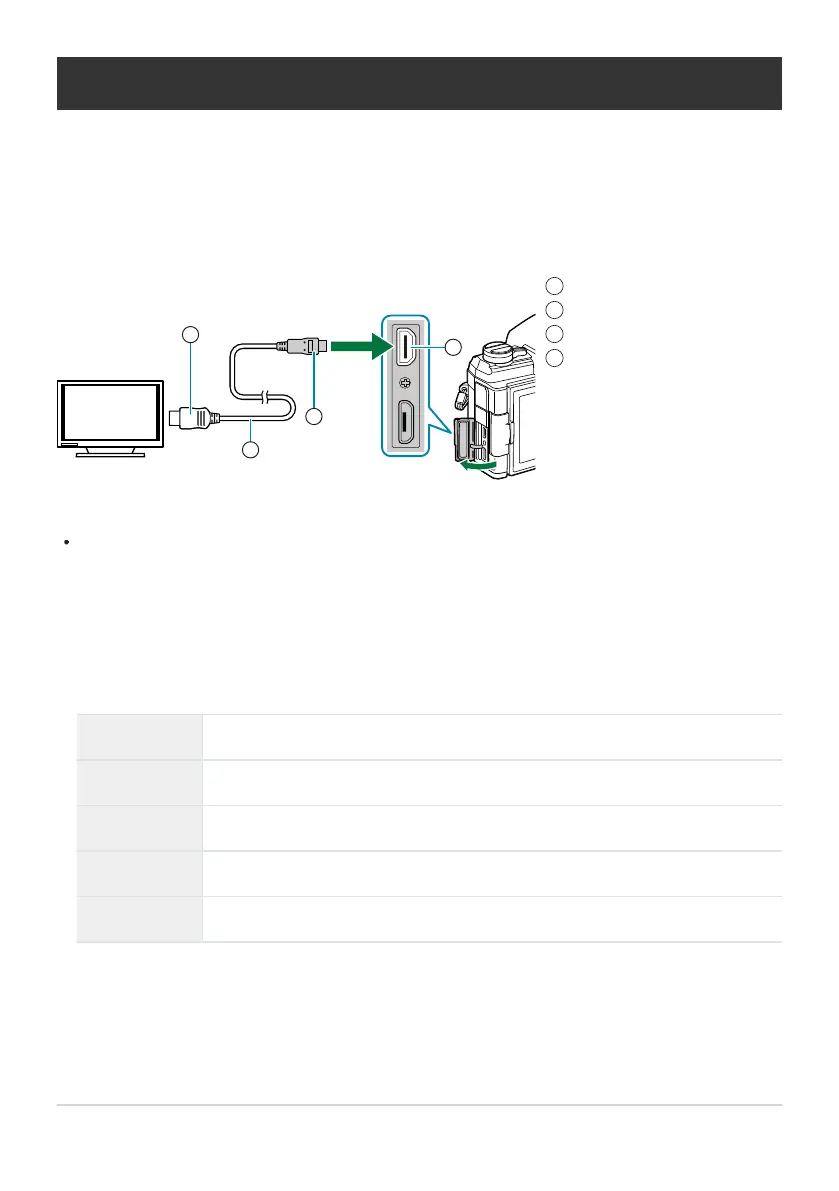
Type A HDMI connector
HDMI cable
Type D HDMI connector
Camera HDMI connector
1
2
3
4
Viewing camera images on TV (HDMI)
MENU
Q C Q l Q [HDMI]
Use the separately sold cable with the camera to playback recorded images on your TV. This function is
available during shooting. Connect the camera to an HD TV using an HDMI cable to view high-quality
images on a TV screen.
Connect the TV and camera and switch the input source of the TV.
If [On] is selected for [HDMI Control] (P. 388), the camera monitor will turn off when an HDMI
cable is connected.
For information on switching to HDMI input, see the manual provided with the TV.
If the camera is connected via an HDMI cable, you will be able to choose the digital video signal
type. Choose a format that matches the input format selected with the TV.
Depending on TV settings, the image may be cropped and some indicators may not be visible.
C4K The signal is output in 4K digital cinema (4096× 2160) format.
4K If possible, the signal is output in 4K (3840× 2160).
1080p If possible, the signal is output in Full HD (1080p).
720p If possible, the signal is output in HD (720p).
480p/576p The signal is output in 480p/576p format.
Do not connect the camera to other HDMI output devices. Doing so may damage the camera.
HDMI output is disabled while the camera is connect
ed t
o a computer via USB.
When [Record Mode] is selected for [Output Mode], movies will be output at the resolution
selected during recording. No image will be displayed if the TV does not support the selected frame
size. gnVideo Menu> [nHDMI Output]> [Output Mode] (P. 233)
337
Viewing camera images on TV (HDMI)
B
B
C
C
C
C



 To Next Page