Advanced Features
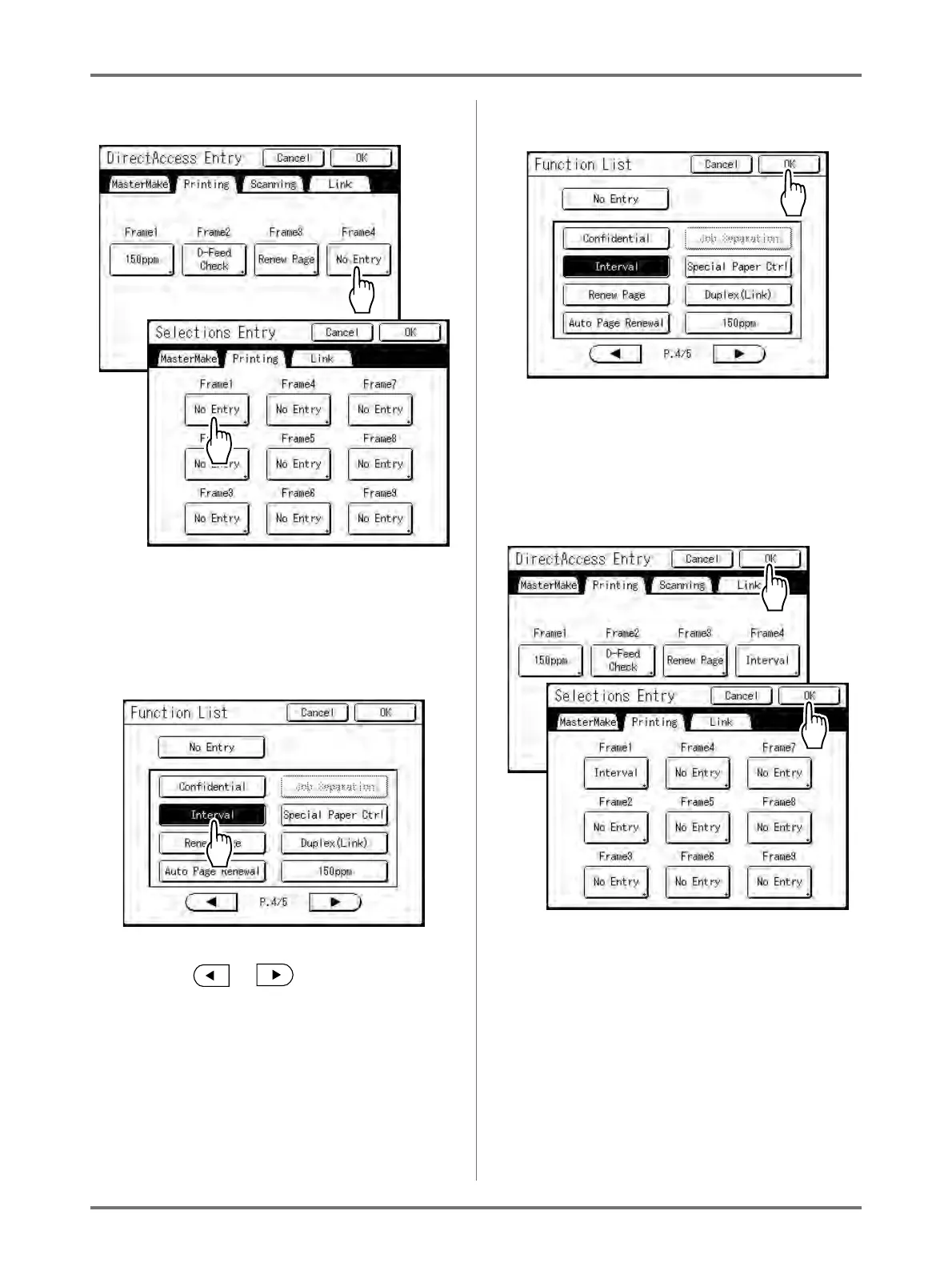
Setting Up Direct Access Area and Selections Tab [DirectAccess Entry] [Selections Entry]
184
5
Select a button to assign a function.
Note:
• If the button has a function already assigned,
the newly selected function will overwrite.
6
Select a function to assign.
Note:
• Touch or to display more func-
tions if necessary.
• To remove a function accidentally assigned,
touch [No Entry].
• Functions already assigned are greyed out and
not available for selection.
• Some functions display only when optional
devices are installed.
7
Touch [OK].
Returns to “Direct Access” area or “Selections”
screen. Selected functions are added.
To add more functions, or to replace a button with
another function, repeat steps 4 and 5.
8
Touch [OK].
Returns to the Admin. screen. “Direct Access”
area or “Selections” screen is updated.



 To Next Page