When using a Linked Printer (sold separately)
Duplex Printing [Duplex]
239
1
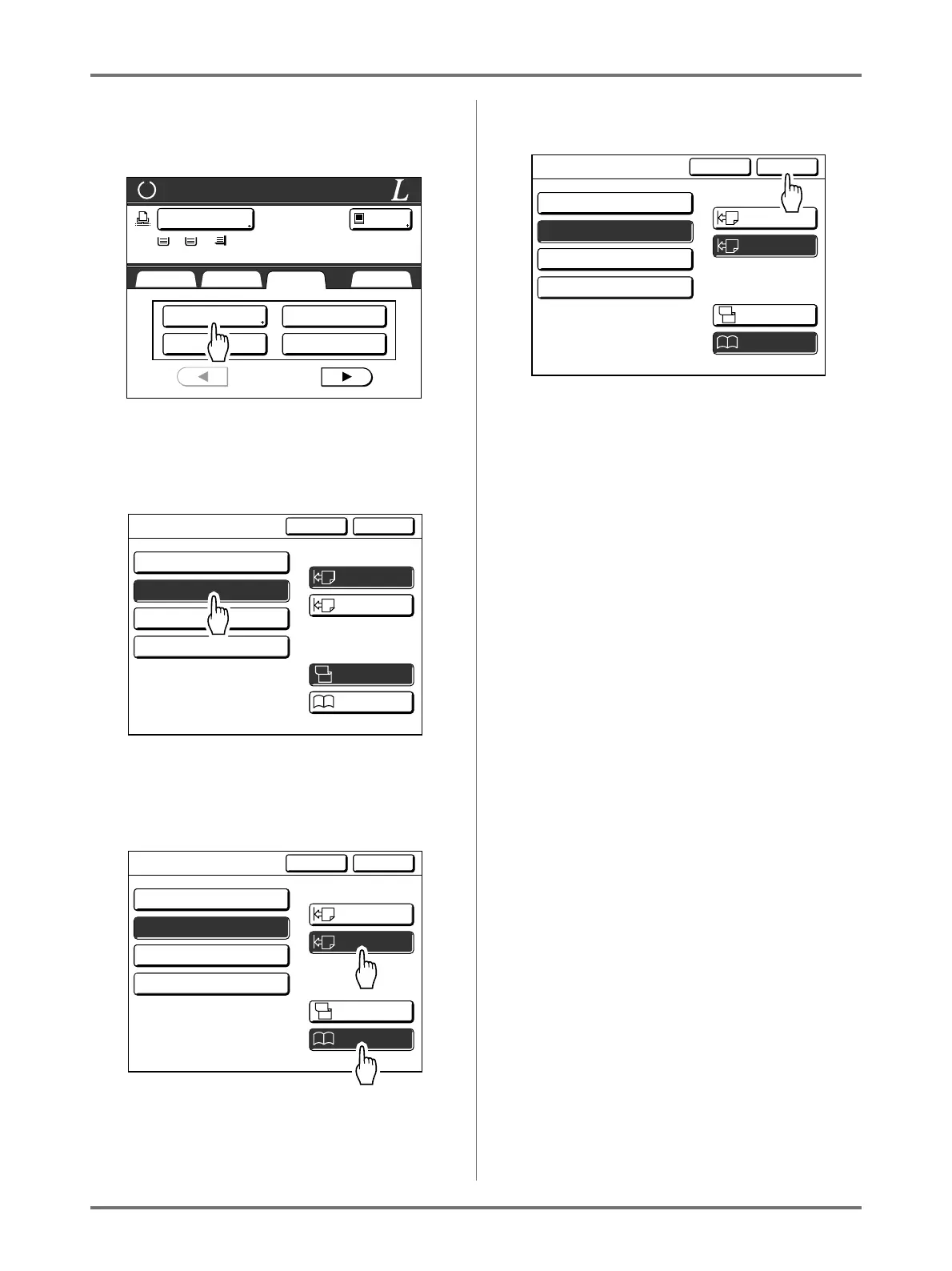
Touch [Duplex] on the Functions
screen.
2
Touch [Simplex -> Duplex], [Duplex -
> Simplex] or [Duplex -> Duplex].
3
Set “Setting Direction” and “Paging
Direction”.
4
Touch [OK].
Note:
• If you do not require duplex printing, touch
[OFF] and then [OK].
5
Place the original.
Place the original on Platen Glass or in the Auto
Document Feeder DX-1.
For information about placing the original, see
step 5 in “2-Colour Printing with 2 Originals”
()p.41).
6
Select Print functions as needed.
The following functions are available:
• Image Processing mode ()p.70)
• Scanning Contrast ()p.77)
•Size ()p.78)
• Dot Process ()p.72)
• Memory ()p.150)
• Contrast Adj ()p.74)
• Tone Curve ()p.75)
• Book Shadow ()p.84)
• Preview ()p.108)
• Overlay ()p.208)
Ready for Link Print
SelectionsBasic Functions Admin.
P
.1/6
Staple
Offset Pages
Printer Collate
Duplex
LBP1
MP
1 2
Idle
A4 A3 B4
Cancel OK
Duplex
Align Side
Align Top
Setting Direction
Duplex -> Simplex
OFF
A
A
A
A
A
Duplex -> Duplex
Simplex -> Duplex
Top / Bottom
Left / Right
A
Paging Direction
of Output
Cancel OK
Duplex
Align Side
Align Top
Setting Direction
Duplex -> Simplex
OFF
A
A
A
A
A
Duplex -> Duplex
Simplex -> Duplex
Top / Bottom
Left / Right
A
Paging Direction
of Output
Cancel OK
Duplex
Align Side
Align Top
Setting Direction
Duplex -> Simplex
OFF
A
A
A
A
A
Duplex -> Duplex
Simplex -> Duplex
Top / Bottom
Left / Right
A
Paging Direction
of Output



 To Next Page