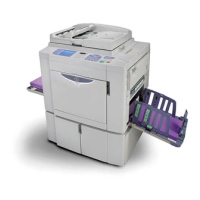
When using a Linked Printer (sold separately)
Duplex Printing [Duplex]
240
7
Enter the number of copies using the
Print Quantity Keys.
The number is displayed on the Print Quantity Dis-
play.
Note:
• To change the number, press the key,
then re-enter the correct number.
8
Press the key.
Subsequent procedures will be different depend-
ing on whether you place the original on the
Platen Glass or in the Auto Document Feeder DX-
1. Follow the processes below suitable for each
case.
Important!:
• You cannot use both the Platen Glass and the
Auto Document Feeder DX-1 at the same time
to scan the original.
Setting the original on the Platen
Glass
Place the first original document on the Platen
Glass, wait for the message “Duplex Process-
ing for Linked Printer” to disappear, then place
the second original and press the key.
Once data for both sides of the paper is trans-
mitted, the Linked Printer will print the specified
number of copies.
To print multiple Duplex Print copies, repeat
steps 5-8 of Duplex Printing.
Important!:
• Once the first original is scanned, the next orig-
inal must be placed within pre-determined
Duplex Interval period on the Admin. screen
()p.178). Failure to do so will result in the
Linked Printer printing one side only.
Note:
• Pressing the key without placing the sec-
ond original will also result in the Linked Printer
printing one side only.
• Setting adjustment can be made on the follow-
ing functions after placing the second original
and before its scan starts:
– Image Processing mode ()p.70)
– Scanning Density ()p.77)
–Size ()p.78)
– Dot Process ()p.72)
– Contrast Adj ()p.74)
– Tone Curve ()p.75)
Using the Auto Document Feeder
DX-1
The top sheet is scanned first.
As each original page is scanned, the Linked
Printer prints specified number of copies.
A4
<Duplex Processing for Linked Printer>
Reverse-Page Scan->START / Simplex->STOP
Image Contrast Size Paper
SelectionsBasic Functions Admin.
LBP1
MP
Idle
Auto Auto
1 2
A4 A3 B4
Line
Book
Shadow
(A4)



 To Next Page