Troubleshooting
When a Message Displays
275
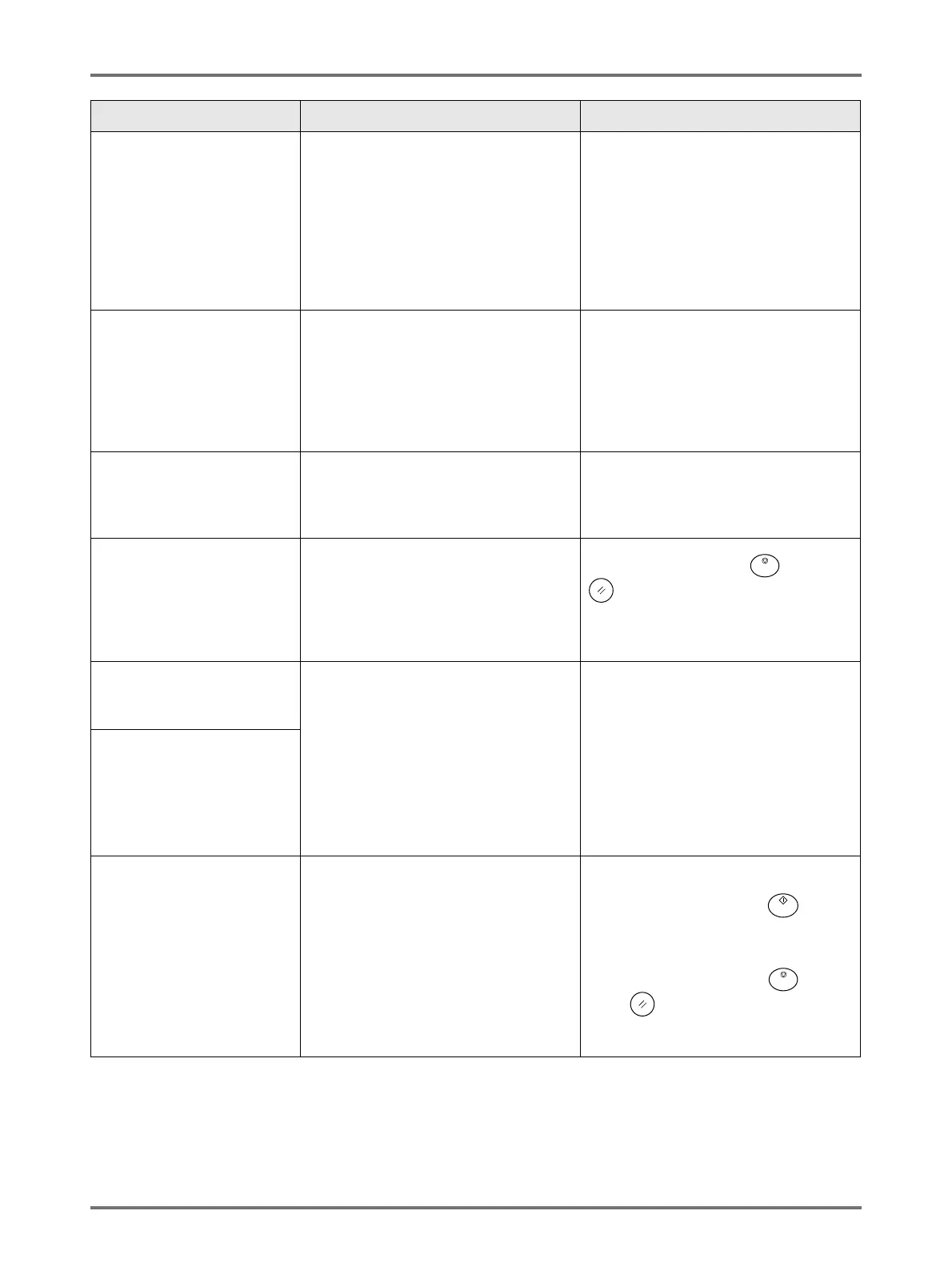
Either of Masters is Made
in Ink Saving Process
Operate Dual-Colour
Printing?
One of the masters on either Drum 1 or
Drum 2 was created in “Ink Saving”
mode, while the other master is of
regular printing quality.
Proceeding to print with existing set of
masters by simply touching [Continue]
button will result in poor colour balance,
i.e., one of the colours may be too dark
or too light.
To correct this problem, touch [Cancel]
and create another set of masters in the
same mode.
Enter Print Quantity Over
[nn],
Programmed Minimum
Value
You are trying to print fewer copies than
previously specified on “Minimum Print
Quantity”.
Touch [Close], and specify the number
of copies higher than the number
displayed on the message.
or
You can change “Minimum Print Q’ty” on
the Admin. screen.
)p.177
!! Exceeding Number of
Editing Areas Selected !!
Deselect Some Areas and
Redo Colour Separation
Too many areas are selected. Up to 20 pen areas may be selected.
Reduce number of selected areas.
!! Multi-Up is Not Available
with This Paper Size !!
Replace with Proper Paper
of Standard Size
Multi-up functions cannot be used when
custom-sized paper is in the Paper Feed
Tray.
Touch [Close].
(Alternatively, press the key or the
key to clear.)
Load standard size paper in the Paper
Feed Tray.
No Master on
Print Drum 1
Make a New Master
You are attempting to print, but there is
no master on the Print Drum.
Touch [Close].
Set the original and create a master.
Important!:
• Do not leave the Print Drum without a
master. This dries out the drum and
causes damage. You must either
create a master or perform a
“Confidential” operation to wrap a
master around the Print Drum.
No Master on
Print Drum 2
Make a New Master
!! Number of Copies
is set to "0"!!
Printing Operation will
Start on this Printer
Number of print copies is set to "0", yet
“Link-Free Volume” is set to ON when
Linked Printer is connected.
• When printing from the machine;
Touch [Continue].
(Alternatively, press the key to
print.)
• When stopping the print job;
Touch [Cancel].
(Alternatively, press the key or
the key to clear.)
Then, enter print quantity.
)p.178
Message Symptom Action


 To Next Page
 Loading...