Basic Operations
2-Colour Printing with 2 Originals
43
8
Place the original for Drum 2.
When Placing on Platen Glass
Remove the original for Drum 1 from the platen
glass and place the original for Drum 2 in the
same way as indicated in step 5.
When placing one original at a time
in the ADF unit (when [Auto
Process] is turned off)
You do not need to remove the Drum 1 original.
Place the original for Drum 2 in the same way
indicated in step 5.
9
Set the print functions for the Drum 2
original.
You can set print functions of the original for Drum
2 as needed.
If you make no settings, the same settings as the
first original are applied.
Note:
• The print functions that can be set for the Drum
2 original are as shown below.
Auto Process ()p.83)
Making a master and printing in one pass
Image Processing mode ()p.70)
Selecting Image Processing mode for the
document
Scanning Contrast ()p.77)
Selecting Scanning Contrast for the original
Size ()p.78)
Enlarging/Reducing the Image
Dot Process ()p.72)
Applying Dot Process to photos
Tone Curve ()p.75)
Adjusts the gradation of a photo original.
Top Margin ()p.104)
Cuts the top margin of an original with a mar-
gin and creates a master.
Side Margin ()p.106)
Adjusts the side margins and creates a mas-
ter.
This setting is available when the ADF (Auto
Document Feeder) unit (Option) is installed.
10
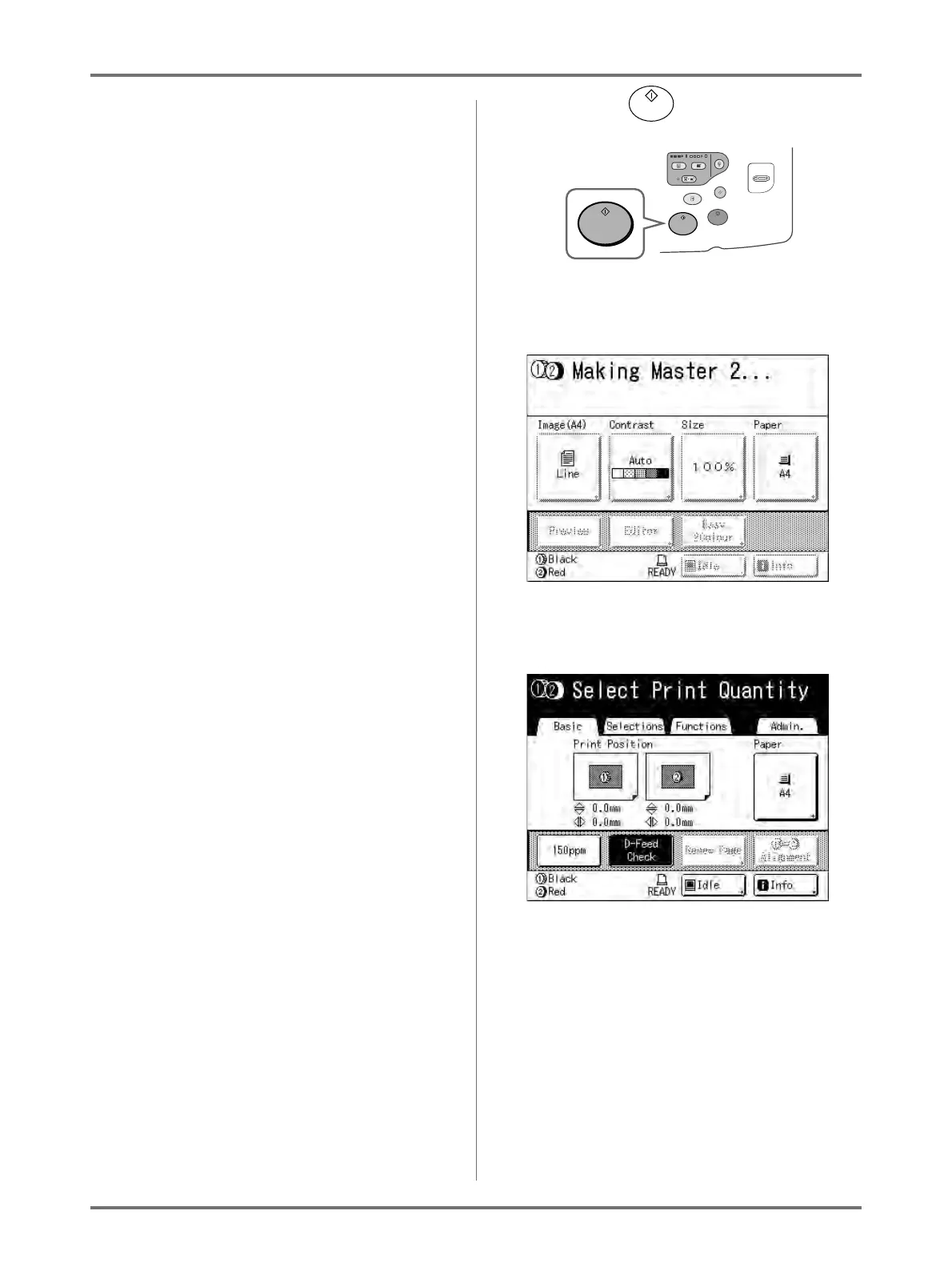
Press the key.
The scan of the original for Drum 2 begins.
Once the scan has completed, the master is made
for Drum 2.
Once the masters are made, a 2-Colour proof
copy is printed, then the Print Basic Screen
appears.
Note:
• When “Auto Process” is selected, the process
will be different.
)p.83



 To Next Page